When the power button is not working, three jobs get awkward: locking the screen, waking the phone and restarting it. The short version: lock with a double tap on the screen or the Lock screen item in the Accessibility Menu, wake with double tap or lift to wake, and restart from the power icon in Quick Settings. A floating button can lock the phone and open the power menu too, but it cannot wake a sleeping screen.
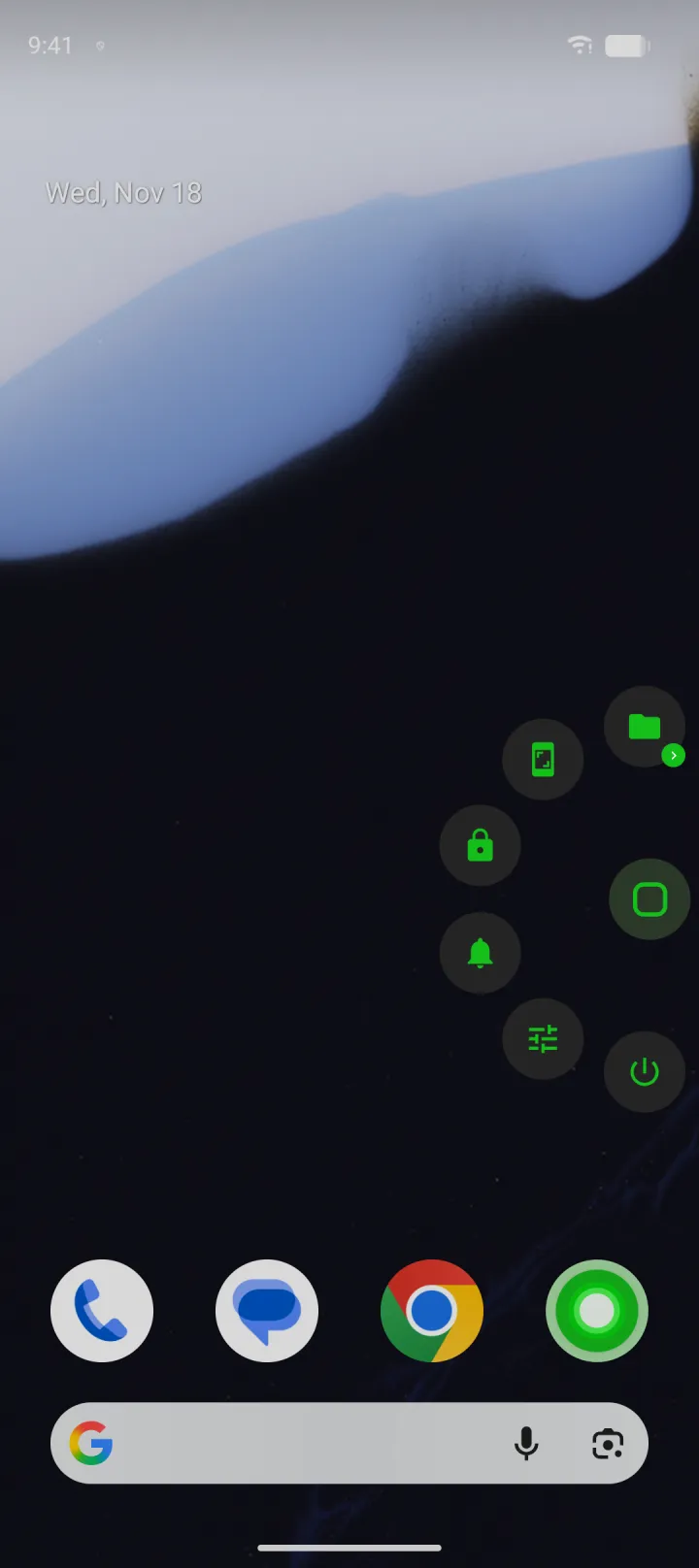
A floating button menu with Lock Screen and Power Menu. Captures in this article were made on a Pixel emulator running Android 17.
First, check whether the button is really broken
A tight case can press the key permanently, so the phone ignores it or keeps waking itself. Take the case off and try again. Grit under the key does the same, so a dry brush or a puff of air is worth a minute. Do not press harder, since forcing a sticky key can bend the flex cable behind it.
How to lock your Android screen without the power button
- Double tap to lock. On Samsung, turn on Settings > Advanced features > Motions and gestures > Double tap to turn off screen. Xiaomi, Redmi and POCO have Double tap to lock under Home screen settings, and OPPO, realme and vivo have a similar gesture. Search Settings for "double tap" if the name differs.
- Accessibility Menu (Pixel and stock Android). Under Settings > Accessibility > Accessibility Menu, switch on the shortcut. The panel it opens has Lock screen and Power.
- Screen timeout. A 15 or 30 second timeout locks the phone by itself, with no gesture.
How to wake an Android phone without the power button
A sleeping screen only responds to hardware and system wake gestures:
- Double tap to wake. On Samsung it is under Motions and gestures. Xiaomi, OPPO and vivo have a switch in their gesture or display settings.
- Tap or lift to check phone. On Pixels, turn it on under Settings > Display & touch > Lock screen.
- A charger. Plugging in a cable lights the screen on most phones. Use it to get in once, then enable one of the options above.
How to restart or power off without the power button
Swipe down for Quick Settings and tap the power icon. Pixels offer Power off and Restart, and Samsung's icon at the top right opens a menu with Restart. The Accessibility Menu's Power item opens the same dialog on stock Android. Samsung's Auto restart and the Schedule power on/off setting on Xiaomi, OPPO and vivo can restart or power on the phone at a set time.
What if the phone is already turned off?
Software cannot start a phone that is fully off. Plug it into a charger, since many phones boot when power is applied, and some start if you hold a Volume key while plugging in. If neither works, the key or its flex cable needs repair, so back up what you can first.
Lock and restart Android with a floating button
Floatify is a floating button with a menu of actions, no ads and no account. Lock Screen turns the screen off and locks the phone, and Power Menu opens the system power options: Emergency, Power off and Restart. Both use Android's Accessibility service, so switch Floatify on under Settings > Accessibility once. Floatify shows a dialog explaining where if you forget. Both work on Android 10 and later.
Lock Screen is in the default menu. Power Menu is in the System group of the picker behind Add action.... Add it, then tap the floating button and the power icon, and Android opens its own power dialog over your current app.
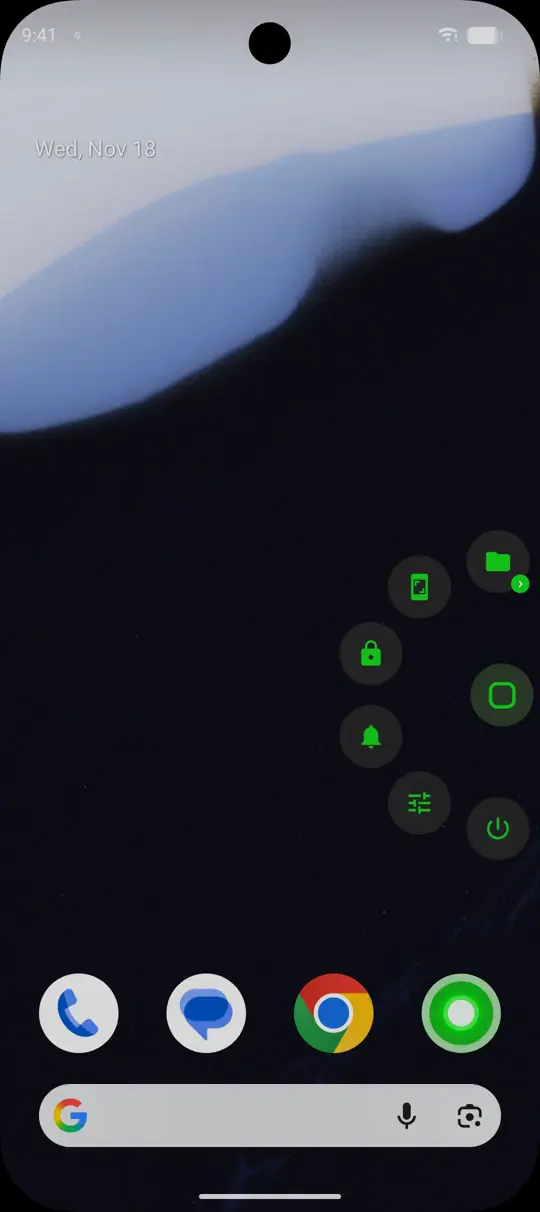
Power Menu from the floating button: Android's own dialog appears, and Back closes it.
Put Lock Screen on a double tap or a long press
In Floatify, open Gestures and tap Double Tap or Long Press. Lock Screen is in the Utility group. Here Double Tap is set to Lock Screen and Long Press to Power Menu, so the two replace what the key used to do. A Double Tap action adds a short delay before a single tap opens the menu, which the Double tap speed row inside the Double Tap picker tunes.
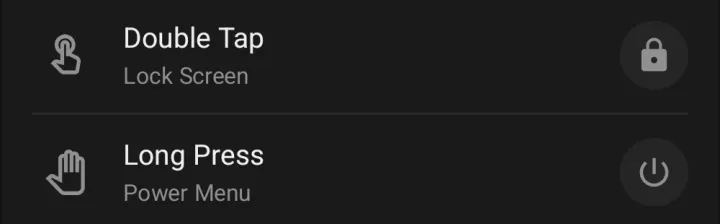
Double Tap locks the screen, Long Press opens the power menu.
What Floatify cannot do
Floatify cannot wake a phone whose screen is off, and it cannot start one that is powered down. Use the wake options above for that.
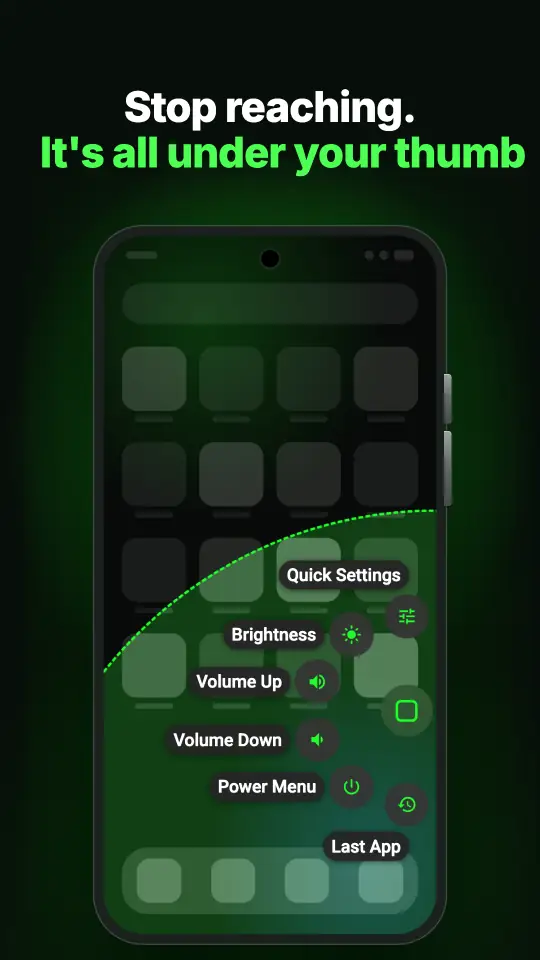
Floatify's menu keeps actions inside thumb reach, here with Power Menu, Quick Settings, Brightness and more.
Other worn keys and shortcuts
The power key is also half of the usual screenshot combo, so the screenshot guide covers that. If other keys are worn too, see the home button guide and the virtual home button article.
FAQ
How do I turn on my Android phone if the power button is broken?
Plug it into a charger. Many phones boot when power is applied, and some start if you hold a Volume key while plugging in. If nothing happens, the key or its flex cable needs repair.
How do I lock my Android screen without the power button?
Use double tap to turn off screen on Samsung or the double-tap lock gesture on Xiaomi and OPPO, the Lock screen item in the Accessibility Menu, or a floating button with a Lock Screen action.
How do I restart or power off Android without the power button?
Open Quick Settings and tap the power icon, or use the Power item in the Accessibility Menu.
No ads. No sign-up. Works on Android 10+.