A cracked power button, a stiff volume key or a bulky case makes the two-button press awkward. These software shortcuts replace it.
The fastest ways: open Recents and tap Screenshot, use your brand's gesture (palm swipe on Samsung, three-finger swipe on most Chinese brands, Quick Tap on Pixel), or add a floating button.
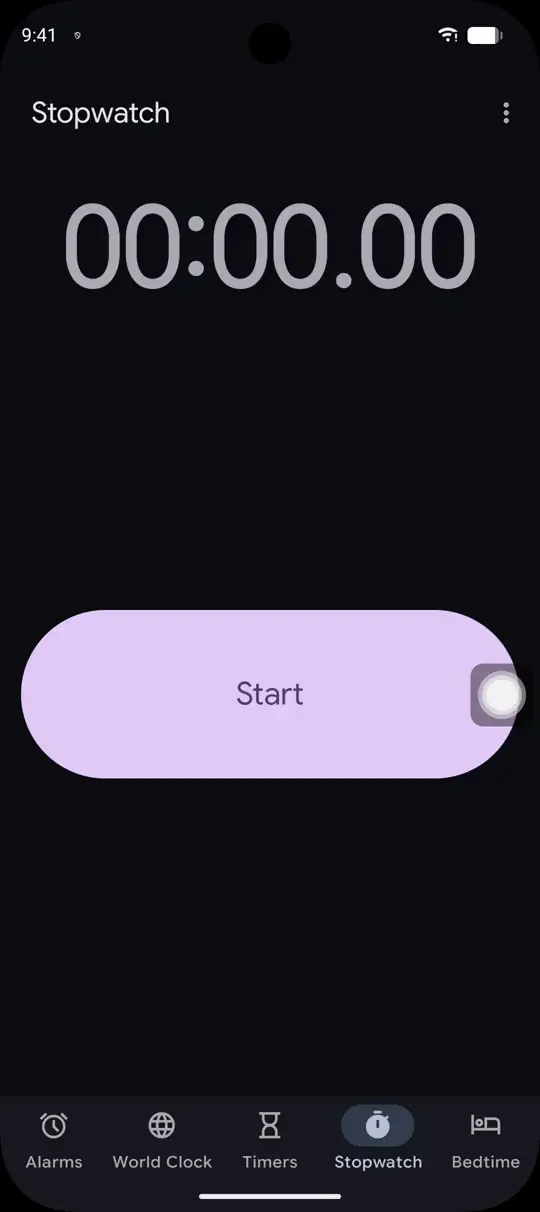
A floating button on the edge of the screen. Captures in this article were made on a Pixel emulator running Android 17.
Built-in ways to take a screenshot without the power button
Menu names move around between versions, so treat the paths as a guide.
- Recents (Pixel and near-stock phones): open Recents and tap Screenshot under the app preview. No setup.
- Pixel Quick Tap: Settings > System > Gestures > Quick Tap to start actions, then choose Take screenshot and double tap the back of the phone.
- Samsung: turn on Palm swipe to capture under Settings > Advanced features > Motions and gestures, then swipe the edge of your hand across the screen. A Take screenshot tile can also be added to Quick Settings.
- Xiaomi, OPPO, vivo, OnePlus: swipe three fingers down the screen. It is often on by default; if not, look for a screenshot or gesture shortcut entry in Settings.
- Huawei: tap the screen twice with one knuckle, if your model still has it (Settings > Accessibility features > Shortcuts & gestures).
- Voice: "Hey Google, take a screenshot" works where Google Assistant is available. Gemini may analyze the screen instead of saving a file, so test it once.
- Accessibility Menu: Settings > Accessibility > Accessibility Menu, switch on the shortcut, and a button opens a panel with Screenshot.
After a capture, the preview often offers a longer shot: Capture more on recent Pixels, Scroll capture on Samsung.
Screenshot with a floating button, on any phone
Each method above is tied to a brand, so a new phone means starting over. A floating button gives one gesture on any phone, placed under your thumb.
Floatify is a floating button with a menu of actions, no ads and no account. Its Screenshot action asks Android to capture the screen through the Accessibility service, so you get the same image and preview as with the buttons. The first time you use it without that service, Floatify shows where to turn it on under Settings > Accessibility. You do this once.
Put Screenshot on a gesture
Open Gestures in Floatify and tap Double Tap. Screenshot is in the Utility group of the picker. Long Press and the four swipe directions work the same way.
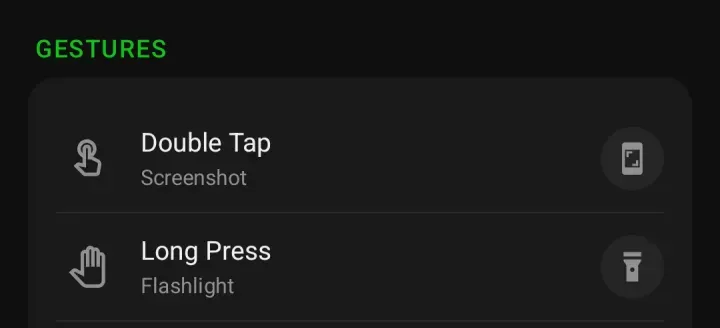
Double Tap set to Screenshot in the Gestures section.
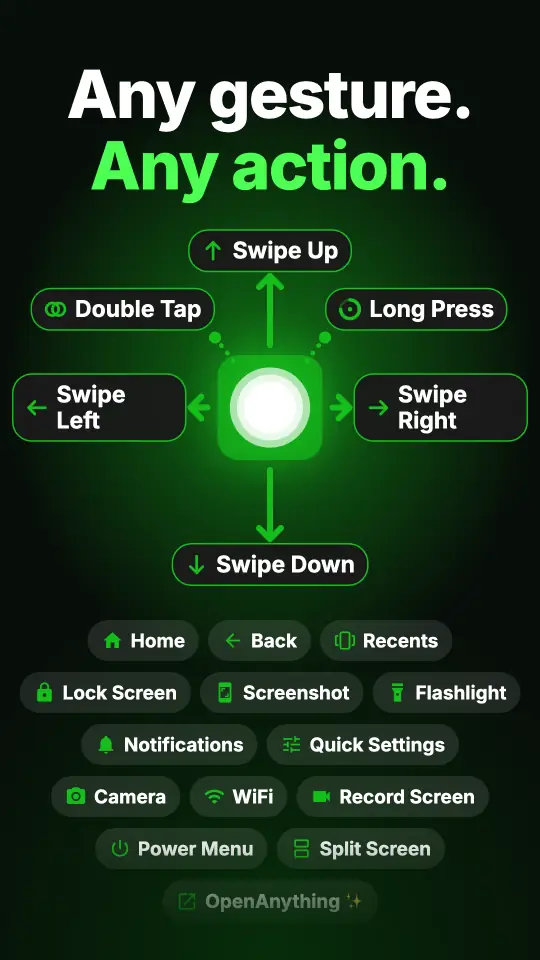
Floatify gestures: every tap, hold and swipe can run its own action.
Screenshot is also in the default radial menu. For a one-tap screenshot with no menu, set the Menu Style to Single Action, then pick Screenshot on the Single Tap row. If the double tap is hard to land, tap Double tap speed at the top of the Double Tap picker and drag the slider toward Slow. A slower speed also makes the menu open a little later, because a single tap waits the same moment.
Keep the button out of the screenshot
In Behavior, turn on Hide on screenshot (off by default). Floatify hides the button just before the capture and shows it again about two seconds later. It only applies to screenshots taken with Floatify's Screenshot action, not the hardware buttons.
Double tap the button: it hides, Android takes the screenshot and shows its usual preview, and the button comes back.
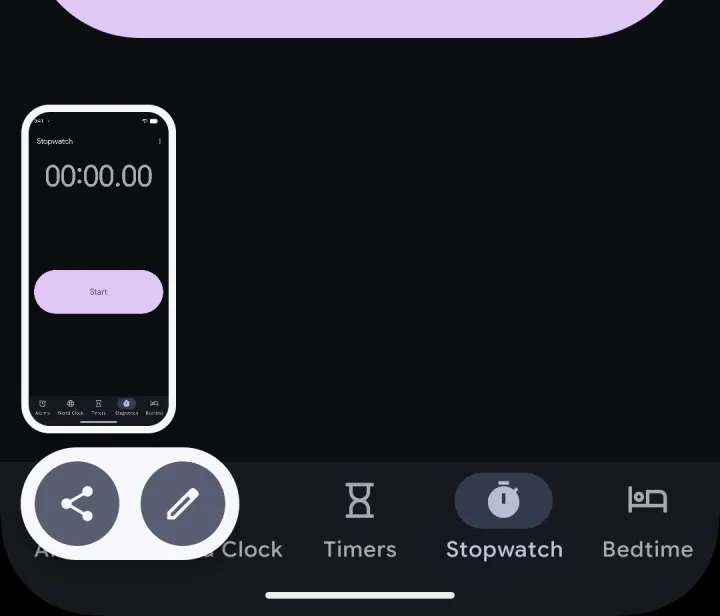
Android's own preview, with share and edit buttons, right after the capture. The file is saved in your normal Screenshots album.
More with Floatify
For more uses, see the gaming shortcuts post, the one-handed tips and customizing the floating button.
FAQ
How do I take a screenshot on Samsung without the power button?
Turn on Palm swipe to capture under Settings > Advanced features > Motions and gestures and swipe the side of your hand across the screen.
How do I take a screenshot if both the power and volume buttons are broken?
Use Recents, a gesture such as palm swipe, three-finger swipe or Quick Tap, the Accessibility Menu, or a floating button with a Screenshot action.
Does Floatify need Accessibility to take a screenshot?
Yes. Screenshot uses Android's accessibility function, so Floatify's Accessibility service has to be on. Floatify asks the first time you use it.
No ads. No sign-up. Works on Android 10+.