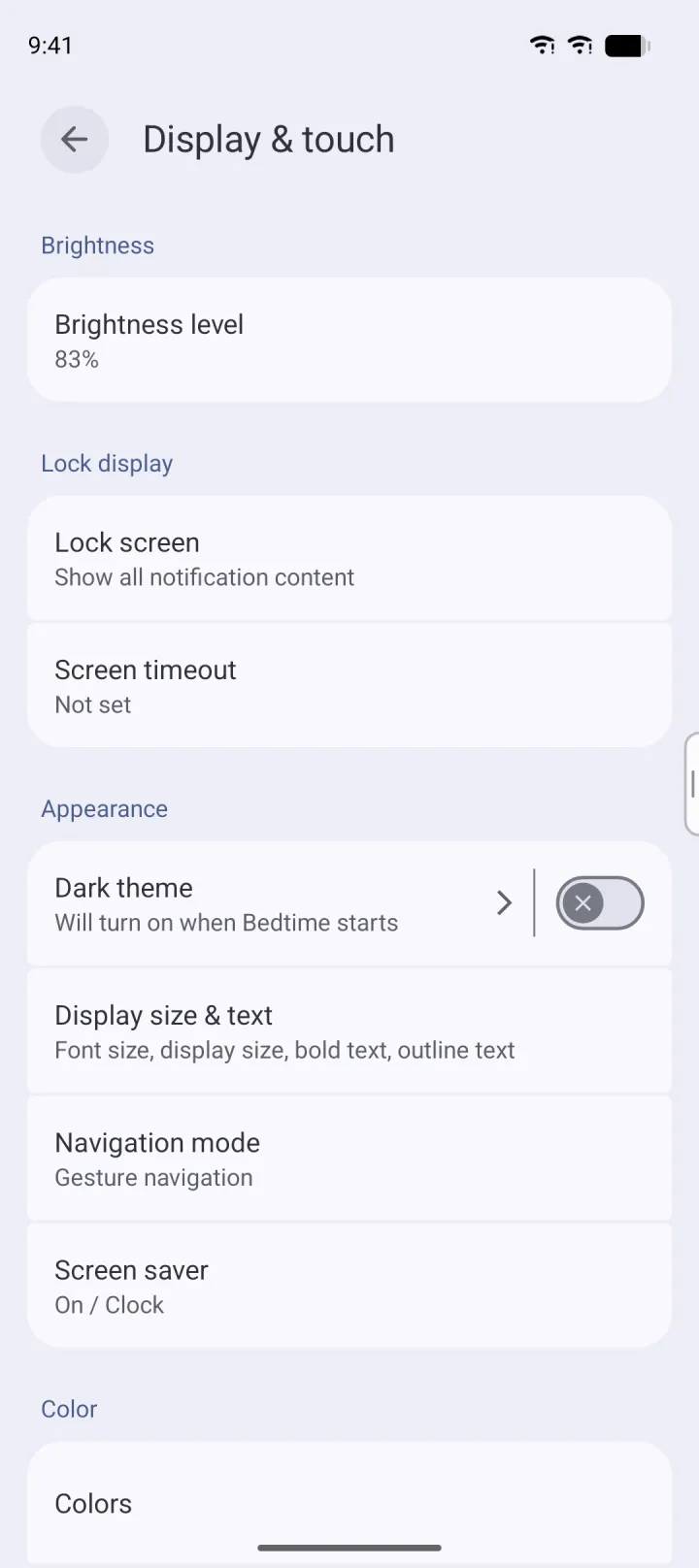
The same floating button after a few idle seconds: a thin bar on the right edge, with the page behind it fully readable. Captured on a Pixel emulator running Android 17.
A floating button is great until it sits on top of the Send button in a chat or a control in a game. You do not have to turn it off. Set it to tuck itself away between taps.
The short answer: Android has no built-in auto-hide for a third-party floating button, so it has to come from the button's own app. In Floatify, open Behavior > Resting mode, pick Edge bar or Peek, and set Rest after to the idle time you want. Tap the bar to open the menu right there, or touch the Peek sliver to slide the button back out.
Can you auto-hide a floating button on Android without an app?
Mostly not. The button belongs to the app that draws it. The one system exception is the Accessibility button: in the floating style it can fade when idle (Settings > Accessibility, floating menu options), but it is a single shortcut, not a menu of your own.
Shrinking the button or making it transparent helps, but it still catches taps meant for the app behind it. Resting modes fill that gap.
How to auto-hide assistive touch on Android: Fade, Edge bar and Peek
The Resting mode row is at the top of the Behavior card, and its subtitle shows your choice, for example "Fade, after 3s". Tap it to pick a style.
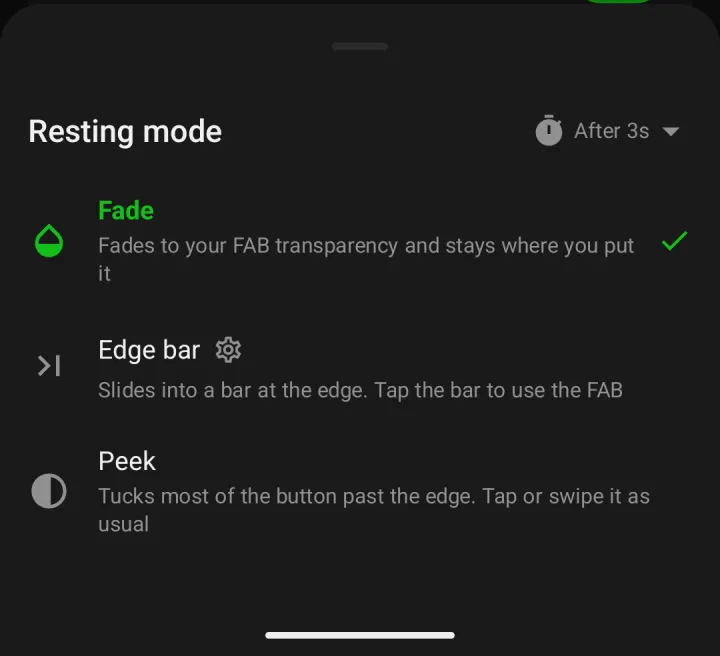
The Resting mode sheet: three styles, plus the delay chip in the top corner.
- Fade (default) dims the button to your FAB transparency setting (30 percent by default) and leaves it in place. It still covers the pixels behind it.
- Edge bar slides the button to the nearest edge as a slim handle with a short grip line. It removes the most from the screen.
- Peek tucks about 70 percent of the button past the edge, so you still see its shape. Touch the sliver and it slides out.
Pick Edge bar for reading, video and chat, and Peek if you want a custom emoji or photo to stay recognizable.
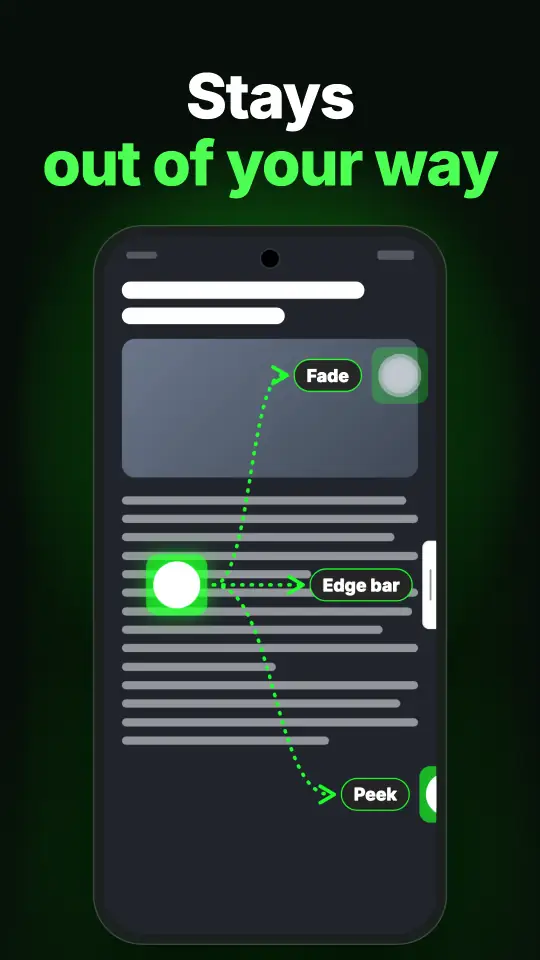
Floatify's own overview of the three styles (a promo graphic, not a raw screenshot).
How to make the floating button rest sooner or later
Tap the After 3s chip (Rest after) in the sheet to set the idle delay: Immediately, 2, 3 (default), 5, 10 seconds, or Custom... (0 to 300 whole seconds). With Edge bar and Immediately, you only ever see the bar, never the round button. If you use a double tap gesture, Floatify waits for the double tap window to close before resting.
Using the edge bar shortcut and gestures
A tap on the bar opens the menu in place; after you close it, the button settles back into the bar after the delay.
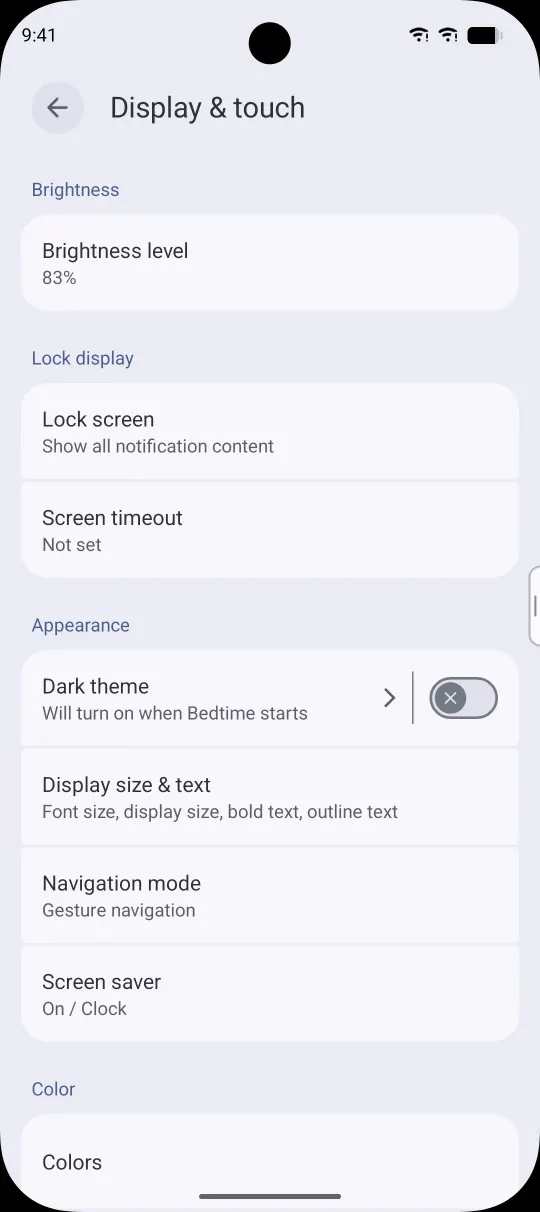
Tap the bar, the menu opens, tap away, and the button rests back into the bar after the delay (2 seconds here; the default is 3). Recorded on a Pixel emulator.
The bar keeps your gestures too: a swipe along or inward from the edge, a double tap and a long press each run the action you set, without opening the menu. With the Single action menu mode, a tap runs that action directly.
Customize the Edge bar
Tap the gear next to Edge bar to open its settings; changes show live.
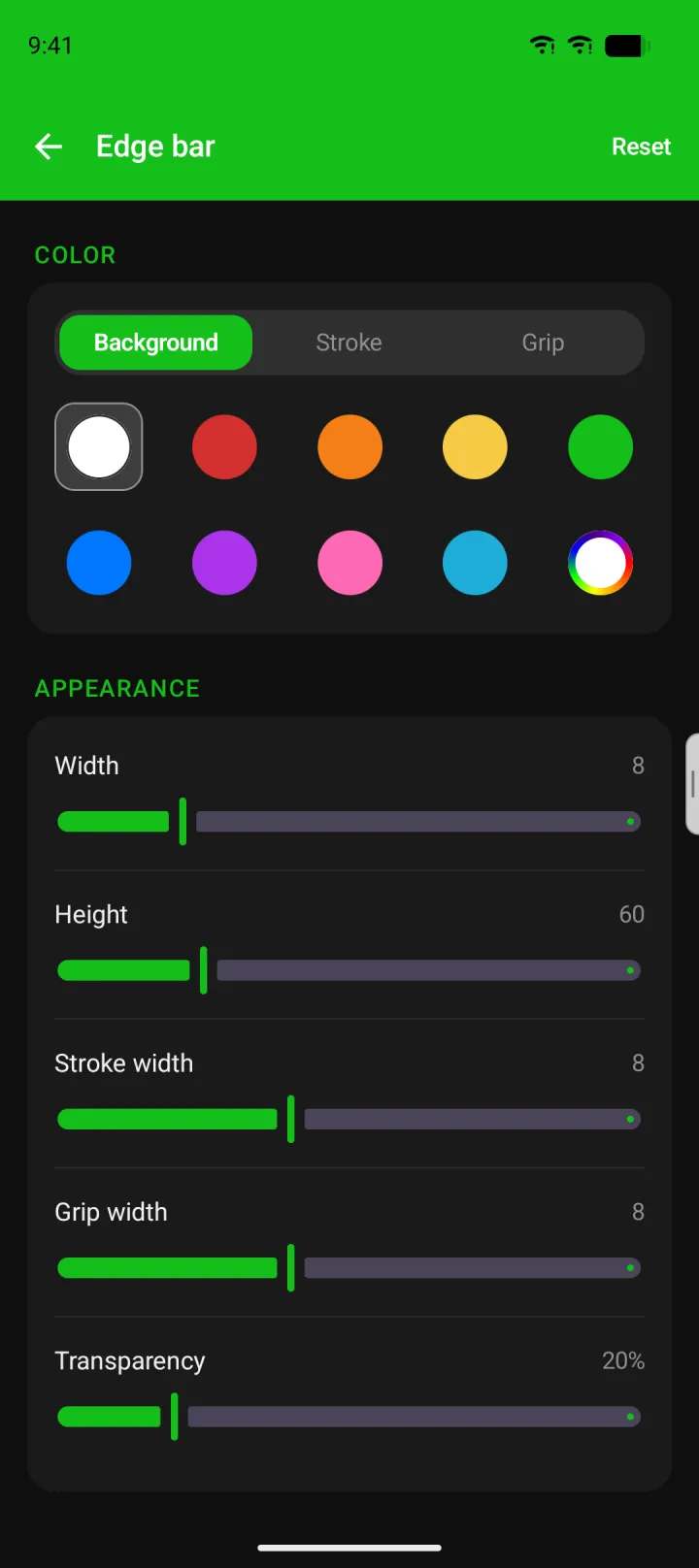
The Edge bar screen: three color targets, then width, height, stroke, grip and transparency.
You can set Background, Stroke and Grip colors, Width (2 to 30, default 8), Height (40 to 120, default 60), stroke and grip widths (0 to 20) and Transparency (20 percent by default). Reset restores the defaults. A narrow bar fades into the page; a wider one is easier to hit in a game.
Stop the floating button from covering your keyboard
Move above keyboard in the Behavior card is on by default. When a docked keyboard opens over the button, it glides up clear of the keyboard and the message bar, then returns to its exact spot when the keyboard closes. It needs Android 11 or newer and the Accessibility permission, and floating keyboards are ignored.
Hide the button in fullscreen apps
Auto-hide in fullscreen (off by default) hides the button while an app is fullscreen. If the button vanishes unexpectedly, check it first, and see the guide on a floating button that keeps disappearing.
For a manual option, add the Minimize FAB action to the menu or a gesture. It shrinks the button into a bar on the nearest edge until you tap it. It is not Hide FAB, which turns the button off.
Edge bar and Peek work best with Snap to edge on (the default). More in customizing the floating button.
FAQ
How do I make assistive touch auto-hide on Android?
Android has no built-in auto-hide for third-party floating buttons. In Floatify, open Behavior > Resting mode, choose Edge bar or Peek, and set the Rest after delay.
Will the floating button block taps in the app behind it?
As an edge bar or Peek, only the visible bar or sliver and a small margin take taps. Fade does not move the button, so it still covers what is under it.
How do I stop a floating button from covering the keyboard on Android?
Check that Move above keyboard is on in Floatify's Behavior card (it is on by default). It needs Android 11 or newer and the Accessibility permission.
No ads. No sign-up. Works on Android 10+.