What a Floating Button Actually Is
A floating button is a small interactive button that sits on top of every other screen on your phone. It doesn't disappear when you open an app. It stays there - visible, tappable - regardless of what you're doing.
Tap it once and it either triggers an action directly (take a screenshot, go home, toggle the flashlight) or opens a small radial menu of shortcuts. That's the whole idea. No hunting through menus, no reaching for hardware buttons on the edge of your phone. Just tap.
If you've ever used chat apps that show a small bubble on your screen even when you're inside another app, you've already seen the same concept in action. A floating button works the same way - it lives in its own layer above your apps.
Where the Idea Came From
Apple introduced a feature called AssistiveTouch in iOS as an accessibility tool. It was originally designed for people who had difficulty pressing hardware buttons - damaged phone, limited mobility, whatever the reason. A virtual button on screen could stand in for the physical ones.
It caught on far beyond that original use case. People who had perfectly working hardware buttons started using it anyway, because a button that's always visible and always reachable is genuinely more convenient. You don't have to shift your grip. You don't have to reach to the edge of your phone. The shortcut is right where you put it.
Android users noticed, and the concept moved over. Today, floating button apps are one of the most-downloaded utility categories on the Play Store - used by tens of millions of people who just want faster access to the things they do constantly.
How It Works (The Non-Scary Version)
Android has a permission called "Display over other apps" (technically SYSTEM_ALERT_WINDOW). It lets an app draw a window that sits above all other apps on screen. This is the same permission that lets messaging apps show chat bubbles floating over your screen while you use other apps.
A floating button app uses this permission to place its button in that overlay layer. The button is its own little window - always visible, always interactive.
Here's the important part: the overlay only handles taps on the button itself. It cannot intercept your taps inside other apps, cannot read what's on your screen, and cannot access your camera, microphone, or any other hardware unless you've specifically granted those permissions for a linked action. It's a UI element, not a system agent.
Android shows you exactly which apps have this permission in Settings, and you can revoke it any time.
5 Reasons People Use a Floating Button
1. Instant access without breaking your flow Screenshot, flashlight, volume - these are things people reach for constantly. With a floating button you hit them from any app without pausing what you're doing. No pull-down shade, no button combo, no leaving your current screen.
2. One-hand use on large phones Modern phones are big. The hardware buttons and gesture zones are at the edges and bottom - hard to reach if you're holding the phone in one hand. A floating button can be positioned exactly where your thumb lands naturally. Center of screen, left side, wherever works for you.
3. Replacing gestures you keep forgetting Android's gesture navigation is powerful but not obvious, especially if you came from an older phone with physical back and home buttons. A floating button that does "back", "home", and "recents" reliably is a simple substitute that just works.
4. Productivity shortcuts Open a specific app, silence all notifications, lock the screen, adjust volume - all from a single tap point. Some people build a small personal dashboard in their floating menu: the four or five things they do dozens of times a day, one tap away from anywhere.
5. Familiar if you're switching from iPhone If you spent years using AssistiveTouch on iOS, the absence of it on Android feels odd. A floating button app fills that gap with the same core idea - a persistent shortcut layer that sits over everything else.
Who Actually Uses Floating Buttons
The user base is wider than you might expect. Heavy phone users who want every interaction to be faster. Gamers who need to screenshot a high score or mute audio without exiting a game mid-session. Older users who find the physical buttons on modern phones awkward or unreliable. iPhone switchers who are used to the paradigm. And plenty of people who just discovered the feature, tried it, and decided they liked it.
There's no single profile. The common thread is wanting quick, reliable access to actions they use constantly.
What a Floating Button Cannot Do
Worth saying plainly: a floating button overlay cannot see inside other apps. It cannot intercept what you type. It cannot access your camera or microphone unless you've deliberately added a camera or mic action and granted those permissions for that purpose. It cannot do anything in the background that you haven't set up yourself.
It's a button. It sits on top of your screen. You tap it, something happens. That's the boundary of what it does.
The "Display over other apps" permission sounds broad - and in the wrong hands it could be misused by a malicious app. This is why it's worth using a reputable app with a clear, readable permission model, not something with a long list of unexplained permissions.
Getting Started with a Floating Button on Android
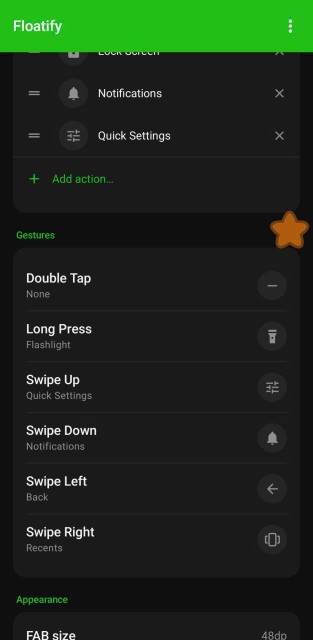
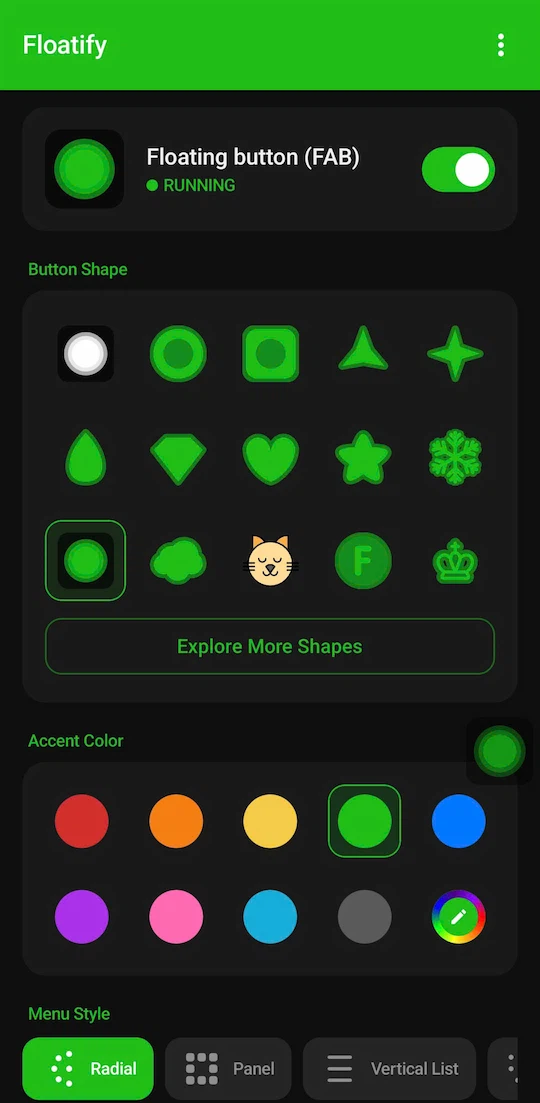
Floatify is a free Android app with no ads and all features included from the start. You get a customizable floating button with actions for home, back, recents, screenshot, lock screen, flashlight, Wi-Fi toggle, Do Not Disturb, volume, and more. The button shape can be set to any of 100+ shapes or chosen from 1,000+ emojis. You can assign up to three different gesture slots - tap, long press, swipe - and pick from multiple menu layouts.
It works on Samsung, Xiaomi, OPPO, Pixel, and Android phones generally. Setup takes about a minute: install, grant the overlay permission, position the button where you want it.
If you're new to floating buttons, the setup guide below walks through each step.
Also Read
No ads. No sign-up. Works on Android 10+.