What Is a Virtual Home Button?
A virtual home button is a small floating button that stays visible on your screen at all times. Tap it once and you go home - same as pressing the physical home button on older phones.
It lives on top of every app, every screen, every game. You place it where your thumb naturally rests, and it stays there.
This is not a fix for a broken home button (though it works for that too). It is a convenience tool for people who want a predictable, always-accessible way to navigate their phone without retraining muscle memory for swipe gestures.
Why Choose a Virtual Button Over Built-In Navigation?
Android ships with two navigation options: a 3-button bar at the bottom, or full swipe gestures. Both have real limitations.
The 3-button nav bar takes up permanent space at the bottom of every screen. It disappears in full-screen apps and games. You cannot move it to a better position for one-handed use.
Swipe gestures free up the screen but require you to swipe from specific edges - and the target area changes depending on the app. Muscle memory takes time to build, and it breaks when you switch between phones.
A virtual floating button solves both problems:
- It is always visible, even in full-screen apps
- You place it exactly where your thumb lives - bottom-left, bottom-right, wherever
- One consistent tap action, no edge-finding required
- It never physically wears out the way a hardware button does
- Works identically across every app on your phone
Does Android Have a Built-In Virtual Home Button?
No built-in option exists. Android's navigation bar sits at a fixed position and disappears in immersive apps. There is no system setting to add a floating home button.
Third-party apps fill this gap. Floatify is a free option - no ads, no paywalls, every feature unlocked from day one.
Setting Up Floatify as Your Virtual Home Button
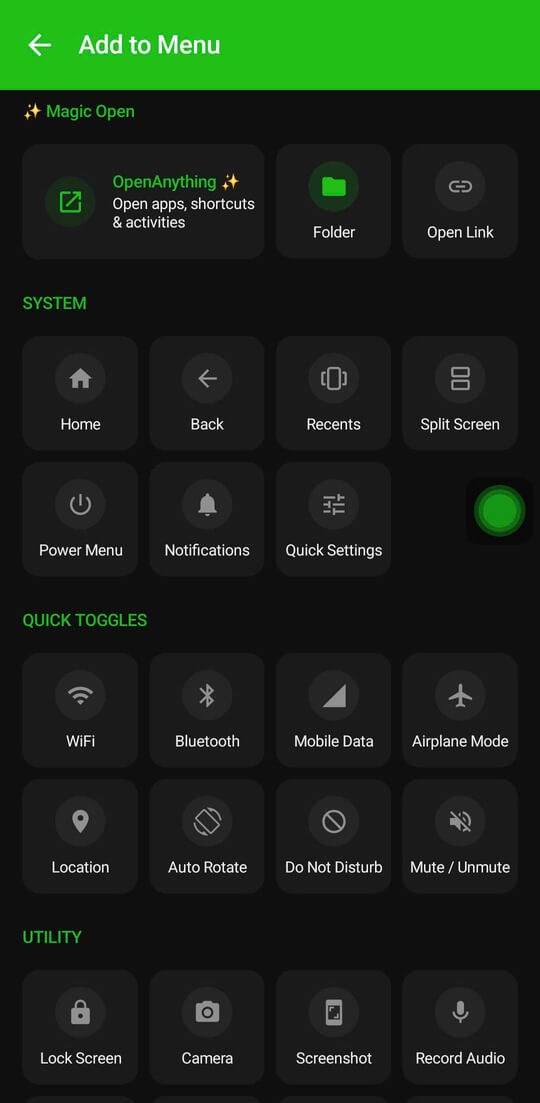
Step 1 - Download Floatify
Install Floatify from the Play Store. It is free with no ads and no in-app purchases.
Step 2 - Grant the Overlay Permission
When you open Floatify for the first time, it will ask for "Display over other apps" permission. This is what allows the button to float above every screen. Tap the prompt and toggle the permission on in system settings, then return to Floatify.
Step 3 - Set Single Tap to Home
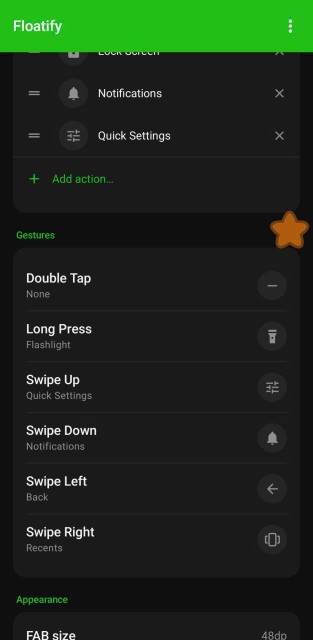
In Floatify's settings, find the Gesture section. Set Single Tap to Home. That is the core action - one tap, go home.
Step 4 - Pick a Small, Unobtrusive Shape
Floatify includes 100+ button shapes - circles, rounded squares, animals, fruits, letters, symbols - plus 1,000+ emojis you can use as the button face. For a virtual home button, a small filled circle or simple geometric shape works best. It blends into the screen without blocking content.
Step 5 - Position It Where Your Thumb Lives
Drag the button to your preferred corner or edge. The button snaps to the screen edge when you release it near one, so it sits flush and stays out of the way. Most people settle on the bottom-left or bottom-right corner.
You now have a functional virtual home button on Android.
Make It a Full Navigation Replacement
Once single tap handles Home, you can assign the other two core navigation actions to the remaining gesture slots:
- Double tap - Back
- Long press - Recents (recent apps)
Three gestures, three navigation actions, one small button. You never need to touch the system navigation bar again. Go to Floatify settings and set each gesture slot independently.
Tips for Daily Use
Auto-Hide for Games and Camera
Some apps should not have anything floating over them. In Floatify, you can set per-app auto-hide rules. Add your game, camera app, or video player to the list - Floatify disappears while those apps are active and reappears when you leave them. No interference, no accidental taps.
Use Transparency to Make It Less Noticeable
If the button feels visually intrusive, open the appearance settings and reduce the opacity. At 40-50% transparency the button is still easy to tap but barely noticeable when you are focused on content. It becomes visible again when you glance toward it.
Go Smaller Than You Think
The default size is comfortable for first-time setup, but most people end up going smaller after a day or two. A smaller button covers less screen content and still hits accurately once your muscle memory locks in. Try reducing the size by 30% after your first week.
Frequently Asked Questions
Does a virtual home button work if my hardware buttons stop responding?
Yes. Floatify draws over the system UI and does not depend on physical buttons at all. If your hardware home button is unresponsive, Floatify's tap-to-home action works as a complete replacement.
Will it interfere with games?
No - if configured correctly. Use the auto-hide feature to add your games to an exceptions list. Floatify will disappear while the game is running and return when you exit. No accidental taps, no overlay blocking gameplay.
Is the button always visible, even inside apps?
Yes. That is the point of "display over other apps" permission. The button floats above every app, including full-screen video players, browsers, and games. The only exception is apps you add to the auto-hide list.
Does it work on all Android brands?
Yes. Floatify works on Samsung, Xiaomi, OPPO, Realme, OnePlus, Google Pixel, Motorola, and other Android devices running Android 7 or newer. The setup steps are the same across all brands.
Do I need to disable gesture navigation to use Floatify?
No. Floatify runs alongside whatever navigation system is active. You can keep swipe gestures or the 3-button bar enabled and still use the floating button. Most users end up ignoring the built-in navigation once Floatify is set up, but you do not need to remove it.
Also Read
No ads. No sign-up. Works on Android 10+.