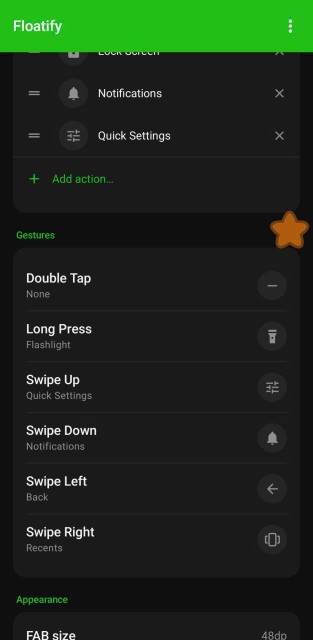
Generic Android advice misses most of what actually goes wrong with a Galaxy home button, because One UI has several home button behaviours that stock Android simply does not have.
Start by working out which kind of home button your Galaxy has - the rest of this guide depends on it.
Which Home Button Does Your Galaxy Have?
Physical, clickable button (Galaxy S7, Note 5, J series and earlier). A real mechanical button below the screen. These wear out, and debris gets under them.
Pressure-sensitive screen area (Galaxy S8, S8+, S9, S9+, Note 8, Note 9). No visible button, but the bottom centre of the screen responds to a firm press even when the display is off. Samsung calls this the hard press home button, and it has its own sensitivity setting that nothing else on Android has.
On-screen software button only (Galaxy S10 and newer, recent A series). Part of the navigation bar, or replaced entirely by gestures. Samsung dropped the pressure-sensitive home area with the S10 and Note 10, so on those and anything later there is no hard press setting to find.
If you are on an S8, S9, Note 8 or Note 9, go to the next section first. That setting is the single most common cause on those four models and it is invisible unless you know to look.
Fix 1: Hard Press Sensitivity (S8, S9, Note 8, Note 9)
These four models let you press the bottom of the screen to go home even when the screen is off or an app has hidden the navigation bar. The pressure threshold is adjustable, and it can be set so high that normal pressing does nothing - or the feature can be switched off entirely.
Settings - Display - Navigation bar - Hard press Home button
Turn it on, then drag the sensitivity slider. Test after each change by pressing firmly at the bottom centre of the screen.
If you replaced the screen at a third-party shop, this is worth checking first. Aftermarket panels often lack the pressure layer, so the feature stops working even though the setting still shows as on.
Fix 2: Check Navigation Type and Button Order
One UI has a quirk that regularly gets reported as a broken home button: Samsung lets you swap the order of the navigation buttons.
Set to the alternative order, recents and back trade places. Muscle memory then sends your thumb to the wrong spot, and because home stays in the middle it feels like the button moved rather than that the order changed.
Settings - Display - Navigation bar
Check three things here:
- Navigation type - Buttons or Swipe gestures. On Swipe gestures there is no home button at all, by design.
- Button order - confirm it matches what you expect.
- Gesture hint - with gestures on, this shows or hides the handle at the bottom.
On One UI 6 and later the wording differs slightly, but everything sits under Navigation bar.
Fix 3: Good Lock and NavStar
If you use Good Lock, this is a strong candidate.
The NavStar module rewrites the navigation bar - button layout, icons, spacing, extra buttons. When NavStar and a One UI update disagree, the result is usually a navigation bar that draws correctly but does not respond.
Open Good Lock, disable NavStar, and restart. If the home button comes back, wait for a NavStar update before re-enabling it. This tends to follow major One UI releases, so it is worth checking whenever the problem starts right after a system update.
Fix 4: Force Restart, Then Safe Mode
A normal restart may not be enough if the touch layer is confused.
Force restart a Galaxy: hold Volume Down + Power together for 10 seconds until the screen goes black and the Samsung logo appears. This is a hardware-level restart, not the menu one.
If the button still fails, boot into safe mode: hold power, then long-press Power off until the safe mode prompt appears, and tap it.
Safe mode loads One UI without any app you installed. If home works there, an installed app is the cause - most often something holding an overlay, or a third-party launcher. Launchers are worth testing first on a Galaxy: setting one as default is a recurring trigger for home and recents misbehaving on One UI while back keeps working.
Fix 5: Samsung Members Touch Diagnostics
This is the step that saves a wasted trip to a service centre, and it is built into every Galaxy.
Open Samsung Members - Support - Phone diagnostics - Touch screen. You get a grid to trace with your finger. Any area that does not register lights up as a fault.
Run it and pay attention to the bottom strip of the screen. If the area over the navigation bar fails the test, you have a hardware touch failure and no setting will fix it. If it passes, the problem is software and one of the fixes above will resolve it.
Samsung Members also runs a full hardware check and produces a report you can show at a service centre, which usually speeds up a warranty claim.
Fix 6: Use a Floating Home Button Instead
If diagnostics showed a dead touch area, if you are out of warranty, or if you just want the phone usable today, put home somewhere else on the screen.
A floating button draws over every app and goes to Home with a plain launcher intent instead of the navigation bar - so it needs only the overlay permission, not Accessibility. Place it anywhere the screen still registers touch and it works normally, including on a Galaxy whose bottom strip has failed.
Floatify is free with no ads. It handles the Samsung permission flow specifically, since One UI puts the overlay and accessibility toggles in different places from stock Android.
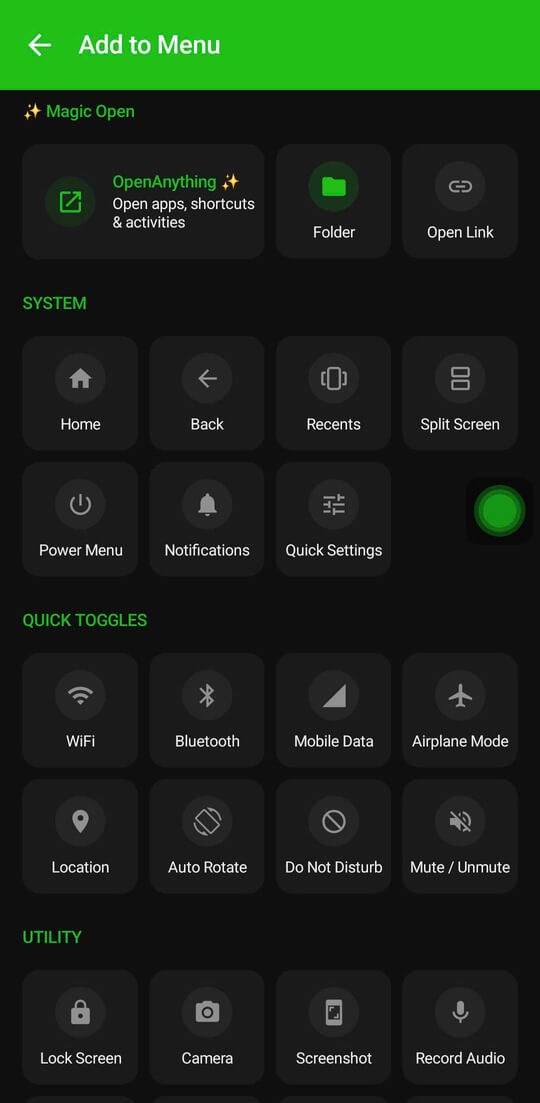
One Samsung-specific note: check Settings - Battery - Background usage limits and make sure Floatify is not listed under Sleeping apps or Deep sleeping apps. One UI is more aggressive than stock Android about suspending background apps, and a suspended overlay stops appearing.
Warranty and Repair on a Galaxy
Samsung warranty covers button and touch failures that are not caused by damage. Run Samsung Members diagnostics first and keep the report - it is the evidence the service centre wants.
Out of warranty, a Galaxy screen assembly is expensive compared with other Android brands, particularly on curved-display flagships. Before booking, it is worth running the phone on a floating button for a week. Many people find they stop noticing the broken hardware entirely.
Frequently Asked Questions
My Galaxy S9 home button worked when the screen was on but not when it was off.
That is the hard press home button, and it is switched off or set too insensitive. Settings - Display - Navigation bar - Hard press Home button.
Home stopped working right after a One UI update.
Check Good Lock first, NavStar in particular. Module and One UI version mismatches are the usual cause. Also confirm the update did not switch you to Swipe gestures.
Why is my Galaxy home button in a different position now?
One UI lets you swap button order. Settings - Display - Navigation bar - Button order.
Will a floating button be killed by Samsung battery optimisation?
Only if it is put to sleep. Settings - Battery - Background usage limits, and keep it out of Sleeping apps and Deep sleeping apps.
Also Read
No ads. No sign-up. Works on Android 10+.