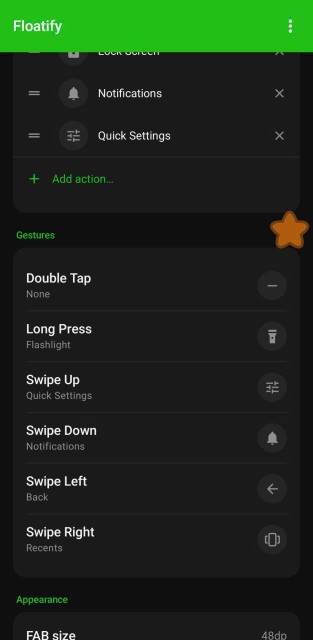
When a single button stops responding, it is usually that button. When all three stop at once - home, back and recents together - it is almost never three separate faults. It is one thing failing above them.
That distinction matters, because the fixes are completely different. If only one button is dead, the home button, back button and recents button guides are the right place. If the whole bar is frozen or gone, keep reading.
The Bar Is Visible But Taps Do Nothing
The navigation bar is drawn on screen. You can see all three buttons. Nothing responds - but the rest of the screen still works normally.
That combination points to one thing: System UI has hung.
System UI is the Android process that draws the status bar, the notification shade and the navigation bar. When it stops responding, everything it draws freezes while your apps carry on working. That is why the phone feels half-alive rather than crashed.
Get navigation back right now
You cannot tap home, and the notification shade is drawn by the same process that has hung, so in most cases it will not pull down either.
- Hold power and restart. Not sleep, a full restart. This always clears it, and on a frozen System UI it is usually the only thing that does.
- If the shade does still pull down, System UI is only partly stuck. Open any app from there, or tap the settings gear, and restart when you get a moment.
Stop it happening again
An occasional System UI hang is normal. A weekly one is not, and there are three usual causes.
An overlay app holding the UI thread. Anything drawing over other apps - chat bubbles, screen recorders, colour filters, blue light apps - can hang System UI if it misbehaves. Safe mode tells you in a minute: hold power, long-press "Power off", tap OK. If the bar works in safe mode, uninstall recent overlay apps one at a time.
A live wallpaper or heavy widget. Both run inside the launcher process and both can starve System UI on mid-range hardware. Switch to a static wallpaper for a few days and see whether it stops.
Storage almost full. Under roughly 10% free space, Android cannot write cache and system processes start failing in ways that look random. Check Settings - Storage and clear space if it is close to full.
The Bar Has Disappeared Completely
No buttons, no bar, just your app filling the screen to the bottom edge.
Check whether navigation mode changed
This is the most common cause after a system update, and nothing is actually broken.
Gesture navigation removes the on-screen buttons by design. An update, a theme change, or a restore from backup can switch you into it without any announcement.
- Stock Android: Settings - System - Gestures - System navigation
- Samsung: Settings - Display - Navigation bar
- Xiaomi / HyperOS: Settings - Home screen & lock screen - System navigation
Pick 3-button navigation to get the visible bar back.
Check for stuck immersive mode
Apps that hide the navigation bar - video players, games, readers - are supposed to restore it on exit. When one crashes instead of exiting, the bar can stay hidden.
Swipe up from the very bottom edge of the screen. If the bar slides back into view, immersive mode is the cause. Force stop the app that was open when it vanished, and restart the phone if it keeps happening.
Check for a stuck pinned app
Screen pinning locks the phone to one app. On gesture navigation it hides the bar outright; on 3-button navigation the bar stays on screen but home and recents stop responding, which reads as a dead bar rather than a missing one. If someone handed you the phone that way, or you enabled it by accident, nothing comes back until you unpin - and how you unpin depends on which navigation you are on: swipe up and hold on gesture navigation, or hold back and recents together on 3-button. Once you are out, Settings - Security - App pinning is where you turn it off for good.
3-Button Navigation Specifically Not Responding
If you are on 3-button navigation and the bar is visible but dead, and the fixes above have not helped, there are two more possibilities worth checking before you assume hardware failure.
A dead touch strip at the bottom of the screen. Do not use the keyboard to test this - it is laid out above the navigation bar, so it never covers the strip the buttons actually sit on. Turn on Settings - System - Developer options - Pointer location (if Developer options is not in Settings yet, open Settings - About phone and tap Build number seven times), then drag a finger slowly across the very bottom of the screen. If the trace breaks or stops inside one band, the digitizer has failed there and no software fix applies. On Samsung, Samsung Members - Support - Phone diagnostics - Touch screen runs the same check with no Developer options needed.
Screen protector interference. A thick or badly fitted protector can desensitise the bottom band of the display. Peel a corner back and test before spending anything on a repair.
If it is a dead strip, you are not out of options - the last section covers how to navigate without using that part of the screen at all.
Keep Working While You Sort It Out
Whether the bar is frozen, hidden, or sitting on a dead strip of glass, you still need to use the phone today.
A floating button gives you home, back and recents on an overlay you place anywhere on screen. It does not use the navigation bar at all, so a dead strip at the bottom of the display does not affect it.
One honest limitation: Home and Back keep working even while the system UI is hung, but Recents does not. Home is a plain launcher intent, handled by the system server, so it needs only the overlay permission and works independently. Back goes through the accessibility service, also outside the frozen process. Recents is the exception: the switcher is rendered by the same system UI that has frozen, so no app can open it and a restart is the only route.
Floatify does this, free and without ads. Put all three navigation actions on one button: tap for home, swipe for back, long press for recents.
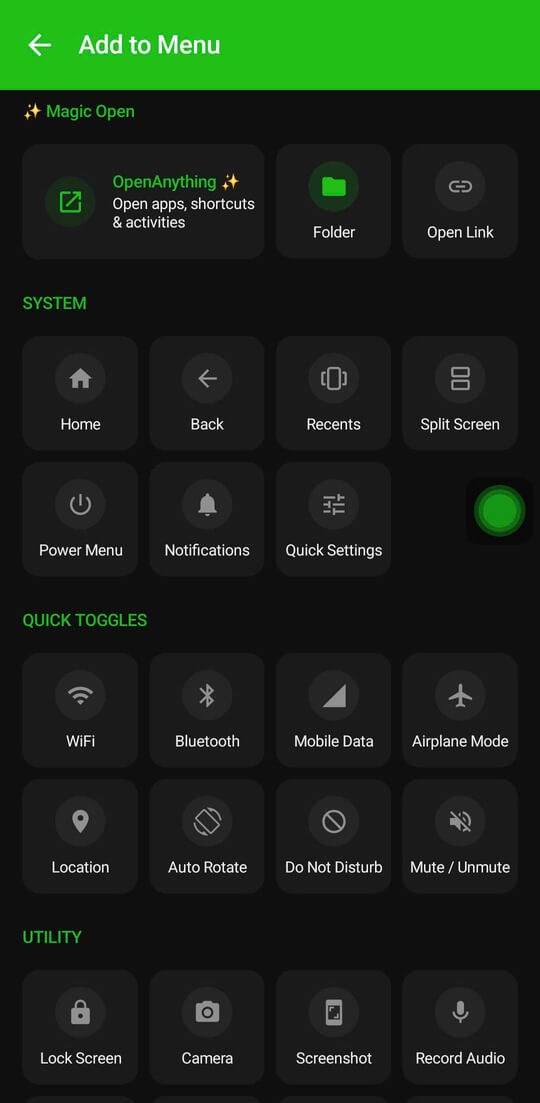
Install it before you need it. Setting up a floating button is much harder when navigation has already stopped working, so it is worth having in place on a phone that has hung more than once.
The full setup, including using it as a permanent replacement for the system bar, is in Floating Navigation Bar for Android.
Frequently Asked Questions
All three buttons stopped at once. Is that hardware?
Almost certainly not. Three simultaneous hardware failures would be extraordinary. A single System UI hang explains it far better, and a restart confirms it in under a minute.
My navigation bar vanished after a system update.
The update most likely switched you to gesture navigation. Change it back under System navigation in Settings. Nothing is broken.
The bar comes back after a restart but keeps freezing.
Look at overlay apps first - screen recorders, chat bubbles, colour filters. Then check free storage. Repeated hangs are usually one misbehaving app or a nearly full disk.
Can I restart System UI without restarting the phone?
Not from Settings on a normal build. A full restart is the reliable route and takes about the same time.
Will a floating button still work if System UI is frozen?
Home and Back will, because the system server and the accessibility service handle them independently. Recents will not, because the switcher is rendered by the frozen process itself. Home and Back are enough to get you out of a stuck screen and into Settings, which is usually all you need before restarting.
Also Read
No ads. No sign-up. Works on Android 10+.