If you switched from iPhone to Android and immediately reached for that familiar floating dot in the corner - only to find nothing there - you're not alone. AssistiveTouch is one of those iOS features you don't realize you relied on until it's gone. The good news: you can have it back on Android, and in some ways it works better.
This guide is written for people who already know what AssistiveTouch does. No lengthy explanations of what a floating button is. Just a fast path from "where is it?" to "set up and working."
Why Android Doesn't Have a Built-In Equivalent
AssistiveTouch has been part of iOS since 2011. Apple built it deep into the accessibility layer of the OS, giving it access to system gestures and hardware-level shortcuts. It's polished, repositionable, and quietly powerful.
Android does have an Accessibility Menu (find it under Settings > Accessibility) that offers some overlapping functionality. But if you've tried it, you know the problem: it's a large, fixed-position bar that can't be moved, looks dated, and has almost no customization. It's designed to help users with motor impairments navigate a touchscreen - not to replicate the clean, minimal floating button experience you had on iOS.
For that, you need a third-party app. And one stands out: Floatify.
Setting Up Floatify (You Already Know How This Works)
You've done this before on iOS, so the mental model is identical - a floating button you can tap to access a menu of actions. Here's the Android setup path:
- Download Floatify from the Google Play Store. It's free, no ads, no locked features.
- Grant overlay permission - Android requires this for any floating element. Floatify will prompt you and take you directly to the right settings screen.
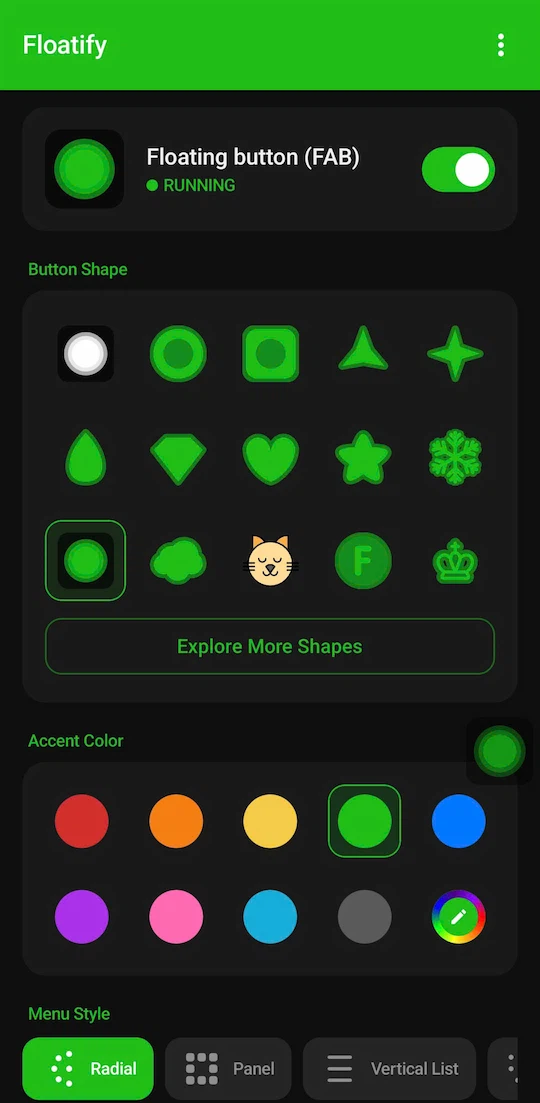
- Pick your shape and color - choose from 100+ geometric and illustrated shapes, or use any of 1,000+ emojis as your button icon. RGB color picker for exact matching.
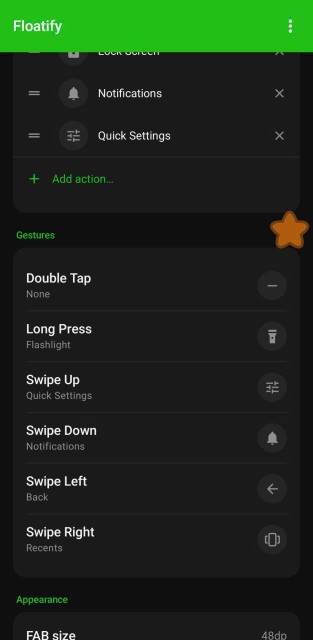
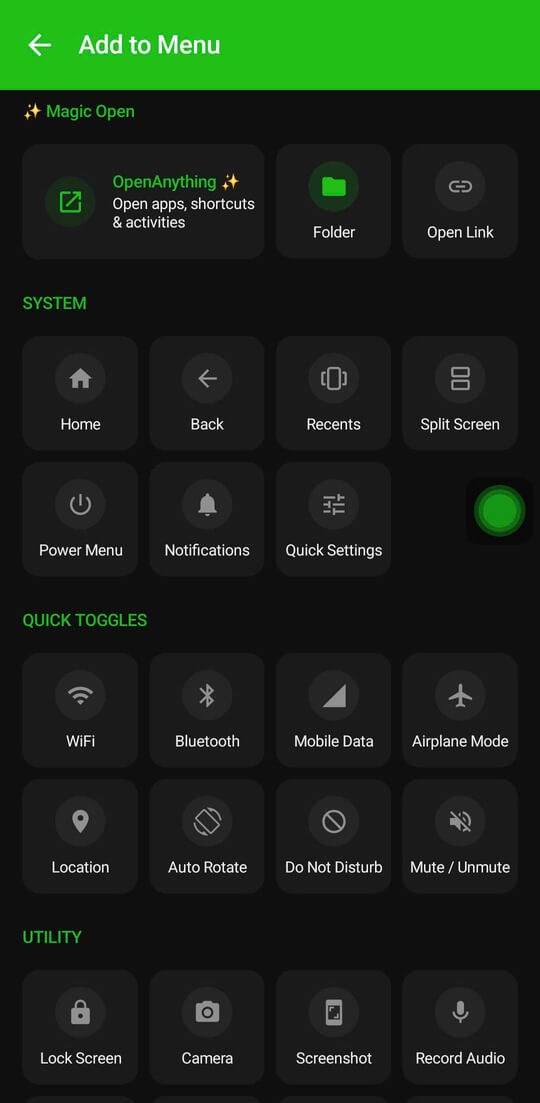
- Configure your actions - three independent gesture slots: single tap, double tap, and long press. Assign any action to each. Home, back, recents, screenshot, lock screen, flashlight, volume - or open any specific app.
That's it. The button appears, floats over everything, and taps to open your menu.
iOS AssistiveTouch vs Floatify: Feature by Feature
| Feature | iOS AssistiveTouch | Floatify (Android) |
|---|---|---|
| Repositionable button | Yes | Yes |
| Custom actions | Limited set | Extensive - home, back, recents, screenshot, lock, flashlight, WiFi toggle, DND, volume, split screen, app shortcuts, and more |
| Gesture slots | Single tap only | 3 independent slots (tap, double tap, long press) |
| Button appearance | Fixed white dot | 100+ shapes, 1,000+ emojis, full RGB color |
| App shortcuts | Yes | Yes - Action Folders group multiple shortcuts in a sub-menu |
| Menu layout styles | Fixed grid | Radial, vertical, grid, panel, or single action |
| Cost | Free (built-in) | Free |
| Ads | None | None |
The gesture slots are the biggest functional upgrade. On iOS, a tap opens the menu - that's it. On Floatify, you can set double-tap to take a screenshot, long press to lock the screen, and single tap to open the menu. Three shortcuts with no menu needed.
What Floatify Does That iOS AssistiveTouch Doesn't
Emoji as button icon. iOS gives you a white dot or a simple icon. Floatify lets you use any emoji as your button - which means your floating button can be a ghost, a coffee cup, your country's flag, or a tiny dinosaur. Trivial? Maybe. But it's your phone.
Auto-hide per app. The button disappears automatically when you open games, video players, or any app you choose. No manual toggling. You configure the rules once and forget about it - the button gets out of the way when you're watching something and reappears when you're done.
Multiple menu layouts. iOS AssistiveTouch uses a fixed grid. Floatify offers radial (actions fan out in a circle), vertical list, grid, panel, and single action mode. If you only ever use the button for screenshots, set it to single action - one tap, done, no menu.
Action Folders. Group a set of app shortcuts into a sub-menu. Useful if you want quick access to several apps without cluttering the main menu.
What iOS AssistiveTouch Does That Floatify Doesn't
Being honest here: iOS AssistiveTouch has access to some deep system-level gestures that Android doesn't expose to third-party apps. Specifically, multi-finger swipe gestures tied to iOS-specific system navigation and certain hardware interaction shortcuts are not replicable - those live at the iOS kernel level.
In practice, most people use AssistiveTouch for home, back, screenshot, and app switching. All of those work exactly as expected in Floatify. If you relied on specialized iOS accessibility gestures, some of those won't have an Android equivalent regardless of which app you use - that's an OS difference, not a Floatify limitation.
FAQ
Is there an exact iOS AssistiveTouch clone for Android? No. The iOS and Android platforms are different enough at the system level that a true clone isn't possible. But Floatify covers every practical daily use case - navigation shortcuts, screenshots, app launching, quick toggles - which is what most people actually used AssistiveTouch for.
Will my muscle memory from iOS transfer? Yes. The core concept is identical: floating bubble in the corner, tap to open a menu, pick an action. The first few minutes might feel slightly different because Android navigation works differently, but you'll be comfortable within a day.
Is Floatify actually free? Completely free. No ads, no in-app purchases, no premium tier. Every feature mentioned in this article is available from the moment you install it.
Does it drain battery or slow down Android? Floatify uses a foreground service to stay available - the same mechanism Android uses for music players and navigation apps. Battery impact is minimal. The notification in your status bar is standard Android behavior for any persistent foreground service; it doesn't indicate heavy usage.
Does it work on all Android phones? Floatify works on Android 7.0 and up, which covers essentially every Android phone made in the last several years. Some manufacturer-specific restrictions (particularly on certain Chinese Android skins) may require extra steps to allow overlay permissions, but the setup flow guides you through them.
Also Read
No ads. No sign-up. Works on Android 10+.