How Much Space the Nav Bar Really Takes
Android's 3-button navigation bar sits at the bottom of every screen, permanently. On a typical phone that strip costs you a noticeable slice of display - space that could go to the video you are watching, the article you are reading, or the game you are playing. Multiply it across every app, all day, and the fixed nav bar is quietly the biggest chunk of screen you never get to use.
Hiding it gives that space back. The catch is what happens to navigation once the bar is gone.
Ways to Hide the Navigation Bar
Android gives you a couple of built-in options, each with a trade-off.
Switch to full gesture navigation. In Settings, choosing gestures removes the button bar and replaces it with a thin pill. You reclaim most of the space - but you inherit the gesture problems: invisible target zones, edge swipes that conflict with apps, and a learning curve that resets when you change phones.
Immersive / full-screen mode. Some apps and tools hide the system bars entirely for a true edge-to-edge view. You get maximum space, but now there is no visible navigation at all - getting Home or Back means swiping blindly from an edge.
Both paths lead to the same problem: the more space you reclaim, the harder navigation gets.
The Catch: Hiding It Makes Navigating Harder
A hidden nav bar only helps if you can still get around easily. Pure gestures put navigation into invisible zones; full immersive mode removes the controls completely. For a lot of people that is a worse daily experience than just living with the bar.
The fix is to separate the two concerns: hide the bar for space, and put navigation somewhere you can actually see and reach.
Floatify: Hide the Bar, Keep Navigation Floating
Floatify gives you a floating button that handles Home, Back, and Recents - so you can hide the system navigation bar and still navigate with one visible, thumb-friendly control. It is free, with no ads and no paywalls.
Step 1 - Install Floatify and grant permissions
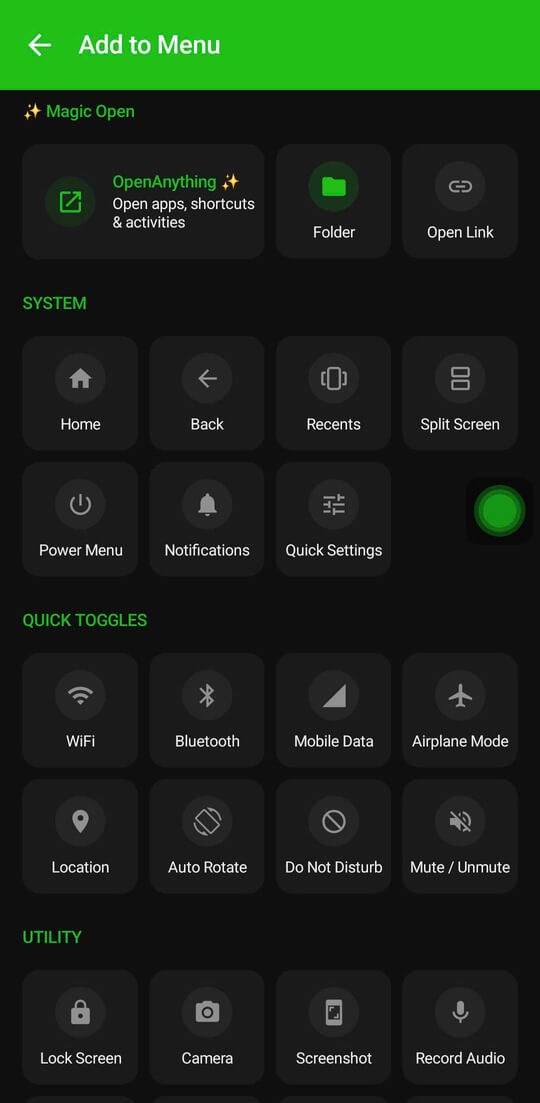
Get Floatify from the Play Store, then grant "Display over other apps" so the button floats everywhere, and the Accessibility permission so navigation works system-wide. The app guides you through both for Samsung, Xiaomi, OPPO, and other brands.
Step 2 - Map Home, Back, and Recents
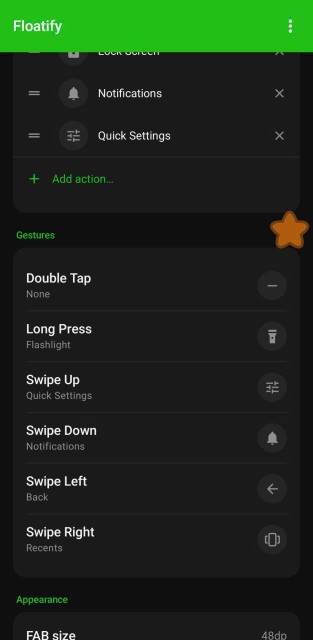
In gesture settings, assign single tap to Home, a swipe or double tap to Back, and long press to Recents. Now one floating button does the job of the whole nav bar.
Step 3 - Hide the system navigation bar
Switch to gesture navigation in Settings (or use immersive mode) to remove the button bar and reclaim the space. Your floating button stays visible the whole time - including in full-screen apps where the system navigation would normally disappear.
Step 4 - Tuck the button out of the way
Drag it to a corner; it snaps to the edge and you can lower its opacity so it barely shows until you reach for it. Maximum screen, navigation always one tap away.
More Screen for Video, Reading, and Games
With the bar hidden and navigation floating, the payoff shows up everywhere you want an unbroken view:
- Video - edge-to-edge playback with no bar eating the bottom, and Home/Back still one tap away.
- Reading and browsing - more lines of text per screen, less scrolling.
- Games - full immersive display; set the button to auto-hide during play and summon navigation only when you exit.
You get the clean, full-screen look without losing the ability to move around your phone.
Frequently Asked Questions
If I hide the nav bar, how do I get Home and Back?
Through the floating button. Map Home, Back, and Recents to gestures on it, and you have full navigation without the system bar.
Does the floating button stay visible in full-screen apps?
Yes. That is the point of the overlay permission - it floats above everything, including the full-screen apps where the system navigation hides.
Do I have to root my phone to hide the navigation bar?
No. Switching to gesture navigation in Settings hides the button bar without root, and Floatify supplies the visible navigation.
Does it work on all Android brands?
Yes - Samsung, Xiaomi, OPPO, Realme, OnePlus, Pixel, Motorola, and more, on Android 7 or newer.
Is it free?
Yes. No ads, no paywalls, no in-app purchases.
Also Read
No ads. No sign-up. Works on Android 10+.