Why People Struggle With Gesture Navigation
Android's gesture navigation looks clean, but for a lot of people it never becomes second nature. The swipe-up-to-home and swipe-from-edge-to-go-back motions rely on invisible target zones that move from app to app. There is no button to look at, no obvious place to aim.
This hits hardest for:
- People who recently switched phones and lost their muscle memory
- Anyone moving from an iPhone, where the gestures are different
- Older users who find precise edge swipes fiddly
- Large-phone and foldable owners who cannot reach the bottom edge one-handed
- Anyone who keeps triggering Back by accident while scrolling
If gestures feel like a constant small fight, you do not have to just put up with it.
Should You Disable Gesture Navigation?
You can switch back to the 3-button bar in Settings, and for some people that is the right call. But the 3-button bar has its own downsides: it eats permanent screen space, it disappears in full-screen apps, and it is still pinned to the bottom center where a thumb on a big phone cannot comfortably reach.
So disabling gestures trades one set of problems for another. There is a better middle ground.
A Middle Ground: Add a Floating Button
Instead of choosing between awkward gestures and a space-hungry button bar, add a floating button that gives you simple, visible navigation - while leaving your system navigation exactly as it is.
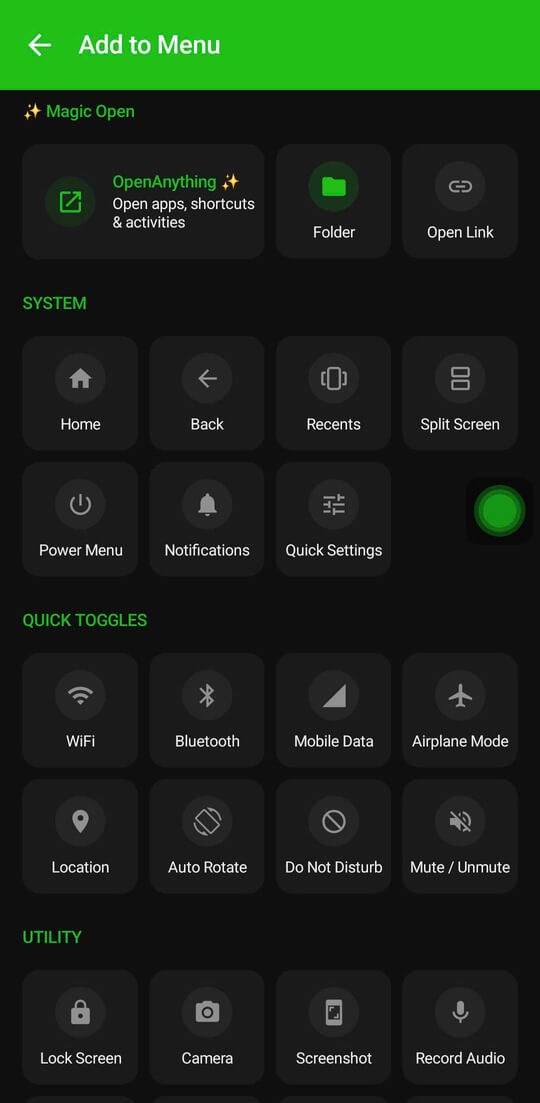
Floatify is a free app (no ads, no paywalls) that puts Home, Back, and Recents into one floating button you can see and place anywhere. No invisible zones, no edge-aiming - just a clear target your thumb already knows.
Set It Up in a Few Taps
Step 1 - Install Floatify
Get Floatify from the Play Store. Free, no ads, no in-app purchases.
Step 2 - Grant Overlay + Accessibility
Floatify needs "Display over other apps" to float the button, and the Accessibility permission so navigation actions work everywhere. The app guides you through both with steps tailored to Samsung, Xiaomi, OPPO, and other brands.
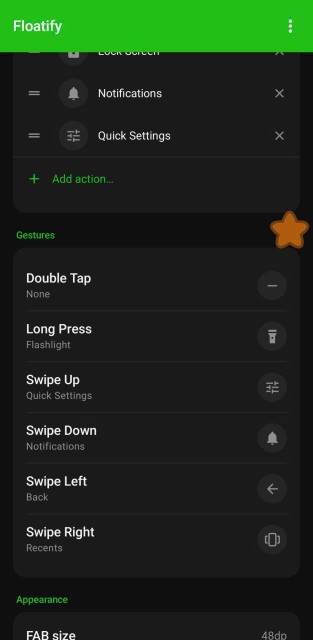
Step 3 - Map Home, Back, and Recents
In gesture settings, assign:
- Single tap - Home
- Swipe or double tap - Back
- Long press - Recents
If you prefer it even simpler, use single tap for Home and open a small radial menu for Back and Recents so every action is a clearly labeled tap rather than a remembered gesture.
Step 4 - Put It Within Easy Reach
Drag the button to wherever your thumb rests. Make it a little bigger if precise taps are hard. It stays put, so navigation becomes one predictable motion.
Who Benefits Most
A floating button is a good fit if gestures have never clicked for you:
- Seniors and anyone who wants simplicity - a big, visible button beats invisible swipes. See our Android tips for seniors.
- Switchers from iPhone - get a familiar, AssistiveTouch-style control back. See switching from iPhone to Android.
- One-handed and big-phone users - bring navigation into thumb range. See comfortable one-handed use.
You keep your system gestures active the whole time - the floating button is an easier option layered on top, not a replacement you have to commit to.
Frequently Asked Questions
Do I have to turn off gesture navigation to use this?
No. Floatify runs alongside whatever navigation is active. Keep gestures on and use the button whenever the gestures annoy you.
Is a floating button easier than gestures for older users?
Usually yes. A visible button with a large tap target removes the guesswork of edge swipes and invisible zones.
Will it cover up content on screen?
Only slightly, and you control it. Make the button smaller, lower its opacity, or set per-app auto-hide so it disappears in apps where you do not want it.
Does it work on every Android phone?
Yes - Samsung, Xiaomi, OPPO, Realme, OnePlus, Pixel, Motorola, and more, on Android 7 or newer.
Is it free?
Yes. No ads, no paywalls, no in-app purchases.
Also Read
No ads. No sign-up. Works on Android 10+.