You want a game clip, a tutorial or a video with the phone's own sound in it, not just what the microphone hears. Most phones can do that for free, with no watermark and no time limit.
The short version: pull down Quick Settings, tap Screen record, and choose Device audio (Samsung: Media sounds) as the sound source. That records the phone's own audio without room noise. Some apps and every phone call are exceptions, covered below.
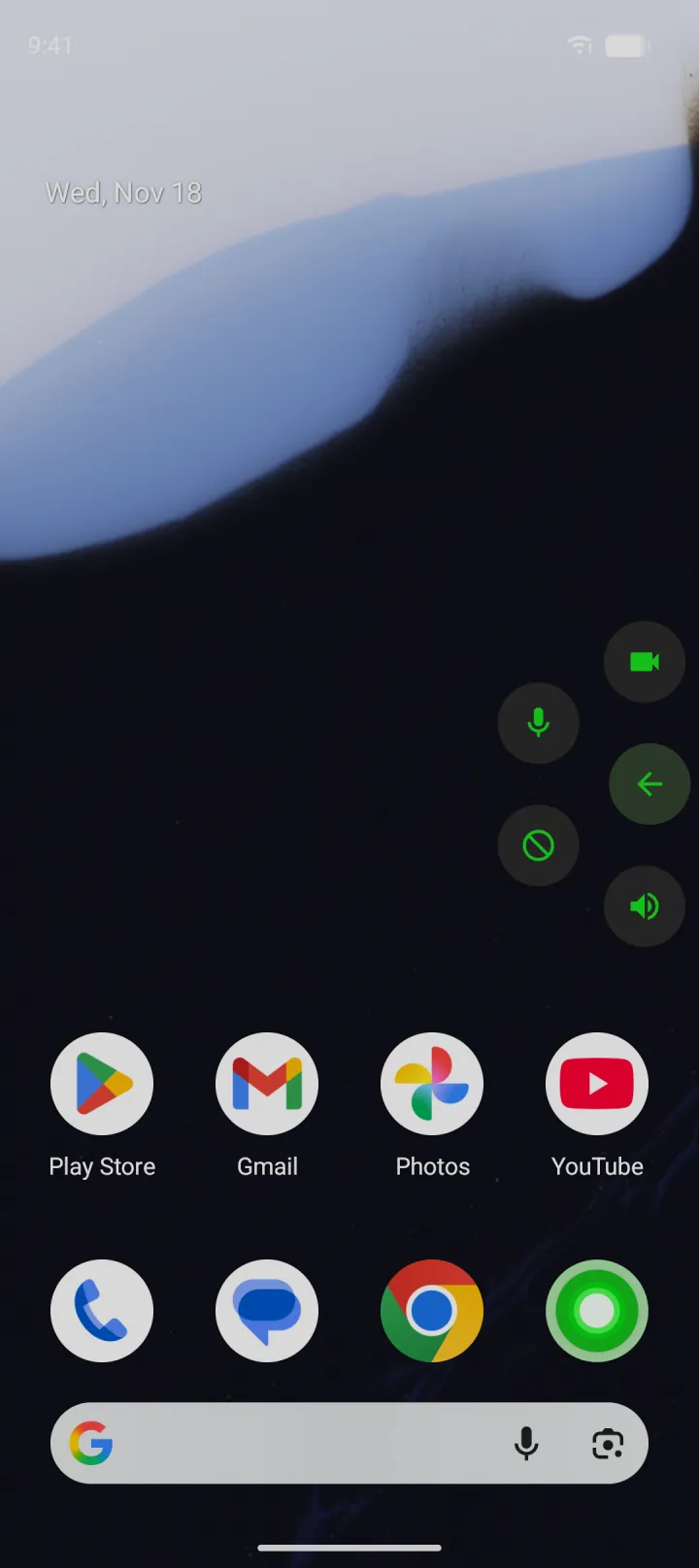
A floating button menu with Record Screen (the camera icon) and Record Audio (the microphone). Captures in this article were made on a Pixel emulator running Android 17.
How to record the screen with internal audio on Android
Internal audio (also called system audio, device audio or media sounds) is the sound the phone plays, such as a game or a video. It is separate from the microphone. Android has supported capturing it since Android 10, and since Android 11 the system has its own screen recorder. Start there.
- Pixel and other Android 11+ phones: swipe down twice, tap Screen record (add it with the pencil icon if it is missing), choose Device audio under Record audio, and tap Start. Stop it from the notification shade. On Android 14 and later you also pick Entire screen or A single app.
- Samsung: the Screen recorder tile has a Sound setting. Choose Media sounds, or Media sounds and mic for both. Recordings land in the Gallery.
- Xiaomi, OPPO, realme and vivo: each has its own recorder tile or app with a sound source option such as system sound or microphone. Wording varies by version.
What the built-in recorder cannot capture
These limits come from Android and apps, so a third-party recorder will not get around them.
- Apps that block screen capture. Banking, payment and copy-protected streaming apps mark their windows as secure, so they come out black.
- Apps that block internal audio. Some streaming, music and game apps opt out, so the clip has picture but no sound.
- Phone and video calls. Android does not let apps capture the other person's voice. In many places you also need everyone's permission before recording a conversation.
Floating screen recorder with internal audio: Floatify
The built-in tile sits in Quick Settings, and you usually want to record in the middle of something. A floating button puts the recorder one tap away. Floatify has no ads, no account, no watermark and every feature included, and Record Screen is one of its actions. In the default menu it sits in the Tools folder, next to Record Audio. If you removed it, Add action... brings it back.
Tapping Record Screen opens a settings sheet each time:
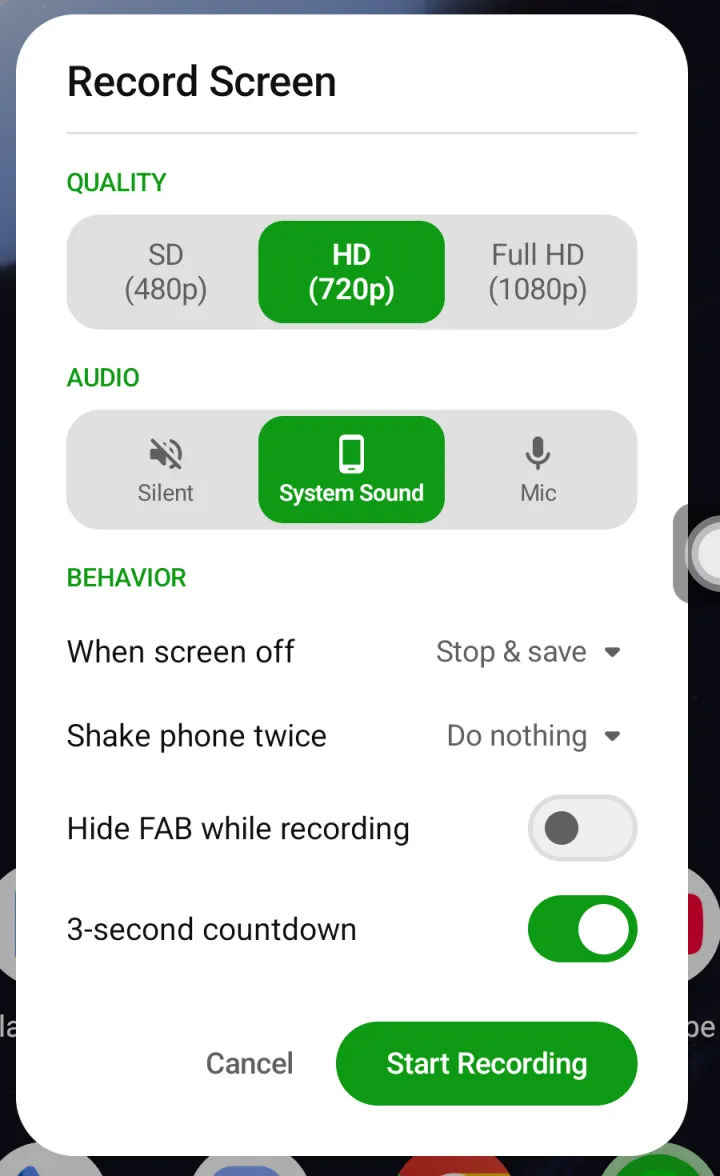
The Record Screen sheet with its defaults: HD, System Sound, countdown on.
- Quality: SD (480p), HD (720p), Full HD (1080p) or Max (Native), limited to what the screen supports. HD is the default.
- Audio: Silent, System Sound (the internal audio option, and the default) or Mic. One source per recording; Pixel and Samsung recorders can mix both, Floatify cannot.
- Hide FAB while recording keeps the button out of the clip. It is off by default.
- Shake phone twice can pause, resume or stop. When screen off defaults to Stop & save, the only choice on Android 14 and later.
- 3-second countdown gives you time to switch apps.
Tap Start Recording, confirm Android's sharing prompt (on Android 14 and later, choose Share entire screen or a single app), and the countdown begins. Pause and Stop Recording are in the notification, and tapping Record Screen in the menu again stops and saves. A result card then shows the file name, length, quality and size, with Delete, Share and Open.
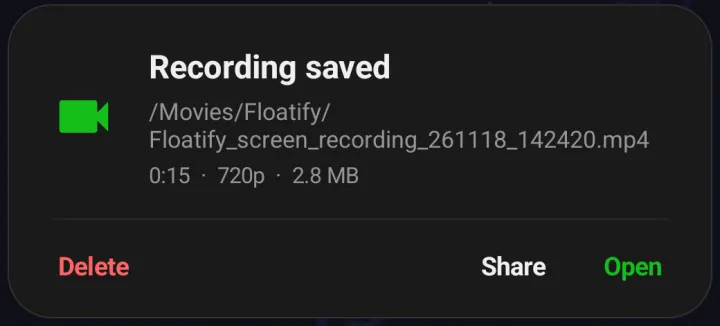
The result card after a recording.
Files are saved as MP4 in Movies/Floatify. There is no time limit, so the limit is your free storage.
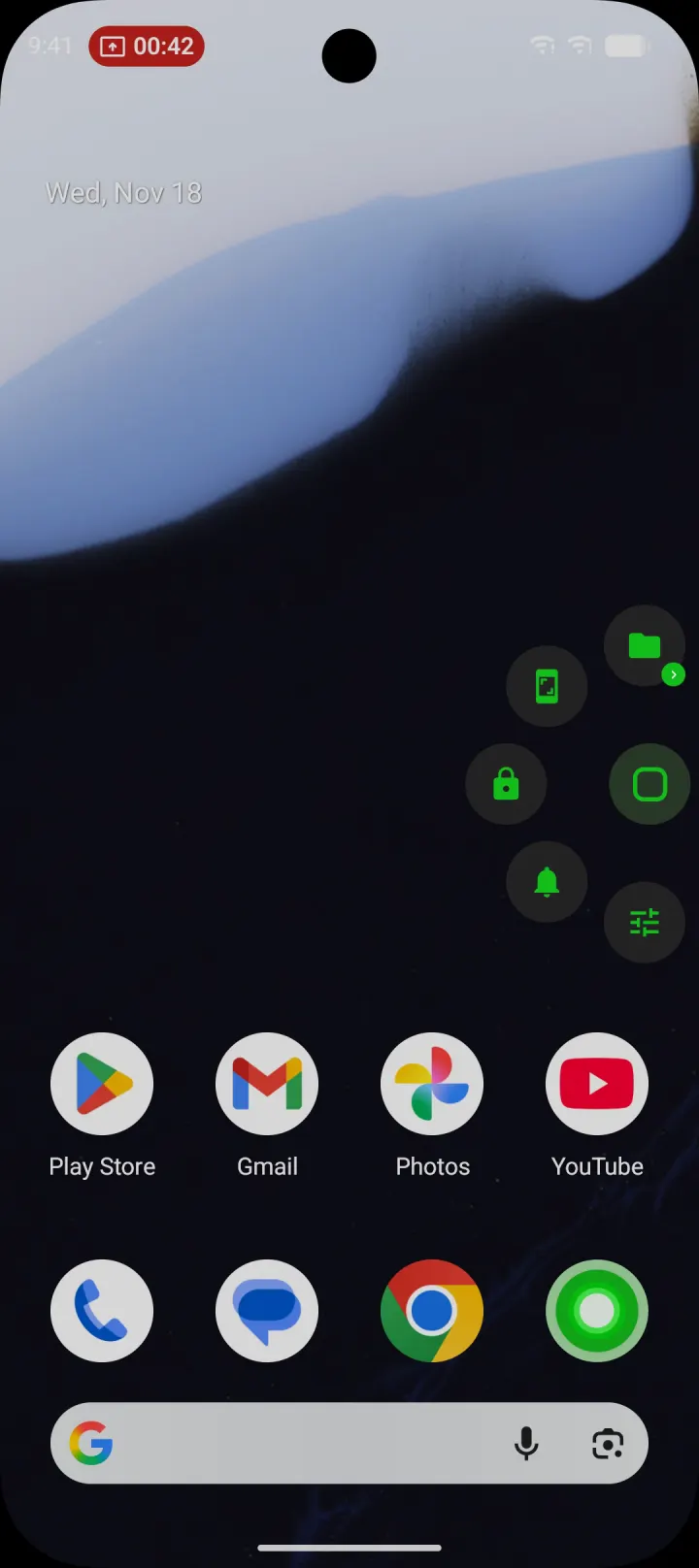
From the floating button to a saved recording, including the Android sharing prompt.
Record Audio is a separate action that records the microphone to an M4A file in Music/Floatify, with a bitrate choice. It is a voice recorder, not an internal audio recorder. For gaming setups, see the gaming shortcuts guide.
FAQ
How do I record the screen with internal audio on Android?
Open Quick Settings, tap Screen record and set the audio to Device audio (Samsung: Media sounds). Floatify uses System Sound.
Why is there no sound in my screen recording?
The sound source may be off, the phone muted, or the app may block audio capture. Phone calls cannot be captured as internal audio at all.
Why does my recording show a black screen?
The app marks its screen as secure, as banking, payment and streaming apps do. It is by design and cannot be switched off.
No ads. No sign-up. Works on Android 10+.