The Recent Apps Button Problem
Recent Apps is the heart of Android multitasking - but the control for it is in the worst possible spot. On the 3-button bar it is pinned to the bottom corner, out of thumb reach on big phones. With gesture navigation it is a swipe-up-and-hold that is easy to overshoot into Home. And in full-screen apps and games, the whole navigation area vanishes.
A floating Recents button fixes that. One tap, anywhere, in any app, opens the app switcher - placed wherever your thumb already rests.
Does Android Have a Floating Recents Button?
No. Recent Apps lives in the fixed navigation bar or behind a gesture. There is no built-in way to make it a floating, movable button.
Floatify adds one. It is free - no ads, no paywalls - and turns Recents (plus a few even faster multitasking tricks) into a single floating button.
Add a Floating Recents Button with Floatify
Step 1 - Install Floatify
Get Floatify from the Play Store. Free, no ads, no in-app purchases.
Step 2 - Grant Overlay + Accessibility
Floatify needs "Display over other apps" to float the button and the Accessibility permission to open Recents system-wide. The app guides you through both, with steps for Samsung, Xiaomi, OPPO, and more.
Step 3 - Assign Recents to a Gesture
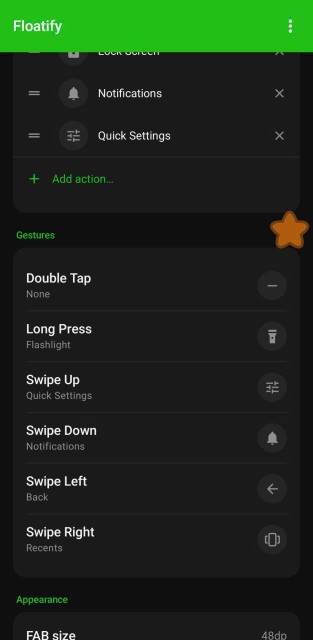
In gesture settings, set a gesture - for example Long press or a swipe - to Recents. One action and the app switcher opens, no matter which app you are in.
Step 4 - Place It Within Reach
Drag the button to a comfortable corner. It snaps to the edge and stays out of the way until you need it.
Even Faster: Switch to Last App
Most of the time, opening Recents is just a means to one end - bouncing back to the app you were just in. Floatify has a dedicated Switch to Last App action that does it in a single tap, with no app-switcher screen in between. It is the floating-button version of the double-tap-Recents shortcut.
Map it to a quick gesture like Double tap and you can flip between two apps - a chat and a browser, a video and your notes - as fast as you can tap. For anyone who copies between two apps or follows instructions while doing something else, this is the multitasking action you will use most.
Build a One-Button Multitasking Hub
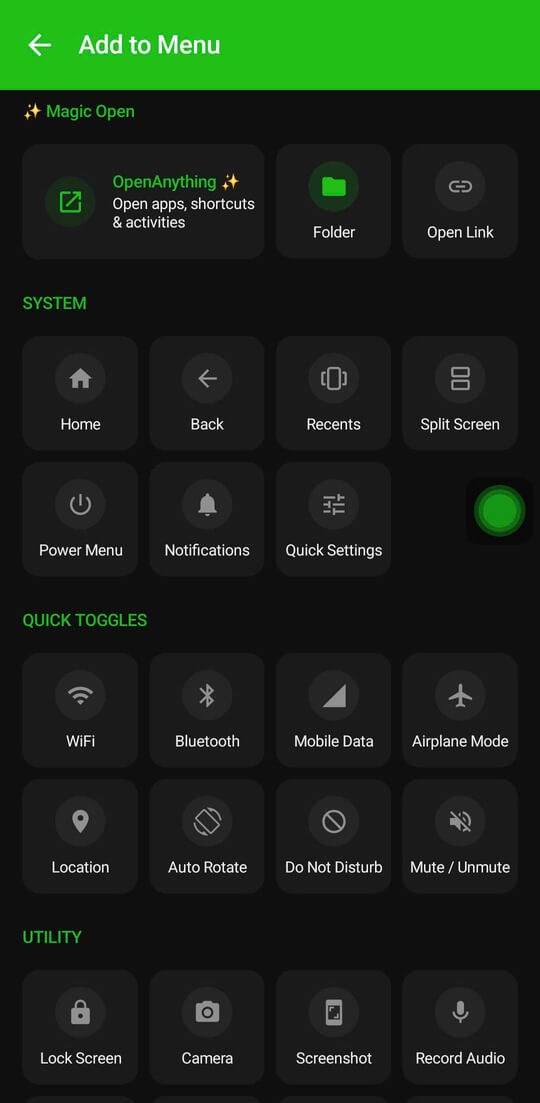
You do not have to stop at Recents. Open the radial menu or an action folder and group your multitasking actions together:
- Recents - the full app switcher
- Switch to Last App - instant flip between two apps
- Split Screen - open two apps side by side
- Open App - jump straight to a specific app you use constantly
One floating button, every multitasking control in one place, available in any app or game.
Frequently Asked Questions
Does the floating Recents button work in full-screen apps and games?
Yes. The button floats above everything, including full-screen video and games where the system navigation disappears. Add specific games to auto-hide if you do not want it on screen during play.
What is the difference between Recents and Switch to Last App?
Recents opens the full app-switcher screen so you can pick any recent app. Switch to Last App skips that screen and jumps straight to the previous app in one tap.
Do I need the Accessibility permission?
Yes - opening Recents and switching apps are system actions that require it. Floatify guides you through granting it.
Does it work on all Android brands?
Yes - Samsung, Xiaomi, OPPO, Realme, OnePlus, Pixel, Motorola, and more, on Android 7 or newer.
Is it free?
Yes. No ads, no paywalls, no in-app purchases.
Also Read
No ads. No sign-up. Works on Android 10+.