What Is a Floating Navigation Bar?
A floating navigation bar replaces Android's fixed navigation bar with a single button that floats on top of every screen. Instead of three buttons locked to the bottom edge - or swipe gestures you have to aim at the right edge - you get Home, Back, and Recents from one button you place wherever your thumb rests.
Tap it, swipe it, or hold it. Each gesture triggers a different navigation action. The button follows you across every app, every game, every full-screen video, and it sits exactly where you put it.
This is not a fix for a broken navigation bar (though it works for that too). It is a faster, more comfortable way to navigate any Android phone without retraining your thumb for edge gestures.
Why Replace Android's Built-In Navigation?
Android ships with two navigation systems, and both have real limitations.
The 3-button nav bar takes permanent space at the bottom of every screen. It vanishes in full-screen apps and games right when you might need it. And it is locked to the bottom center - you cannot move it closer to your thumb on a large phone.
Swipe gestures free up the screen but force you to swipe from specific edges. The target zone shifts depending on the app, back-swipes collide with in-app menus, and the muscle memory breaks every time you switch phones or hand the device to someone else.
A floating navigation bar fixes both at once:
- Always visible, even in full-screen apps and games
- Placed exactly where your thumb lives - no reaching to the bottom edge
- Consistent gestures that work identically in every app
- No edge-finding, no accidental back-swipes
- Never physically wears out the way hardware buttons do
Does Android Have a Built-In Floating Navigation Bar?
No. Android's navigation bar is fixed to the bottom and disappears in immersive apps. There is no system setting to turn it into a floating, movable button.
Third-party apps fill this gap. Floatify is a free option - no ads, no paywalls, every feature unlocked from day one - built specifically to put system navigation into a single floating button.
Set Up Floatify as Your Navigation Bar
Step 1 - Install Floatify
Get Floatify from the Play Store. It is free, with no ads and no in-app purchases.
Step 2 - Grant the Overlay Permission
On first launch, Floatify asks for "Display over other apps." This is what lets the button float above every screen. Tap the prompt, toggle it on in system settings, then return to the app.
Step 3 - Enable the Accessibility Service
System navigation actions - Back, Home, Recents - need Android's Accessibility permission to work. Floatify walks you through it with brand-specific steps for Samsung, Xiaomi, OPPO, OnePlus, and more. This is the permission that lets one floating button actually replace your nav bar.
Step 4 - Map Your Three Core Actions
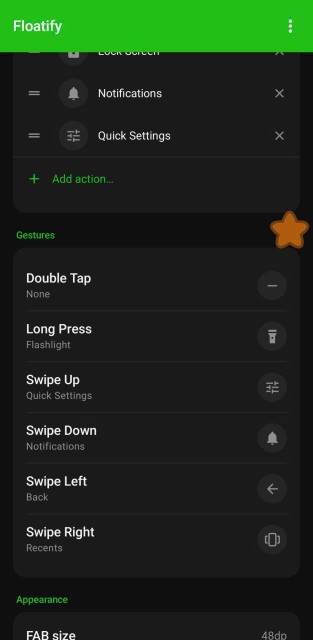
In Floatify's gesture settings, assign the three navigation actions to three gestures:
- Single tap - Home
- Swipe (or double tap) - Back
- Long press - Recents
Three gestures, three navigation actions, one button. You never have to reach for the system nav bar again.
Step 5 - Position It Where Your Thumb Lives
Drag the button to your preferred corner. It snaps to the screen edge when released, so it sits flush and out of the way. Most people settle on the bottom-left or bottom-right.
Radial Menu vs Vertical List
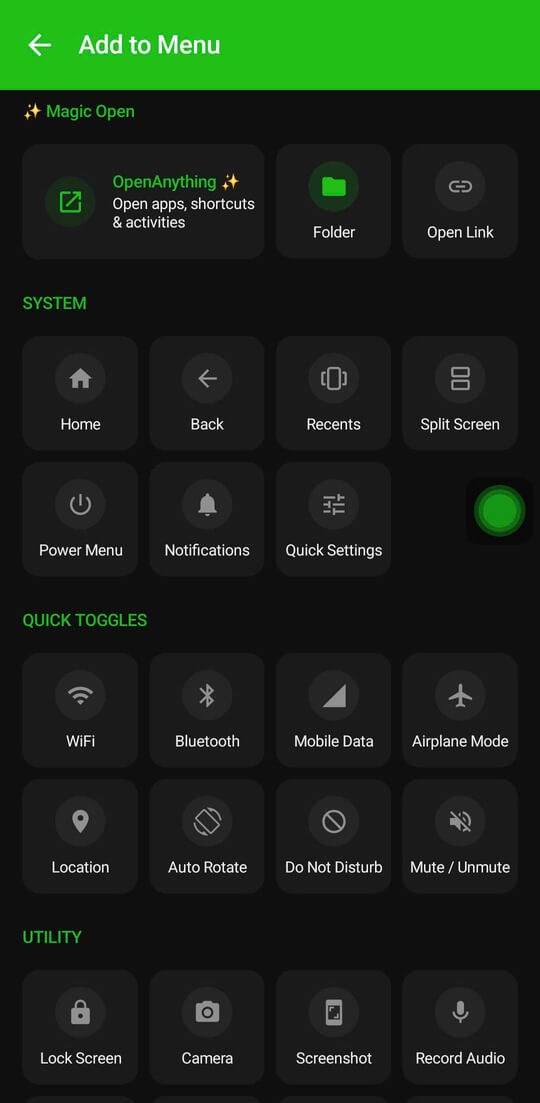
If you want more than three actions, the floating button can expand into a menu instead of relying only on gestures:
- Radial menu - icons fan out in a circle around the button. Fast and thumb-friendly for 3-5 actions.
- Vertical list - a scrollable menu for more actions, with clear labels.
- Action folders - group related actions (for example a "Navigation" folder for Home, Back, Recents, and Lock) with one tap to open and a back step to close.
For a pure navigation replacement, gestures alone are fastest. Add a menu when you want one button to also handle screenshots, volume, flashlight, and app shortcuts.
It Works in Full-Screen Apps and Games
The whole point of the overlay permission is that the button stays visible everywhere - including full-screen video players, browsers, and games, exactly where the system nav bar disappears.
For apps where you do not want anything floating, Floatify supports per-app auto-hide. Add your camera, a specific game, or a video player, and the button disappears while those apps are active, then returns when you leave. No accidental taps, no overlay blocking the action.
And because Floatify registers a system gesture exclusion zone when snapped to an edge, your swipe gestures on the button do not collide with Android's own back-swipe. Navigation stays crisp even on gesture-navigation phones.
Frequently Asked Questions
Can a floating button fully replace the navigation bar?
Yes. With Home, Back, and Recents mapped to three gestures, one floating button covers everything the system nav bar does. Many users hide the system bar entirely afterward - see our guide on hiding the navigation bar.
Do I have to disable gesture navigation first?
No. Floatify runs alongside whatever navigation system is active. Keep gestures or the 3-button bar on, or turn them off - the floating button works either way.
Will it interfere with games?
Not if configured. Add games to the auto-hide list and the button disappears during gameplay, then reappears when you exit.
Does it work on all Android brands?
Yes - Samsung, Xiaomi, OPPO, Realme, OnePlus, Google Pixel, Motorola, and more, on Android 7 or newer. The setup is the same across brands.
Is it really free?
Yes. No ads, no paywalls, no in-app purchases. Every feature is unlocked from the start.
Also Read
No ads. No sign-up. Works on Android 10+.