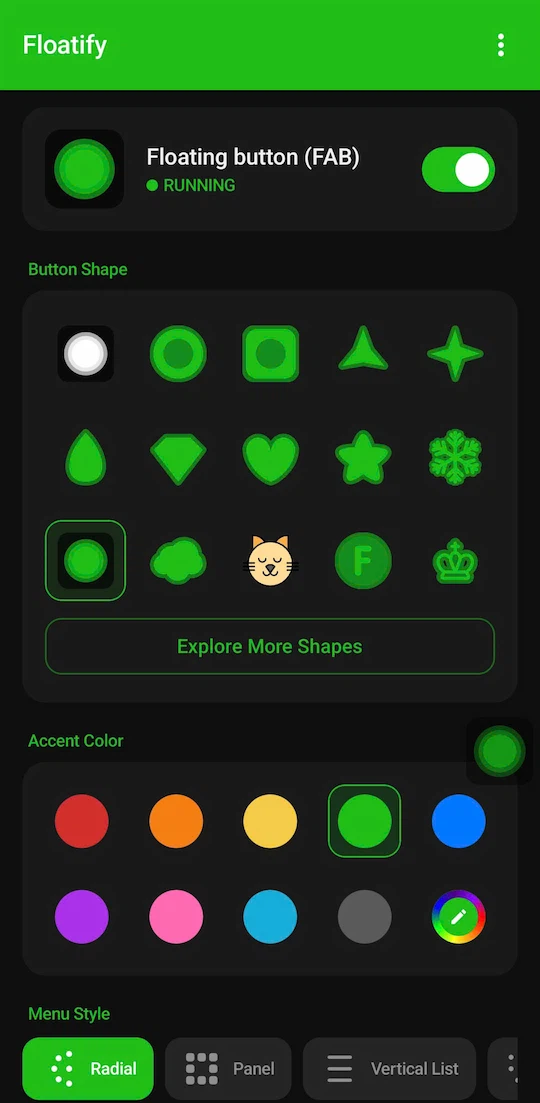
The default floating button most launchers give you is a plain gray circle. It works. It also looks like someone forgot to finish the design. Floatify goes much deeper - every visual detail is adjustable, and the gestures behind each tap can be completely different from one another. Here is how to make your floating button feel like it belongs on your phone, not just parked on it.
Choosing Your Shape
Open Floatify, tap the button to reveal the menu, then head into Settings > Appearance > Shape. You will find over 100 options split into categories:
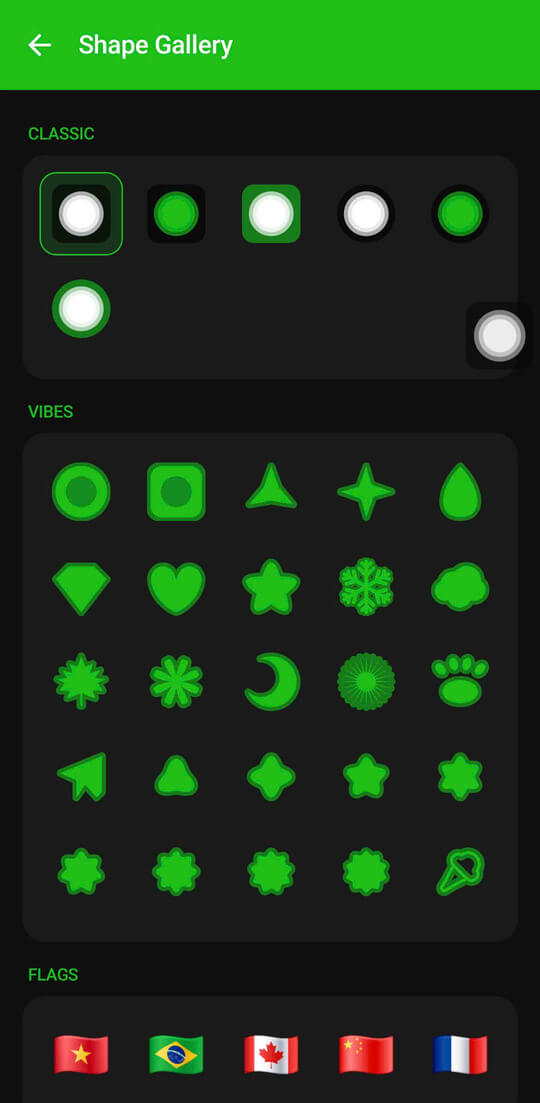
- Geometric - circle, square, rounded square, diamond, hexagon, shield, star, teardrop, and more
- Cute / Animals - paws, faces, hearts in different cuts
- Fruits - apple, watermelon slice, orange, etc.
- Letters - A through Z, great for a personal initial
- Symbols - lightning bolt, crown, leaf, moon, and others
Scrolling through the gallery is genuinely fun. That said, a practical note: simpler shapes are easier to live with long term. A small circle or teardrop barely registers on screen - you know it is there, your eyes stop fighting it. Novelty shapes are great for screenshots but a 4-pointed star at full size can feel cluttered after a week.
Start bold, then dial it back after a few days. You will land on something you stop noticing - which is exactly what a good floating button should feel like.
Using an Emoji as Your Button
If shapes feel too generic, Floatify lets you replace the button entirely with any emoji from a library of 1,000+. Go to Settings > Appearance > Emoji, search for what you want, tap it, and that becomes your button.
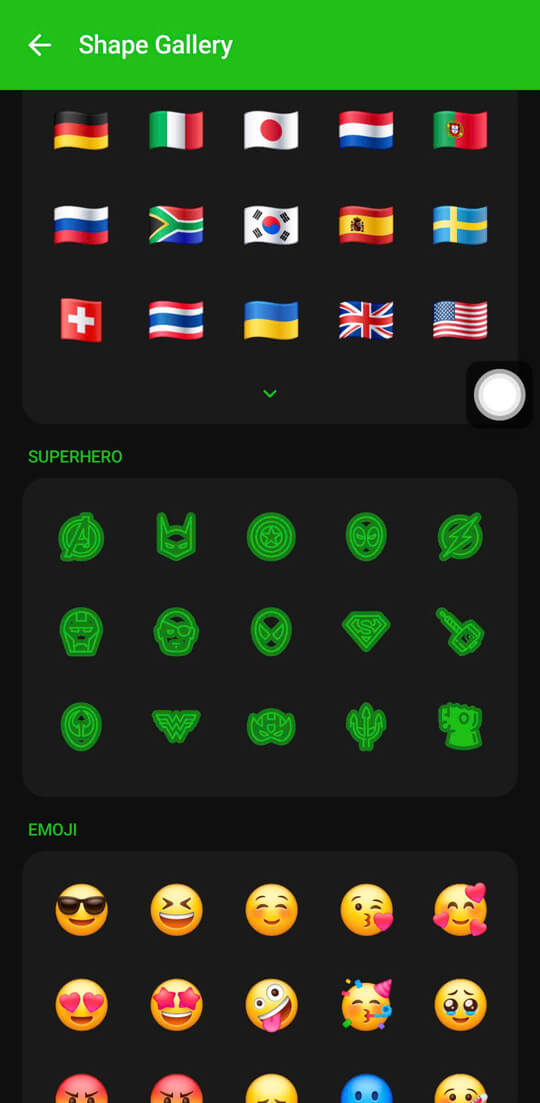
Popular picks that blend well without looking out of place:
- A small star or sparkle - subtle and personal
- A flame - bold but reads as a style choice, not a random app overlay
- A heart - soft, fits any light-colored wallpaper
- Your zodiac symbol or a sports ball - instant personalization
The emoji replaces the shape entirely - there is no shape outline underneath it, just the emoji rendered as your button. Keep the size moderate and it looks intentional rather than accidental.
Color and Transparency
The RGB Picker
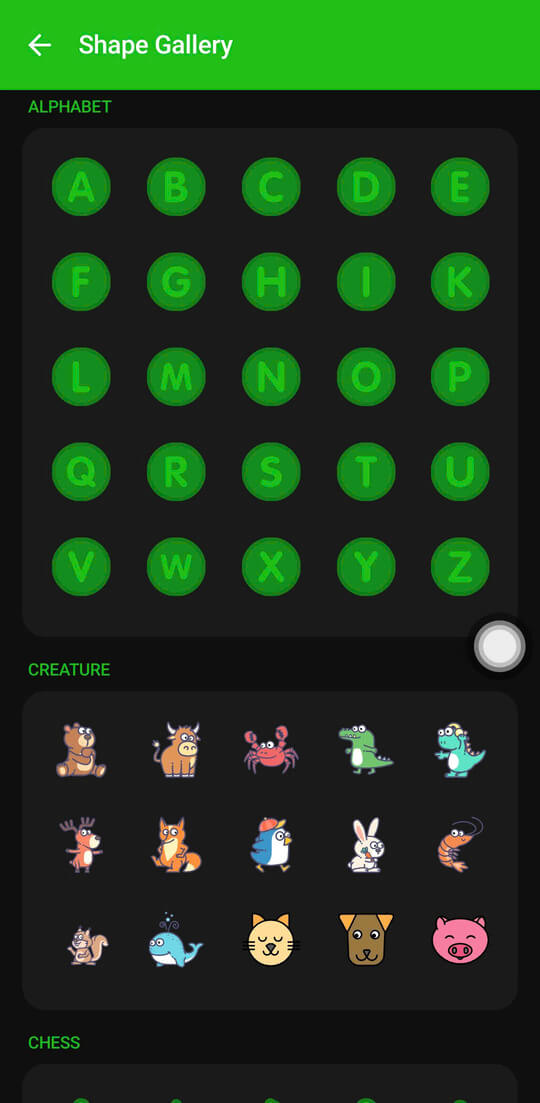
Floatify does not limit you to a handful of presets. The color picker is a full RGB tool - you can hit any color on the spectrum. Find it at Settings > Appearance > Color.
Some approaches that work well:
- Match your wallpaper accent - if your wallpaper has a teal element, a teal button looks intentional
- Dark theme users - a near-black or dark charcoal circle disappears into the UI nicely. High contrast without being loud
- Monochrome white - almost invisible on light wallpapers, clean on dark ones
Transparency Slider
The opacity slider lives right next to color. Turning it down makes the button semi-transparent - visible, but less demanding of attention. A 60-70% opacity circle is a sweet spot for most people: you can see it without it pulling focus every time you look at your phone.
The extreme end is interesting too: fully transparent. The button becomes an invisible tap target. You know where it is from muscle memory - usually anchored to one edge - and you tap that spot without ever seeing an overlay. It is the ghost button setup, and it works surprisingly well once you build the habit.
Size and Position
Size: Go Smaller Than You Think
The size slider goes from small to large. New users almost always start too big. A large button takes up real estate and your thumb already knows exactly where to reach after a day or two.
Try a size that feels almost too small. After 48 hours you will wonder why anyone uses a larger one.
Edge Snapping
Floatify snaps to any screen edge - left, right, top, or bottom. The most popular position by a wide margin: right or left edge, just below the vertical midpoint. That is the natural thumb zone on a modern tall phone. You can reach it one-handed without stretching.
Top and bottom snapping are there if your workflow calls for it - bottom edge works well with a smaller phone or tablet. Top edge suits people who mostly use two hands.
Fine-tune the exact position with the offset slider to avoid notification badges, navigation bars, or anything else that sits in the default zone.
Configuring Your Gestures
This is where Floatify separates from every simpler floating button app. You get three independent gesture slots:
- Single tap
- Double tap
- Long press
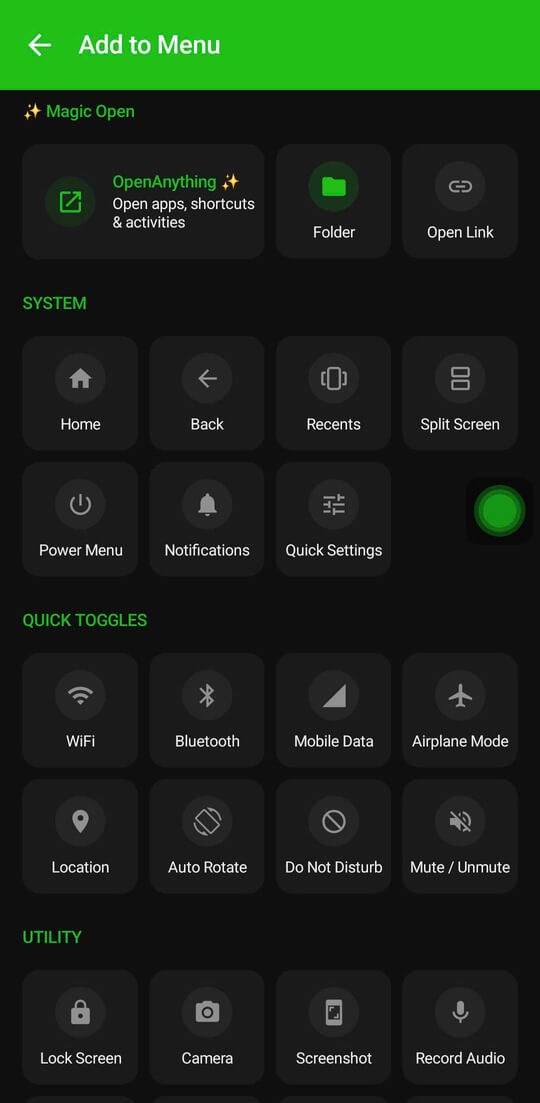
Each slot can be a completely different action - home, back, recents, screenshot, lock screen, flashlight, Wi-Fi toggle, Do Not Disturb, volume control, open a specific app, and more.
Three setups worth trying:
Minimal (one action, zero friction) Single tap = Home. Nothing else mapped. Every tap does one thing. Fast, predictable, perfect for anyone who just wants a software home button.
Power user Single tap = Screenshot, double tap = Back, long press = open the radial menu for everything else. Screenshot on single tap feels counterintuitive until you realize how often you actually take screenshots - then it becomes indispensable.
One-hand navigation replacement Single tap = Back, double tap = Recents, long press = Home. This mirrors the old three-button navigation bar mapped to one button. Works particularly well on large phones where the navigation bar is hard to reach reliably.
Setting Auto-Hide Rules
Some apps should not share the screen with your button. Games need every pixel. Camera apps look cluttered with an overlay. YouTube full-screen is obvious.
Floatify's auto-hide lets you specify which apps trigger the button to disappear. When you switch to a listed app, the button hides automatically. Tap the button zone and it briefly reappears if you need it - then hides again.
Set it up in Settings > Auto-Hide > Hidden in Apps, then add the apps you want. Five minutes of setup, and you will never think about it again.
5 Style Preset Ideas
Not sure where to start? These five combinations cover a lot of ground:
1. Minimal Dark Small black circle, 70% opacity, right edge mid-screen, single tap = screenshot. Disappears against most dark wallpapers. Zero visual noise.
2. Emoji Personal Star or heart emoji, full opacity, left edge. Single tap = Home. Feels like a sticker you put there on purpose. Looks nothing like a system overlay.
3. Gaming Setup Tiny dot shape, auto-hide enabled for your main games, single tap = DND toggle. Drop into a session, the button hides itself. DND one tap away for notifications. Minimal footprint everywhere else.
4. High Visibility Large red or orange circle, full opacity, bottom center. Single tap = Home, long press = Back. Built for easy one-handed reach and high contrast. Great for accessibility or anyone who prefers bigger targets.
5. The Ghost Button Fully transparent, positioned on the right edge about 40% from the top. Single tap = Home. No visible button - just a tap zone you memorize. The cleanest screen you have ever had.
Download Floatify
All of these customizations are free - no ads, no paywalls, every feature unlocked from day one.
Also Read
No ads. No sign-up. Works on Android 10+.