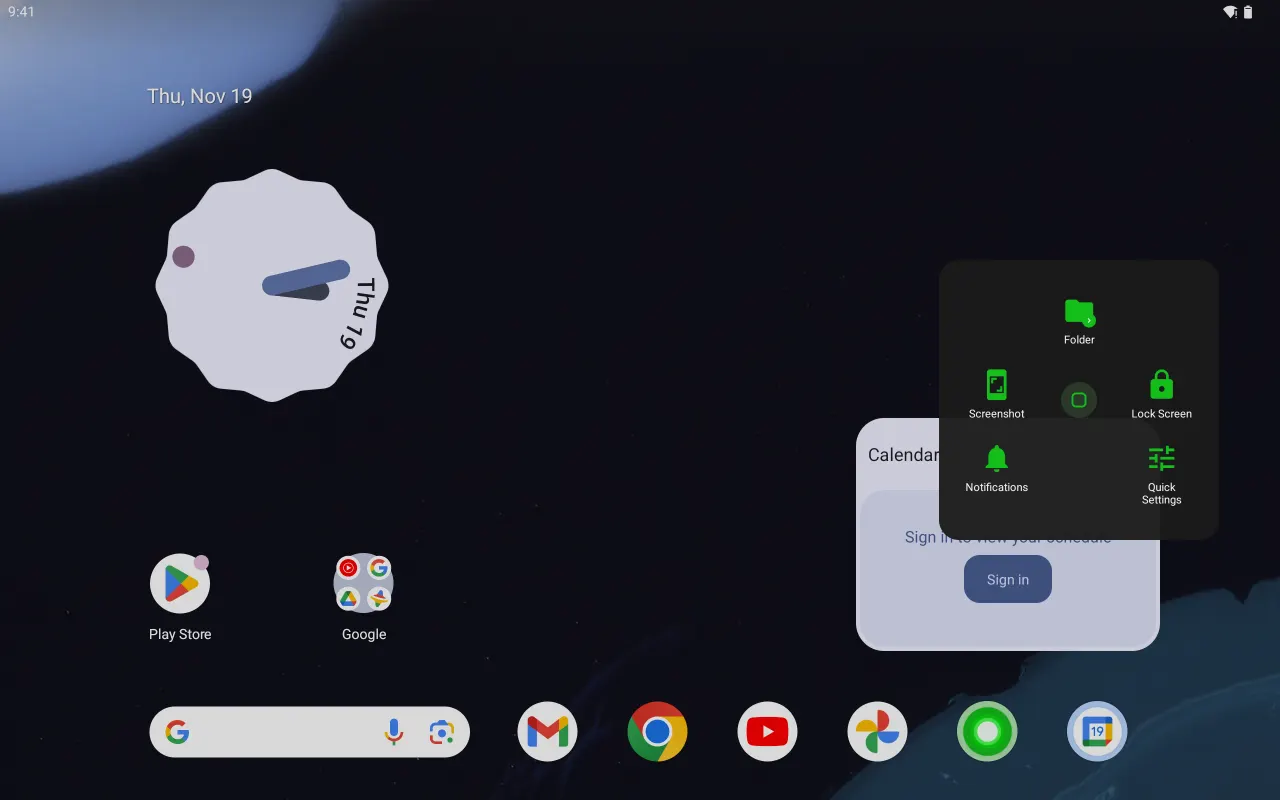
On a tablet or an unfolded foldable, the controls you reach for are far from your thumb: the back gesture is at the edge of a very wide screen, and the home button is a long stretch away. Assistive touch on Android tablets and foldables is mostly about keeping a few actions close to the hand that holds the device.
The short answer: use the built-in taskbar and 3-button navigation, add Samsung's Assistant menu if you have a Galaxy, or use a floating button such as Floatify that you can park on the edge where your thumb rests.
What Android gives you on a big screen
- Taskbar. Android 12L and newer show a taskbar with your apps on tablets and unfolded foldables. On Pixel and other stock tablets, newer versions can hide it until you swipe up from the bottom edge. On Samsung it is under Settings > Display > Taskbar.
- 3-button navigation. On a big screen, back and home buttons are easier to reach than gestures from the far edge. Find it under Settings > System > Navigation mode on a recent Pixel. Samsung keeps it under Settings > Display > Navigation bar.
- Samsung Edge panels. A handle on the screen edge opens shortcuts and apps. Turn it on under Settings > Display > Edge panels.
- Samsung Assistant menu. A floating button with a few system actions, under Settings > Accessibility > Interaction and dexterity > Assistant menu. It is a small fixed set, not a menu you design.
How to set up an assistive touch floating button on a tablet or foldable
Floatify is a floating button that opens a menu of actions over any app, with no account and no paywalls. Install it, then:
- Open the app and allow the permission it asks for, so the button can appear over other apps.
- Under Menu Items, tap Add action… to put in what you use most: Back, Home, Recents, Screenshot, Lock Screen.
- Under Menu Style, pick Panel if you want a grid with labels, or Radial for an arc around the button.
- Drag the button to the edge where your thumb rests.
The settings screen adapts to the size of your display. On a tablet or an unfolded foldable the Gestures, Appearance and Behavior rows sit two per line in one centered column, in the same order as on a phone.
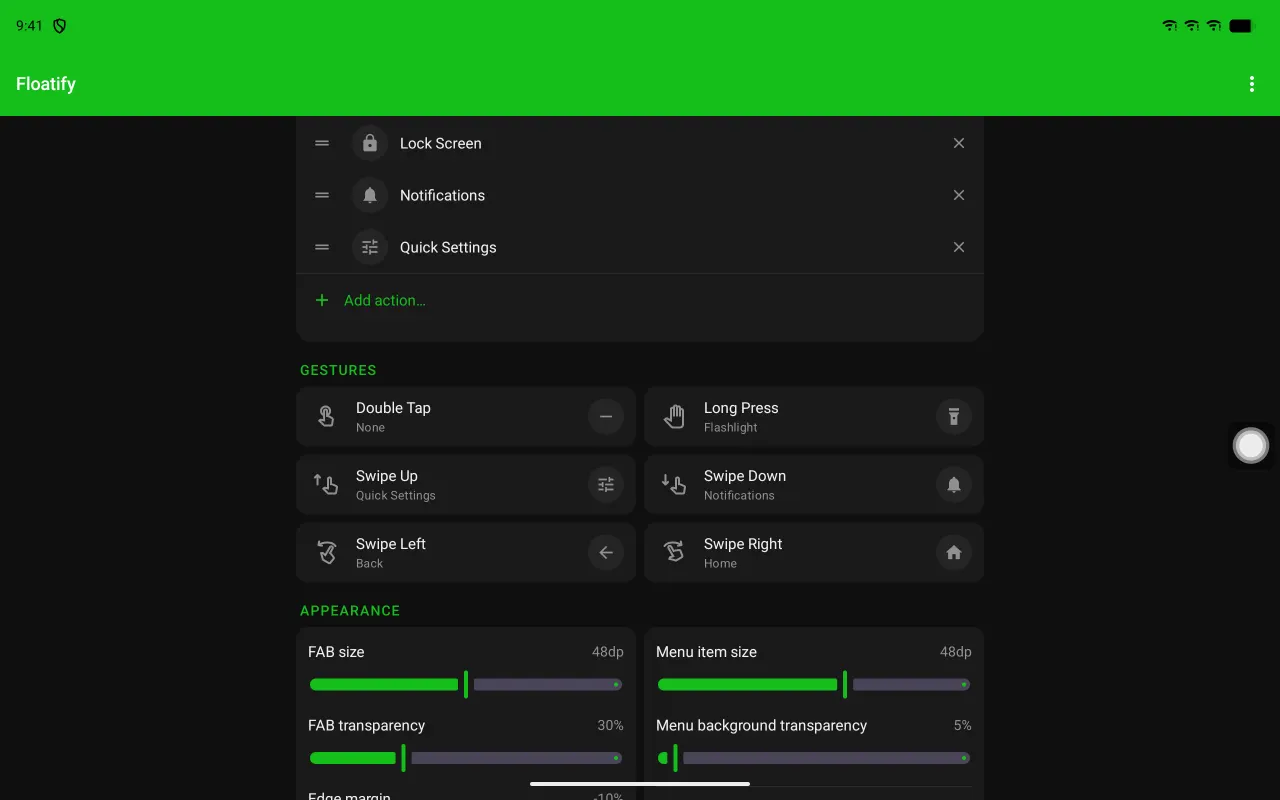
Floatify settings on a 2560x1600 tablet screen, in landscape: Gestures in pairs.
Tips for placing the button on a big screen
Keep it on the edge you hold
Park the button on the side where your thumb rests. With Snap to edge on, it docks to the nearest edge when you let go.
Use Panel in landscape
In landscape the Panel menu opens beside the button, on whichever edge it sits, instead of in the middle of a very wide screen. Everything stays within thumb reach. If the panel is too wide to fit beside the button, it falls back to the center.
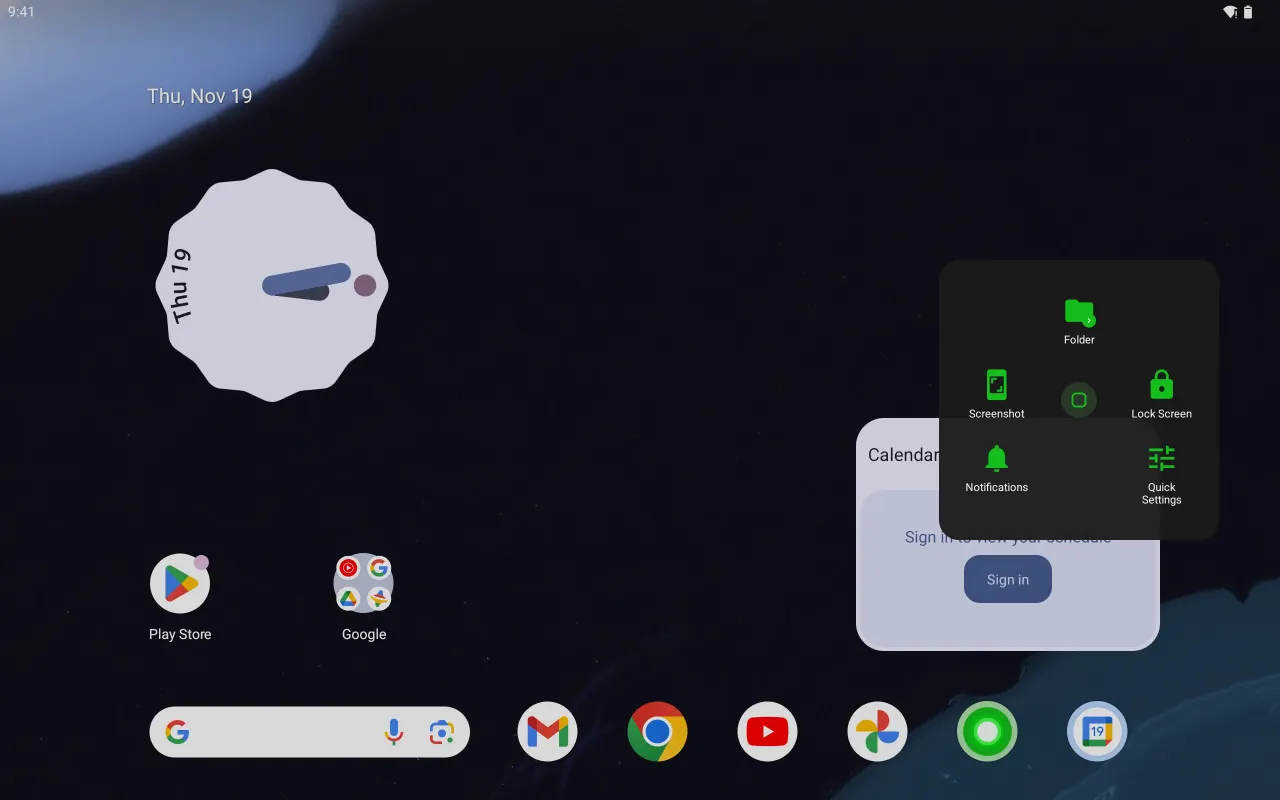
Tap the button and the Panel opens beside it; tap Folder to open its actions.
Let the radial menu follow the button
Radial opens as an arc around the button. Near the top or bottom edge, the button moves toward the center so the arc still fits around it. With nine or more items it uses two rings, and on a short screen such as a tablet in landscape the arc shrinks to fit.
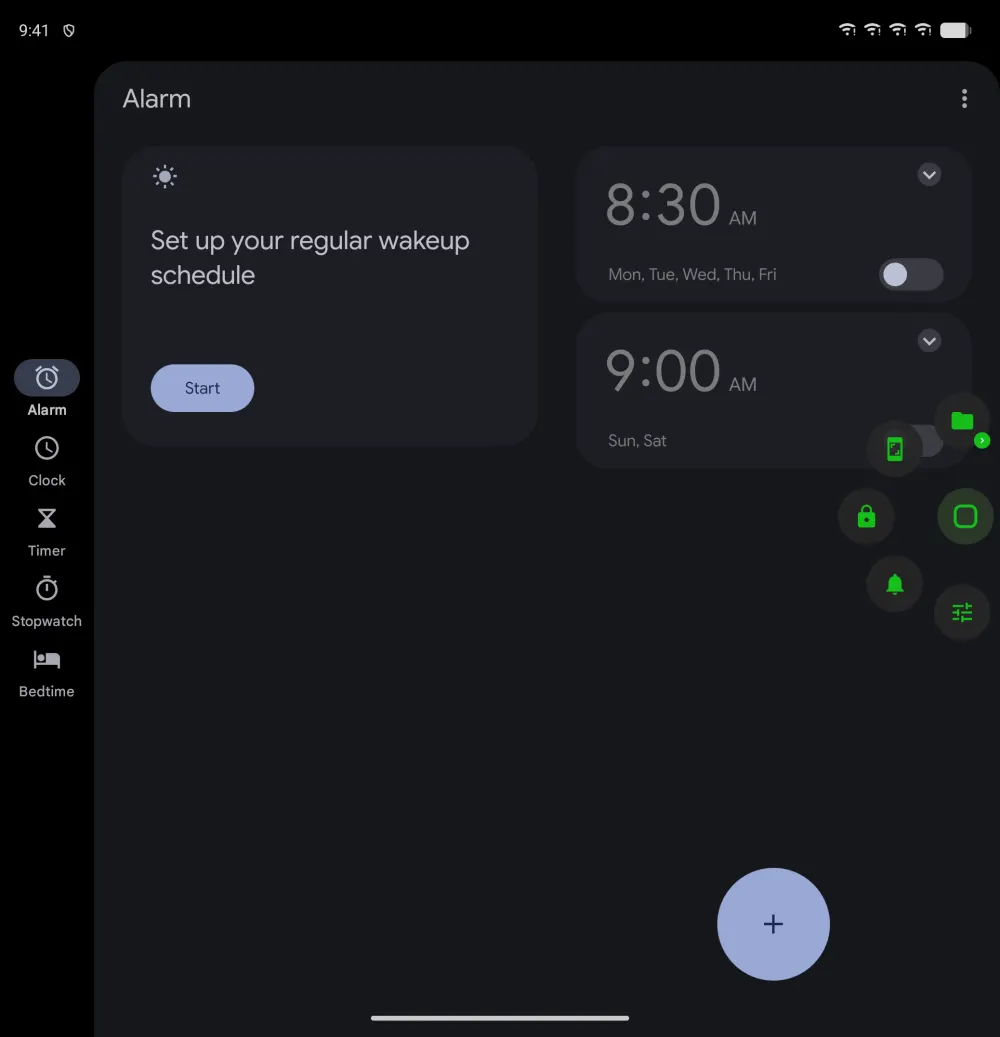
The radial menu on a foldable-sized inner screen (2076x2152 at 390 dpi).
Rotate and fold without losing the button
Floatify keeps the button on its edge when the screen rotates or changes size, so it stays on the same edge after you fold or unfold. In landscape it steps clear of the camera hole when it sits at the same height as the cutout.
Move it above the keyboard
Move above keyboard is on by default on Android 11 and newer once Accessibility is allowed: the button glides up when the on-screen keyboard opens, then returns.
For a phone-sized version of the same idea, see assistive touch on Android for iPhone switchers, and for reaching things with one hand, Android one-hand tips.
FAQ
Does Android have assistive touch for tablets?
Not under that name. Samsung tablets and foldables have the Assistant menu and Edge panels. A Pixel Tablet has the taskbar and 3-button navigation but no floating button.
How do I get the taskbar on an Android tablet?
It is built into Android 12L and newer. Recent versions can hide it until you swipe up from the bottom edge. Samsung also has a toggle under Settings > Display > Taskbar.
Does a floating button work on a foldable cover screen and inner screen?
Yes. It is a normal floating button, and Floatify adapts its menu to the screen size and keeps its edge when you fold or unfold.
Will it get in the way when I rotate the tablet?
The button stays on its edge. Use Radial or Panel in landscape, where both menus are placed to fit a short screen.
No ads. No sign-up. Works on Android 10+.