Android doesn't ship with AssistiveTouch. If you're switching from iPhone - or you've just seen this feature and wondered how to get it on Android - you're in the right place.
This guide walks you through everything: what the feature is, why people use it, what Android offers natively, and how to set up a floating button that actually matches (and beats) what you remember from iOS.
What Is Assistive Touch and Why Do Android Users Want It?
AssistiveTouch is a floating button that lives on top of every screen. Tap it, and you get a menu of quick actions - home, back, screenshot, volume, and more - without pressing physical buttons or swiping through the navigation bar.
The reasons people search for this on Android are almost always about convenience, not broken hardware:
- One-handed use - reaching the top of a large screen is hard. A floating button sits where your thumb naturally lands.
- Quick shortcuts - why dig through notification panels or settings when one tap gets you to flashlight, screenshot, or your most-used app?
- Muscle memory from iOS - if you spent years on iPhone, you just miss having it.
- Workflow efficiency - power users stack multiple actions onto gestures (single tap, double tap, long press) to move faster.
Whatever your reason, the good news is Android supports this completely - with no hardware modification or root needed.
Android's Built-In Option: Accessibility Menu
Android does have a native floating shortcut. You'll find it under Settings > Accessibility > Accessibility Menu (the exact path varies slightly by Android version and phone brand).
When enabled, a large button appears on screen that opens a panel of system shortcuts.
It works, but it has real limitations:
- The button is fixed in position - you cannot drag it where your thumb reaches.
- The design is large and functional, not exactly subtle.
- There is no customization - you get the same set of actions for everyone.
- You cannot assign specific actions to different gestures.
- There is no auto-hide for gaming or full-screen video.
If you want something closer to the iOS experience - movable, customizable, with a clean look - you need a dedicated app.
Setting Up Floatify as Your Android Assistive Touch
Floatify is a free Android app designed exactly for this. No ads, no paywalls, every feature unlocked from the first install. Here's how to get it running in about five minutes.
Step 1: Download from the Play Store
Search for Floatify on Google Play or use the direct link: https://play.google.com/store/apps/details?id=com.redmanit.floatify
Install it like any other app. It's under 5 MB and requires no account.
Step 2: Grant "Display Over Other Apps" Permission
When you first open Floatify, it asks for permission to display over other apps. This is the same permission used by Messenger chat heads and any floating widget - it lets the button appear on top of whatever app is running.
Tap Grant Permission, then toggle it on in the system settings screen that opens. Android takes you straight there. Toggle it on, come back to Floatify, and you're ready.
This permission is safe and transparent - it only allows the button to float on screen. It doesn't give Floatify access to your content, camera, or any data.
Step 3: Enable the Floating Button
Back in Floatify's main screen, tap the main toggle to enable the floating button. It appears immediately - you'll see it overlaid on the Floatify app itself.
You can drag it anywhere on screen to find a comfortable starting position.
Step 4: Choose Your Shape and Color
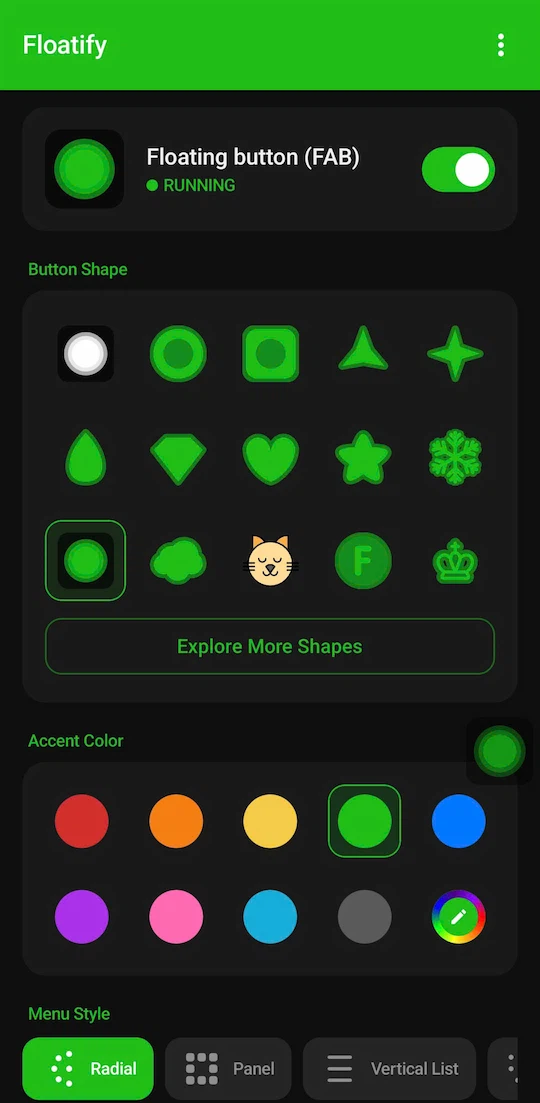
This is where it gets fun. Floatify has more than 100 button shapes - circles, stars, geometric forms, animals, fruits, letters, symbols - plus over 1,000 emojis you can use as the button shape.
Open the Shape picker and scroll through the options. Tap any shape to preview it live on the button.
For color, the Color option opens an RGB picker - you can match your wallpaper, your phone case, whatever you want. You can also control the button's size and transparency so it blends into the background without disappearing entirely.
Step 5: Configure Your Actions
Tap the Actions section to set up what the button actually does. Floatify gives you three independent gesture slots:
- Single tap - the most common action, triggered by a normal tap
- Double tap - a secondary action on the same button
- Long press - a third action for less frequent shortcuts
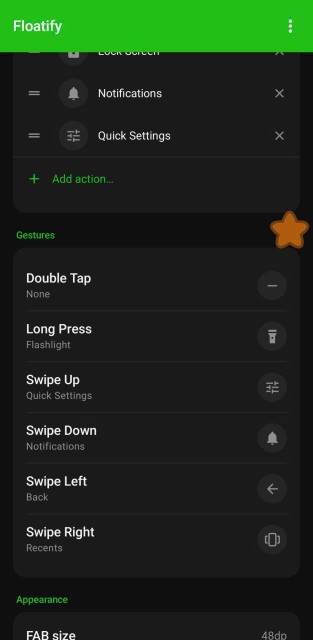
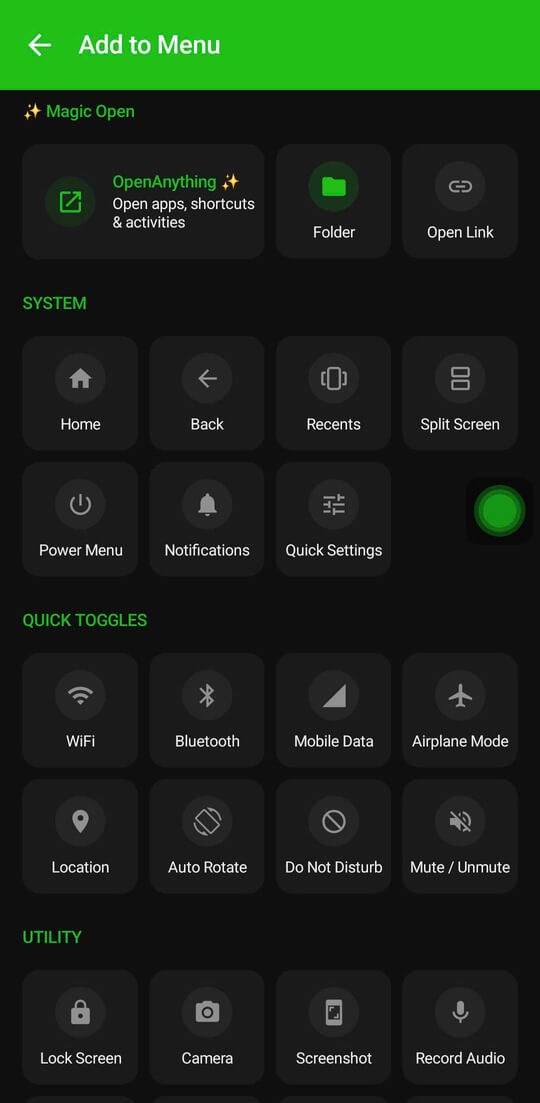
Each slot can be set to a different action. Available actions include home, back, recents (recent apps), screenshot, lock screen, flashlight, Wi-Fi toggle, Do Not Disturb toggle, volume controls, mute, open any specific app, split screen, power menu, notification panel, and quick settings.
A popular starting configuration: single tap opens the action menu, double tap takes a screenshot, long press locks the screen.
Step 6: Position It Where Your Thumb Reaches Naturally
Drag the button to the spot where your thumb lands most easily when holding the phone in one hand. For most people this is the middle of the right edge or the lower-right corner.
The button snaps to screen edges so it stays neatly docked and doesn't float in the middle of the screen - keeping it out of the way of your content.
The 5 Most Popular Actions to Set Up First
If you're not sure where to start with action configuration, these are the five most-used shortcuts among Floatify users:
- Screenshot - the most requested one. One tap captures the screen without pressing volume + power simultaneously.
- Home - mimics the iOS AssistiveTouch home button. Useful on phones where the gesture navigation area is small or awkward.
- Lock screen - puts the phone to sleep instantly. Saves wear on the physical power button.
- Flashlight - faster than pulling down the notification panel and finding the tile.
- Volume - quick access to volume controls without pressing physical buttons, useful for media playback.
Advanced Tips: Get More from Your Floating Button
Auto-Hide for Gaming and Video
The button is useful on your home screen, but during a game or movie it just gets in the way. Floatify has an auto-hide option that detects when specific apps are in the foreground and hides the button automatically.
Open Auto-Hide Settings, then add the apps where you want the button hidden. When you switch to those apps, the button disappears. Switch back to any other app, and it returns.
This is the one setting that makes power users stick with a floating button long-term - it means you never have to manually show or hide it.
Gesture Configuration for Speed
Once you're comfortable with single tap, try using double tap and long press for your second and third most-used actions. Good combinations:
- Single tap: home / open action menu
- Double tap: screenshot
- Long press: lock screen
This lets you do three different things from one small button without ever opening a menu.
Transparency Mode
If you want the button present but less visible - especially over photos, maps, or content where every pixel matters - lower the opacity in the appearance settings. A button at 40-50% opacity is still tappable but barely noticeable when you're not looking for it.
Combined with edge-snapping, a semi-transparent button tucked to the right edge gives you full functionality with minimal screen real estate used.
Frequently Asked Questions
Does Android have a built-in AssistiveTouch?
Android includes an Accessibility Menu under Settings > Accessibility that serves a similar purpose - a floating button with system shortcuts. However, it cannot be repositioned, has no customization options, and uses a fixed design. It covers the basic need but lacks the flexibility most users expect. A dedicated app like Floatify gives you full control over position, appearance, and actions.
Which app is the closest to iOS AssistiveTouch on Android?
Floatify is the closest match in terms of concept and feel - a movable floating button with customizable actions, gesture slots, and a clean modern design. It supports the same core use cases: home, back, screenshot, lock screen, and more, all from a single floating element on screen.
Is Floatify free?
Yes, completely free. No ads, no in-app purchases, no premium tier. Every feature - all shapes, all actions, all customization options - is available from the first install with no payment required.
Does it work on Android 14 and Android 15?
Yes. Floatify is actively maintained and updated for modern Android. It runs on Android 5.0 and above and is tested on the latest Android versions.
Will a floating button slow down my phone?
The impact is minimal. Floatify runs as a lightweight foreground service - similar to how a music player keeps running in the background. On any Android phone from the last five years, you won't notice any performance difference with it running.
Also Read
No ads. No sign-up. Works on Android 10+.