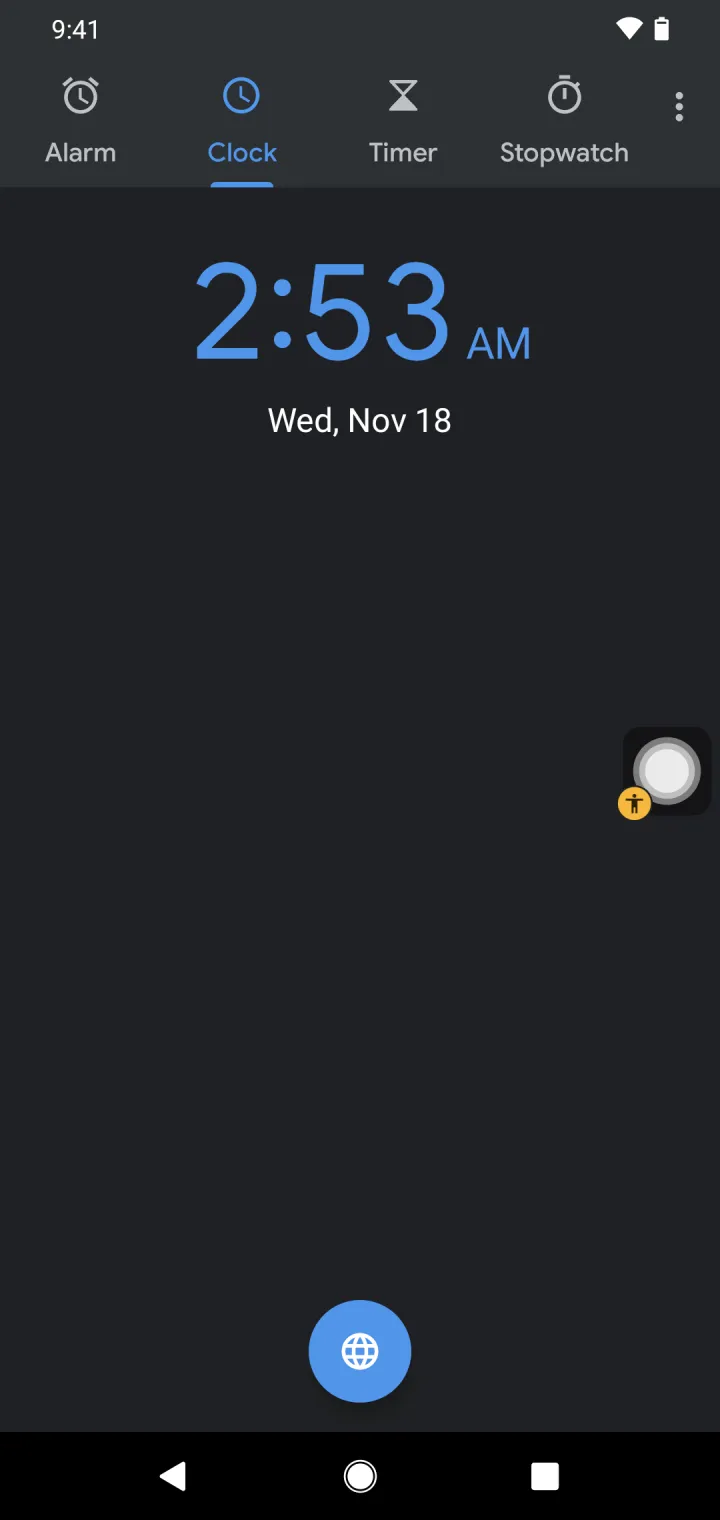
Floatify paused: the button stays on screen with an amber badge while the app opens.
You open your banking or e-wallet app and get a warning such as "Please turn off apps that use accessibility services," or the app just closes. Nothing is broken. An assistive app on your phone, such as a floating button, has an accessibility service switched on, and the app refuses to run next to it.
To fix it, go to Settings > Accessibility, switch the service off, open the app, and turn the service back on afterwards. If you use Floatify, one menu item called Pause & Open does the off-and-open part in a single tap.
Why some apps refuse to run with accessibility on
Accessibility services can read the screen and tap for you, which is how screen readers work. Banking malware abuses the same access to read one-time codes, draw fake login overlays or approve transfers. Apps cannot easily tell a harmless floating button from a malicious service, so many banking, payment and government apps show a warning or refuse to start when a service outside a short allowlist is running.
The manual fix on any Android phone
- Open Settings > Accessibility (on Xiaomi, Additional settings > Accessibility), then look under Installed apps (Samsung) or Downloaded apps (Pixel, Xiaomi).
- Tap your assistive app in the list and switch it off.
- Open the banking or payment app.
- Go back and switch the service on again.
It works, but it is a trip through system menus every time. If you only open the app now and then, you can stop here. For daily use, there are two better routes.
Pick an assistive tool without an accessibility service
Some floating buttons need only the "Display over other apps" permission, so the warning never appears. They usually cannot do Back, Recents, Lock Screen or Screenshot. Our review of the best assistive touch apps for Android compares them.
Pause accessibility on demand
Floatify's button runs on an overlay, and accessibility is an optional extra for the actions that need it, so Floatify can switch that extra off and keep the button on screen.
Pause & Open: the one-tap version
Two actions in the FAB & Accessibility section of the action picker handle this:
- Pause Accessibility turns the service off. You open your app yourself.
- Pause & Open does that and opens the app you chose, in the same tap.
When you add Pause & Open to a menu slot or gesture, Floatify shows a short explainer, then the OpenAnything picker. Pick the app that refuses to run with accessibility on. The menu item gets that app's look plus a small amber pause badge.
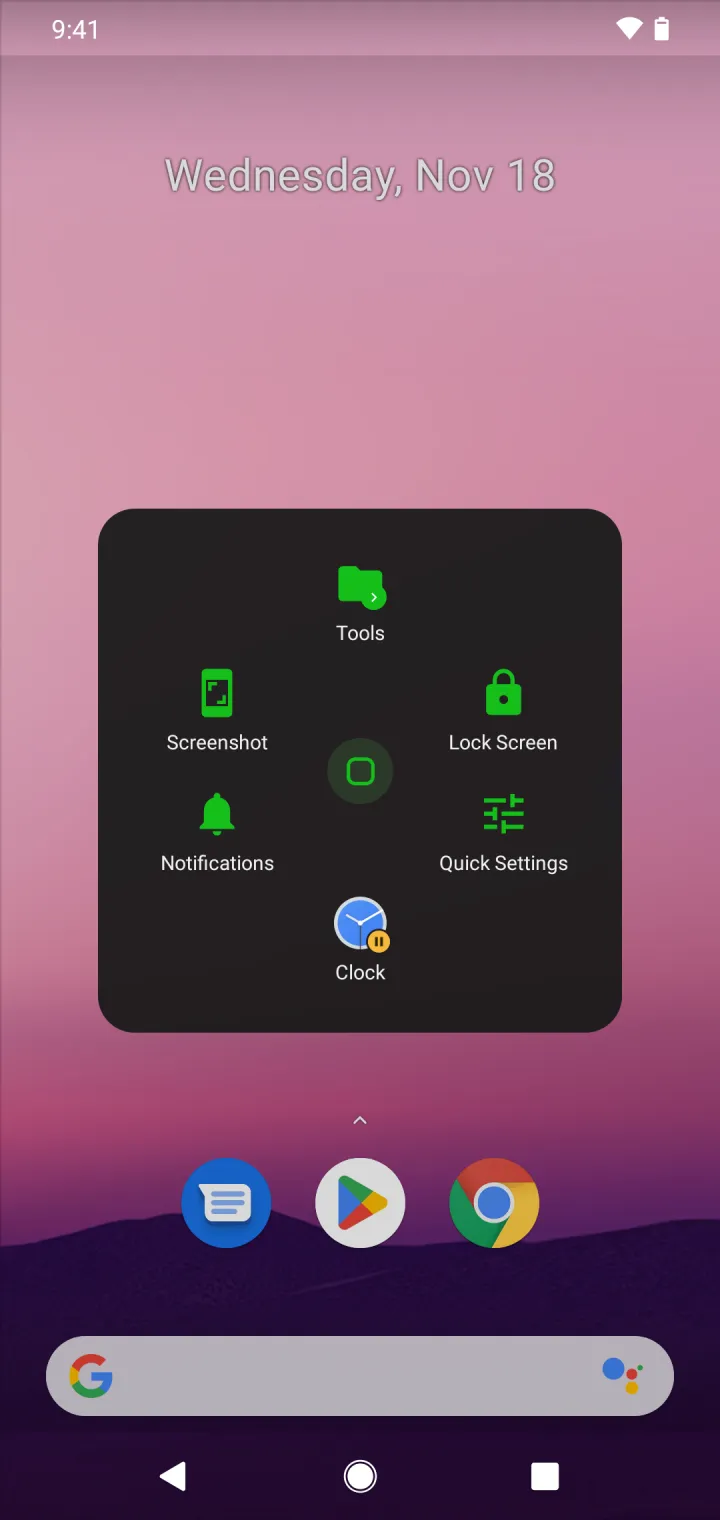
The Pause & Open item in the floating menu. The amber badge marks it.
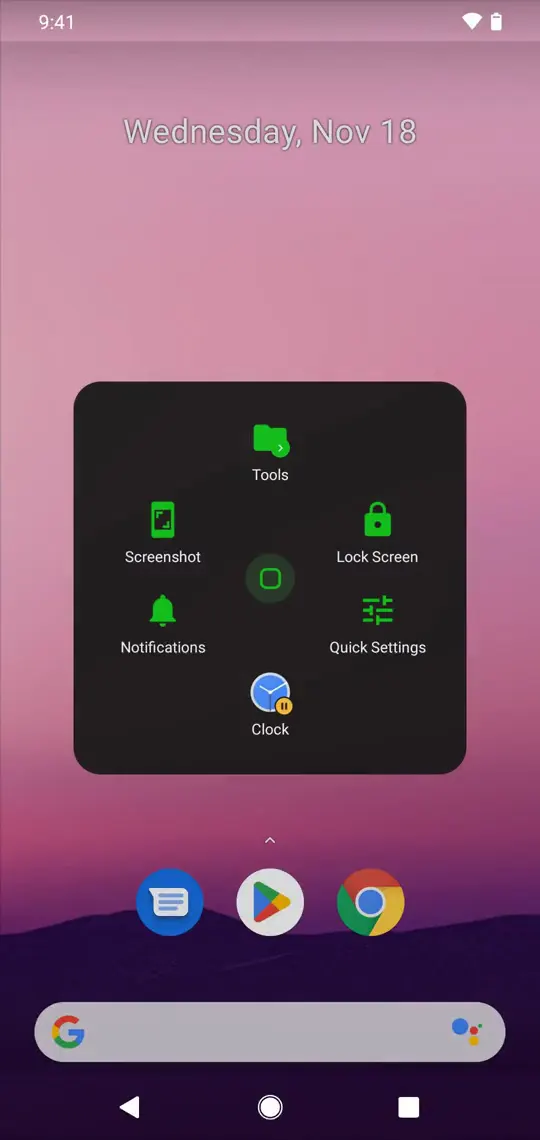
Tap the floating button, tap Pause & Open, and the chosen app opens. Clock stands in for the target app here.
A tap turns Floatify's accessibility service off, waits for Android to confirm, then opens the target app. If accessibility is already off, it just opens the app. This needs the "Display over other apps" permission; if you revoked it, Floatify asks for it first and turns nothing off.
Switching accessibility back on
Android gives apps no way to re-enable their own accessibility service, so this step stays manual. For one hour after you pause, a single tap on the paused button opens the system Accessibility list with Floatify's row highlighted where the phone supports it. Flip the switch and confirm the prompt on Android 12 and later. After that hour, the tap returns to its usual job and only the badge remains.
What still works while paused
The button and everything that does not need accessibility: opening apps, shortcuts and links, Flashlight, Camera, volume and brightness. Back, Recents, Last App, Lock Screen, Screenshot, Notifications, Quick Settings, Power Menu and Split Screen need accessibility, so tapping one takes you through the permission flow instead.
New to floating buttons? Start with our setup guide. Because Pause & Open uses the OpenAnything picker, it can also launch a hidden activity; see hidden Android settings. Floatify is on Google Play, with no account, no ads and no paywalls. The screenshots were captured on an Android emulator.
FAQ
Is it safe to turn off an accessibility service temporarily?
Yes. You only lose the features that depend on it until you switch it on again.
Why does my bank app still complain after I paused Floatify?
Another accessibility service may be running, such as a screen reader or a password manager's autofill helper. Check the accessibility list and turn off anything still on.
Do I have to name the banking app inside Floatify?
No. Pause & Open works with any app you pick.
No ads. No sign-up. Works on Android 10+.