Modern smartphones are incredibly capable - but they were largely designed by and for young adults with small fingers, quick reflexes, and a tolerance for hunting through menus. If you are helping an elderly parent get more comfortable with their Android phone, or if you are a senior reading this yourself, you are in the right place.
The good news: a handful of settings changes - most taking under two minutes each - can make the phone feel genuinely easier to use. No new hardware, no expensive upgrades. Just smarter setup.
Here are six practical tips, starting with the easiest.
Tip 1 - Make Text and Everything Bigger
Small text is one of the most common complaints seniors have about smartphones. Android has two separate settings that help, and most people only find one of them.
Font Size
Go to Settings > Display > Font size and drag the slider to the largest or second-largest option. You will see a live preview as you drag. The largest setting is quite large - try it and see if it feels comfortable.
Bold Text
Bold text improves contrast and makes characters easier to distinguish, especially on bright outdoor screens. Find it at Settings > Accessibility > Text and Display > Bold Text and flip the toggle on.
Display Size
This one is different from font size and often overlooked. Display size makes icons, buttons, and interface elements bigger - not just text. Find it at Settings > Display > Display size and move the slider up. Combined with the font size setting, this makes the whole phone feel like it was built for human hands.
Tip 2 - Simplify the Home Screen
A cluttered home screen is overwhelming for anyone new to smartphones. The goal is fewer things, bigger things, and only what actually gets used.
Remove Rarely Used Apps
Press and hold any app icon on the home screen. You will see an option to remove it from the home screen (this does not delete the app - it just moves it to the app drawer where it can still be found later). Keep only five to eight apps on the main screen: phone, messages, camera, and whatever else gets used every day.
Fewer Items, Larger Icons
Some launchers let you change the icon grid size. Reducing from a 5x5 grid to a 4x4 or even 3x4 grid makes every icon noticeably larger without any other changes. Look for this in Settings > Home screen or in the launcher's own settings (it varies by phone brand).
Simple Launcher Apps
If the default home screen still feels cluttered, there is a whole category of "simple launcher" apps designed for seniors, showing a clean grid of very large buttons with labels. This is worth exploring if the standard Android launcher feels like too much.
Tip 3 - A Floating Button for Navigation
This is the tip that tends to make the biggest difference for seniors - and it is the one most people have never heard of.
Why Hardware Buttons and Gestures Are Hard
Android phones have largely moved away from physical home buttons in favor of either side buttons (small, easy to miss) or on-screen gestures (swipe up, swipe from the edge, swipe and hold - confusing even for experienced users). For someone with limited hand strength, arthritis, or reduced fine motor control, these interactions range from annoying to genuinely unreliable.
The result: your parent fumbles to find the right button on the side of the phone, accidentally presses volume instead of power, or swipes the wrong direction and ends up somewhere unexpected. This builds frustration and erodes confidence.
The Better Option: A Big Floating Button
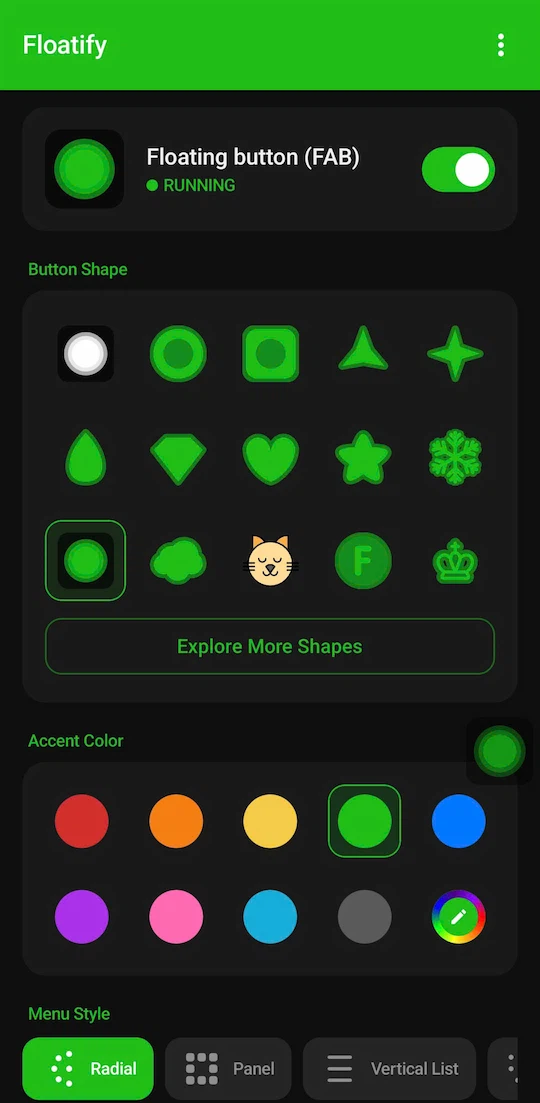
Floatify is a free Android app that puts a floating button on screen at all times - in any app, on any screen. You set its size, position, and what it does. It stays put, it is always visible, and it always does the same thing when you tap it.
A few things that make it especially well-suited for seniors:
- It can be made very large - large enough that someone with limited dexterity can tap it reliably
- You position it exactly where the thumb rests naturally - no stretching or hunting
- One tap = Home - the most commonly needed action, always in the same place
- No ads - this matters more than it sounds. Many free apps aimed at seniors are loaded with intrusive ads that pop up and confuse. Floatify has zero ads and all features are unlocked from the start. Nothing to accidentally tap, nothing to dismiss.
How to Set It Up
- Install Floatify from the Play Store - it is free
- Open the app and grant the overlay permission when prompted (this is what lets it float above other apps)
- In the settings, increase the button size to the largest or second-largest option
- Drag it to the bottom-center or bottom-right of the screen - wherever the thumb lands naturally
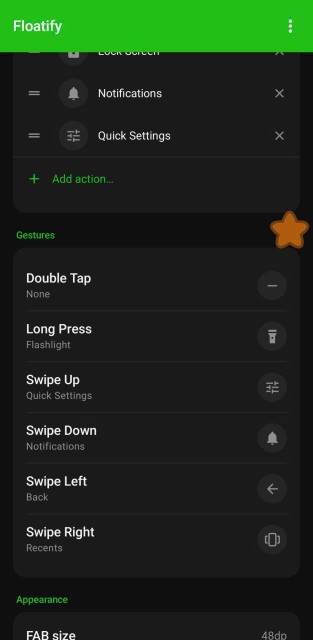
- Set the single tap action to Home
- Optionally, set long press to Back
That is it. From this point on, your parent never needs to find the side buttons again for everyday navigation. The floating button is always there, always the same size, always in the same spot. Most seniors adapt to it within a day and find they prefer it over going back to gestures.
Bonus: Floatify also has a volume action and a flashlight action - both useful for seniors who find those hardware buttons awkward to use.
Tip 4 - Volume and Sound
Missed calls are a common frustration. A few adjustments help.
Increase Default Media Volume
Go to Settings > Sound and drag the media volume slider higher. Android separates media volume (videos, music) from call volume and notification volume - make sure to check all three sliders.
Turn On Vibration for Calls
For someone who might not always hear their phone ring, vibration for calls is a helpful backup. In Settings > Sound, look for vibration options and enable vibrate for calls. Some phones also let you set a stronger vibration pattern.
Quick Volume Adjustment with Floatify
If you have set up Floatify from Tip 3, you can add a volume action to the floating button menu. This means your parent can adjust volume from inside any app with one tap - no need to remember which side button to press or by how much.
Tip 5 - Reduce Visual Complexity by Turning Off Animations
Android's sliding and fading animations look nice but they can be disorienting - especially for seniors who are not sure if the phone is "doing something" or just being slow. Turning them off makes the phone feel more immediate and responsive.
This setting is inside Developer Options, which is hidden by default. Here is how to get there:
- Go to Settings > About phone
- Find Build number and tap it seven times in a row - the phone will show a message saying "You are now a developer"
- Go back to Settings - you will now see Developer Options in the list
- Inside Developer Options, find these three settings and set each to Animation off:
- Window animation scale
- Transition animation scale
- Animator duration scale
If this feels like too many steps, ask a family member to do it once - it is a one-time setup and the phone will feel snappier immediately.
Tip 6 - Set Up Emergency SOS
This one is quick and could matter a lot. Most Android phones have a built-in Emergency SOS feature that can call emergency services by pressing the power button several times in a row - no need to unlock the phone, no need to find the phone app.
Go to Settings > Safety and Emergency > Emergency SOS (the exact path varies slightly by phone brand - search for "Emergency SOS" in Settings if you cannot find it). Enable it and set the number of power button presses needed to trigger it - usually 3 or 5 presses. You can also configure it to share your location automatically when triggered.
Show your parent how to use it once so they know it is there. Knowing the safety net exists often reduces anxiety about using the phone independently.
Putting It All Together
These six changes take under 10 minutes total:
- Larger text and display size (2 minutes)
- Simplified home screen (3 minutes)
- Floating navigation button with Floatify (3 minutes)
- Sound and volume adjustments (1 minute)
- Animations off (1 minute if Developer Options is already enabled)
- Emergency SOS configured (1 minute)
The floating button tends to be the change that sticks most. Once it is in place and your parent builds the muscle memory - tap the big circle to go home - they tend to feel noticeably more confident navigating the phone. It removes the one thing that trips up new users most: the unpredictability of where the home action lives.
If you found this useful, you might also enjoy:
No ads. No sign-up. Works on Android 10+.