Most people hold their phone in one hand for the majority of the day. Waiting in line, carrying groceries, eating lunch, standing on the subway - the phone is in one hand and the other hand is occupied or just not there. This is normal. It is the default state of phone use, not a special mode.
And yet Android phones are now 6.5 to 7 inches tall. The back button sits at the very bottom edge. The notification bar lives at the very top. Getting from one to the other means either using two hands or doing that awkward thumb-stretch-and-prayer move where the phone almost falls.
This guide covers what actually helps - including some built-in Android tricks and a floating button approach that genuinely solves the navigation problem.
What Android Gives You Out of the Box
Android has a few native tools for one-handed use. They are worth knowing, even if they only partially solve the problem.
One-Handed Mode
On most Android phones (Settings - Accessibility - One-Handed Mode), enabling this shrinks the entire display down to roughly the bottom half of the screen. Your app stays visible and interactive, just in a smaller window.
It works. The problem is that it toggles off the moment you tap outside the shrunken area, which happens constantly. You end up re-enabling it more than you use it.
Reachability on Samsung Phones
Samsung devices let you swipe down on the navigation bar to pull the top of the screen closer to your thumb. It is faster to activate than One-Handed Mode, but the gesture conflicts with other swipe interactions in many apps and feels inconsistent depending on which screen you are on.
Gesture Navigation Shortcuts
Swiping from the bottom corner to go back is faster than reaching for a back button - once you get used to it. But the gesture is imprecise on some devices, and the bottom edge is still not where your thumb rests naturally when you are just holding the phone normally.
All three of these reduce the problem. None of them fix the core issue: the most-used navigation targets (Home, Back, Recents) are anchored to fixed positions on the screen, not where your thumb happens to be.
The Floating Button Approach
The idea behind a floating button is simple: instead of moving your thumb to where the navigation controls are, you move the navigation controls to where your thumb already sits.
Your thumb at rest probably sits somewhere in the bottom quarter of the screen, left or right side, depending on which hand you use. A floating button positioned there means you never have to stretch.
With the right setup, you can assign all three main navigation actions to a single button:
- Single tap - Back (the most frequent action by far)
- Long press - Home
- Double tap - Recents or Screenshot
Three gestures, one fixed point your thumb is already on. That is the whole idea.
Setting Up Floatify for One-Handed Use
Floatify is a free Android floating button app. No ads, all features unlocked. Here is how to configure it specifically for one-handed use.
Step 1: Install and Grant Permission
Download Floatify from the Play Store. When you first launch it, it will ask for the overlay permission - this is the standard Android permission that lets apps display over other apps. Tap the prompt and allow it.
Step 2: Position the Button
Drag the button to wherever your thumb rests naturally. For most right-handed users, that is the lower-right area, roughly three-quarters down the screen. Left-handed users will want the lower-left. The button snaps to a consistent spot along the edge so it stays put.
Do not overthink the position. Place it, use the phone normally for a few minutes, and adjust if the button is not quite where your thumb lands.
Step 3: Set the Size
Go into Floatify settings and bump the button size up. A larger button is easier to tap without looking, which matters when you are doing something else with your attention. Medium-large is a good starting point for most screens.
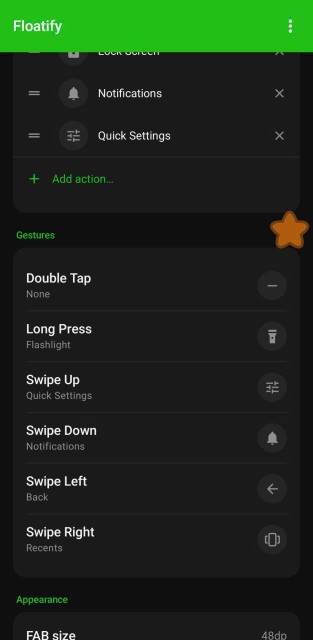
Step 4: Assign Your Gestures
Open the gesture configuration. The three slots are:
- Single tap - set this to Back. It is the action you use most, so it should be the easiest gesture.
- Long press - set this to Home.
- Double tap - set this to Recents, or Screenshot if you take a lot of screenshots.
This covers everything you normally do with Android navigation, all from one button your thumb is already on.
Step 5: Pick a Layout (Optional)
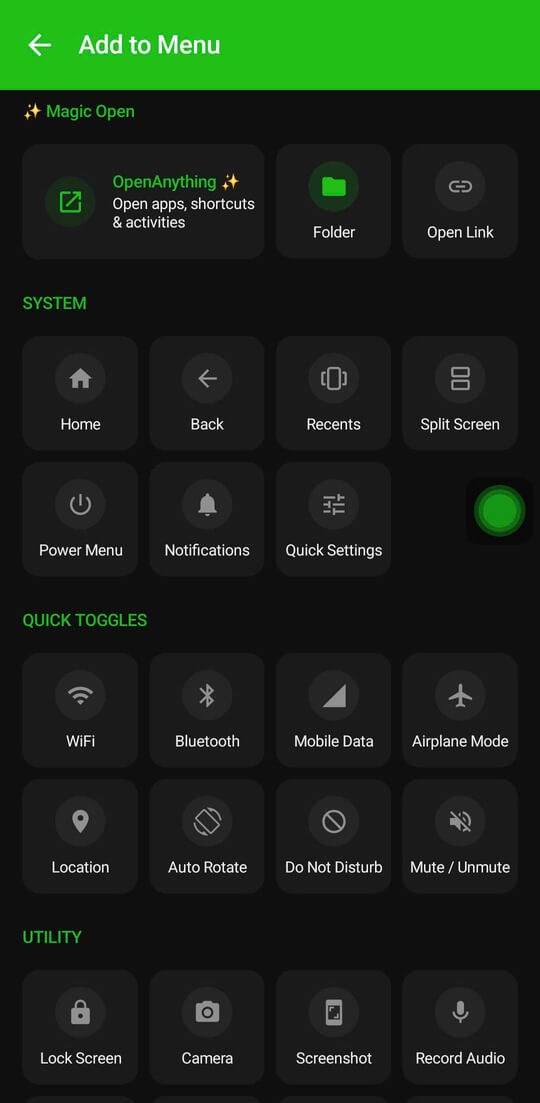
If you want more than three actions visible at once, the vertical strip layout displays a small column of icons along one edge. Everything stays on the same side of the screen, so there is no horizontal reaching. The panel layout opens a full-width action bar - useful if you want to see many options at once without opening a menu.
Tips for Phones Over 6.5 Inches
Bigger phones need a slightly different approach.
Place the Button Lower Than You Think
People tend to position buttons in the middle of the screen because that is where they look. But your thumb at rest is lower than that - closer to the bottom third of the screen. Experiment by placing the button where your thumb actually sits when you are just holding the phone, not actively reaching for anything.
Use Edge Snapping
Enable edge snapping in Floatify settings. This keeps the button locked to a consistent position along the side of the screen. Without snapping, the button drifts slightly over time, and you lose the muscle memory of knowing exactly where it is.
Consider the Panel Layout for Large Screens
On a 7-inch phone, even a well-placed floating button can feel cramped if you need multiple actions quickly. The panel layout - a full-width row of actions that appears at the bottom of the screen - keeps everything within the bottom zone where large-phone thumbs live.
Other One-Handed Phone Tips
A few quick wins beyond navigation:
Enable one-handed keyboard mode. Most Android keyboards have a setting that shifts the entire keyboard to one side of the screen. Keys become easier to reach and you stop hitting the wrong letter. Look in your keyboard's settings under "One-handed mode" or "Layout."
Reduce your home screen icon density. Fewer icons per row means each icon is larger. Larger icons are easier to tap accurately with one hand. This sounds obvious but most people never change the default grid size.
Keep frequently used apps in the lower half of your home screen. Folders and apps you tap every day should live where your thumb is, not in the top rows that require a stretch.
Use a bottom-anchored notification approach. Some notification listener apps can surface alerts in the lower portion of the screen rather than requiring you to pull down from the top. Worth looking into if notification access is a daily friction point.
Frequently Asked Questions
Do I need to disable gesture navigation to use Floatify?
No. Floatify runs alongside whatever navigation system your phone uses. Gesture nav, three-button nav, or anything else - the floating button coexists with all of them. You can use the floating button for Back and Home while still swiping for other gestures.
Can I switch which hand I use?
Yes. Just drag the button to the other side of the screen. If you switch from carrying your coffee in your right hand to your left, you can reposition the button in seconds. There is no setting to change, just drag.
Will the button block content I'm trying to see?
The button is small, and it lives near the edge of the screen where most apps put very little content. You can also set it to be semi-transparent when idle so it is less visually present. The center of the screen - where video, text, and main app content lives - stays clear.
Does one-handed mode work with all apps?
Android's built-in One-Handed Mode works differently depending on the manufacturer, and some apps do not resize cleanly. Floatify's floating button is not a resize tool - it is just a button on top of your screen, so it works the same way in every app without any compatibility issues.
Also Read
- How to Get AssistiveTouch on Android - the full guide to floating button apps on Android
- Virtual Home Button for Android - adding a software home button to any Android phone
No ads. No sign-up. Works on Android 10+.