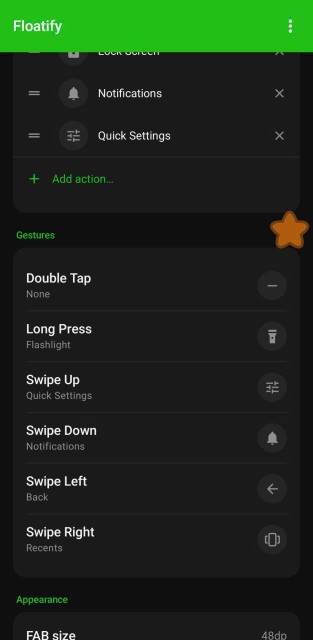
Every Android phone contains hundreds of screens you have never seen. Not because they are broken - because there is no shortcut to reach them. Settings menus only show you what the manufacturer decided you should see. The rest are buried as Activities: individual screens inside apps that exist, are fully functional, and are nearly impossible to reach without knowing exactly where to look.
This guide shows you what those screens are, why they stay hidden, and how to pin any of them to a floating button so you can reach them with one tap from anywhere on your phone.
What Are Android Activities?
Every screen you see inside an Android app is an Activity. The Settings app on a typical phone has somewhere between 80 and 200 individual Activity screens - one for Wi-Fi, one for Bluetooth, one for each sub-menu, one for each toggle group. Your phone's Settings menu only surfaces 20 or 30 of those at the top level. The rest exist, are accessible, and do exactly what they look like - but there is no button to get there directly.
This is not a bug. Manufacturers design menus to expose the settings most users need, in an order that makes sense for the average person. The problem is that if you are not the average person, you end up drilling through 4 or 5 taps to reach something you use every week.
Activities are not exclusive to Settings. Every app has them. Your music app has a separate Activity for the equalizer. Your browser has a flags page. Your camera app has diagnostic screens. Most users never reach any of them.
Why These Screens Stay Hidden
The standard ways to shortcut things on Android - home screen widgets, lock screen shortcuts, notification quick tiles - all work at the app level. They can open apps. They cannot open a specific screen inside an app.
Android does support deep links for this purpose, but app developers have to explicitly expose them, and most do not. The Activities exist in the app's code regardless - they just have no public entry point.
Manufacturer customization makes this worse. Samsung's One UI, Xiaomi's HyperOS, and OPPO's ColorOS all reorganize the Settings menu compared to stock Android. A setting that is three taps deep on a Pixel might be five taps deep on a Galaxy, or renamed entirely. Google searches for "how to find X setting on Android" return generic answers that often do not match what your phone actually shows.
How Floatify's OpenAnything Unlocks These Screens
Floatify includes a feature called OpenAnything under its Magic Open section. It works by reading the list of Activities registered by every app installed on your phone and letting you browse, search, test, and save any of them as a shortcut.
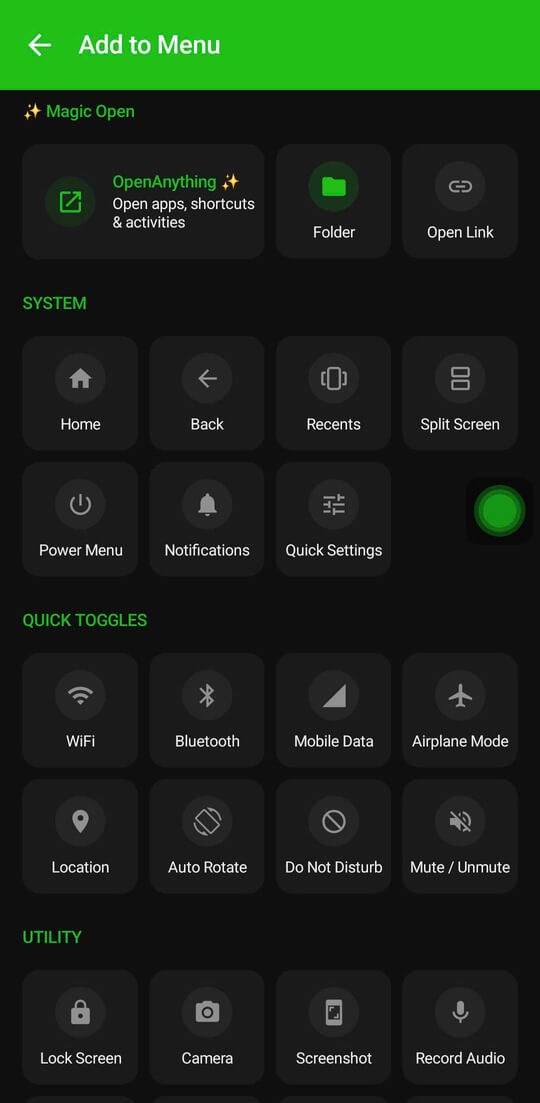
How to set it up:
- Open the Floatify app
- Tap Add to Menu (or long-press any existing action to edit it)
- Scroll to the ✨ Magic Open section at the top
- Tap OpenAnything
- Search for an app - for example, type "Settings"
- Browse the list of Activities that app exposes
- Tap the ▶ button next to any Activity to test it - it opens immediately
- If it's useful, tap to add it to your menu
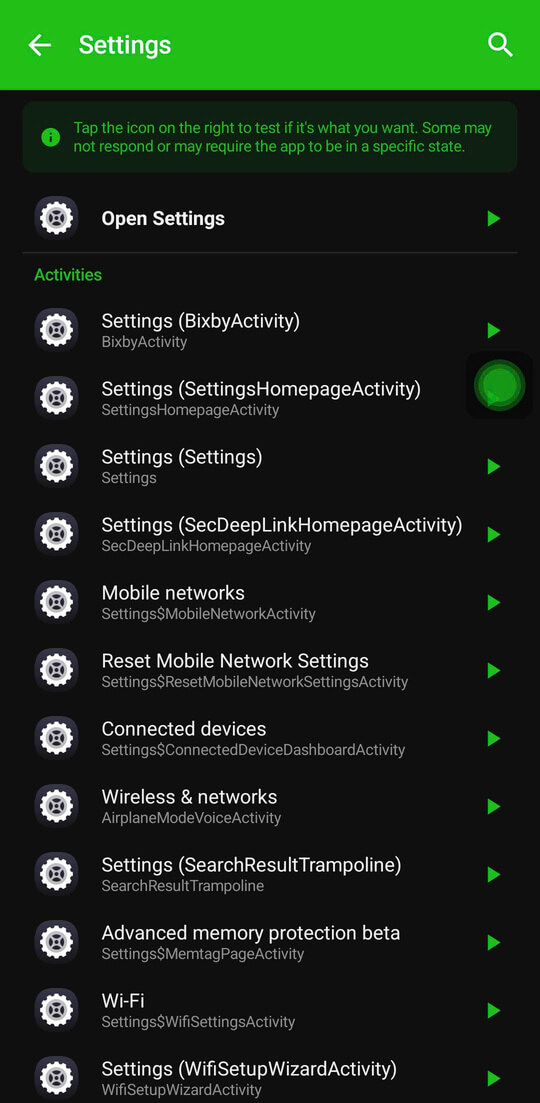
The result: a single tap from your Floatify menu opens that specific screen directly, regardless of which app you are currently using. No navigating, no back-tracking through menus.
One important note: Floatify warns you that some Activities require a specific app state to open correctly. The test button is there for this reason - always test before saving.
8 Hidden Settings Worth Adding to Your Menu
These are Activities that are genuinely useful but unnecessarily hard to reach on most phones. Activity names vary by manufacturer and Android version - use the search in OpenAnything to find the equivalent on your device.
1. Wi-Fi Calling
Search for "Wi-Fi Calling" or "WifiCallingActivity" inside Settings. Enables phone calls over Wi-Fi when cellular signal is weak - useful in basements, concrete buildings, or traveling internationally. Normally buried under Connections > Mobile Networks > Wi-Fi Calling, which is 4-5 taps on most phones.
2. Battery Usage Details
Look for "BatteryUsageActivity" or "App battery usage" inside Settings. Shows per-app battery consumption over the last 24 hours with more detail than the standard Battery page. The standard page rounds figures; this screen shows exact percentages and time active.
3. Running Services
Under Developer Options, find "RunningServicesActivity". Shows every service currently running on your phone in real time, how long it has been running, and how much RAM it is consuming. Useful for diagnosing battery drain or identifying apps that refuse to stop running in the background.
4. Notification History
Search for "NotificationHistoryActivity" inside Settings. Shows notifications you already dismissed, going back 24 hours. Built into Android 11 and later but hidden several taps deep in Notifications settings on most manufacturer skins.
5. USB Preferences
Find "UsbModeChooserActivity" or "USB Preferences" inside Settings. Switches your USB connection mode between file transfer, photo transfer (PTP), MIDI, and charging-only without needing to expand the notification shade and tap through multiple prompts every time you plug in.
6. One-Handed Mode Toggle (Samsung)
On Samsung devices, search for "OneHandOperationActivity" inside Settings. Activates one-handed mode directly. Normally under Advanced Features > One-Handed Mode, which is 3-4 taps. If you use one-handed mode regularly and switch it on and off, this shortcut pays for itself immediately.
7. SIM Card PIN Management
Search for "SimLockActivity" or "SIM card lock" inside Settings. Manages your SIM PIN - enable, disable, or change it. Buried under Biometrics and Security on most devices, which most people can never find when they need it.
8. Device Information (Full)
Look for "DeviceInfoSettings" inside Settings. The full device information screen - IMEI, Android version, kernel version, baseband version. Normally under About Phone, but manufacturer skins often split this into multiple sub-pages. The Activity opens the complete view directly.
Tips for Getting the Most Out of OpenAnything
Use the search bar. You do not need to know exact Activity names. Type any keyword - "battery", "network", "display" - and OpenAnything filters the list instantly. The ▶ test button is the fastest way to confirm you found the right screen.
Create a Power Settings folder. Floatify supports Action Folders - a sub-menu that opens when you tap a specific button. Create a folder called "Power Settings" and add all your hidden Activity shortcuts there. One tap opens the folder, one more tap opens whichever screen you need.
Share with others. Activity names are text strings. If you find a useful hidden screen, you can share the exact Activity name with anyone else running Floatify on the same device model. They search for it in OpenAnything and add it to their own menu.
Expect some variation after updates. Android and manufacturer updates occasionally rename or restructure Activities. If a shortcut stops working after a system update, re-open OpenAnything, search for the same app, and find the equivalent Activity in the updated list.
Frequently Asked Questions
Is this safe to use? Yes. OpenAnything only opens native Android screens that already exist on your device. It does not modify settings, grant new permissions, or run any code beyond what the screen itself does when you navigate to it normally. If a screen is safe to visit via the standard menu, it is safe to visit via a shortcut.
Does this require root access? No. All Activities accessible through OpenAnything are available to any app with standard permissions. Root is not required.
Does it work on all Android phones? The feature works on any Android device. The specific Activities available - and their names - vary by manufacturer and Android version. Samsung, Xiaomi, OPPO, and Pixel phones all expose different Activity sets.
Can I open Activities in third-party apps, not just Settings? Yes. Any installed app exposes its Activities to OpenAnything. You can open a specific playlist inside a music app, a specific settings screen inside a browser, or any other Activity the app registers. Results vary - some apps protect their Activities from external launch, and the test button will show you immediately if that is the case.
What happens if an Activity crashes when I open it? Some Activities require being reached through a specific navigation path to function correctly - they depend on data set by a previous screen. Floatify's warning message and the test button exist for this reason. If testing shows a crash, that Activity requires the standard navigation path and cannot be shortcutted reliably.
Also read: Android Control Center: Access Everything From Any Screen - build a full control center with Floatify's action menu. Or: 10 Things You'll Do Faster With a Floating Button - practical use cases for everyday phone users.
No ads. No sign-up. Works on Android 10+.