The Problem With Swiping During a Game
You're mid-match. Your teammate just pulled off something insane and you want to screenshot it. Or an incoming call is about to buzz your phone into your opponent's hands. Or the in-game music suddenly becomes unbearable.
So you swipe down from the top to open Quick Settings.
And then one of these happens: you tap the wrong tile, you accidentally trigger a back gesture, your game registers the swipe as an in-game input, or - on some competitive titles - you get a penalty for minimizing. You break focus at exactly the wrong moment.
This is a solved problem. You just need the right setup.
What Gamers Actually Need Mid-Game
Before jumping into the setup, here is what actually comes up during a session:
- Screenshot - saving a clutch moment, sending to your group chat, or reporting a bug to the devs
- Volume down - that one sound effect that is way too loud at 1 AM
- Mute / Do Not Disturb - silencing the ringer before a ranked lobby, or blocking notification buzzes mid-match
- Screen record - capturing a full clip for content or to review your own play
- Lock screen - putting the phone down fast when something comes up
- Back - navigating game menus without hunting for an on-screen button
All of these live in Quick Settings or require leaving the game. There is a better way.
How Floatify Fits Into Gaming
Floatify is a free Android floating button - zero ads, everything unlocked, no purchases. It sits as a small overlay above your game screen, giving you one-tap access to actions without ever leaving the app you are in.
It works in full-screen games. It does not interfere with gameplay. And it can hide itself automatically when you do not need it.
Setting Up Floatify for Gaming
1. Download and Install
Grab Floatify from the Play Store. It is free. Open it after installing.
2. Grant the Overlay Permission
Floatify needs the "Display over other apps" permission to show up on top of games. The app will walk you through granting it on first launch - it takes about 10 seconds.
3. Configure Your Gaming Actions
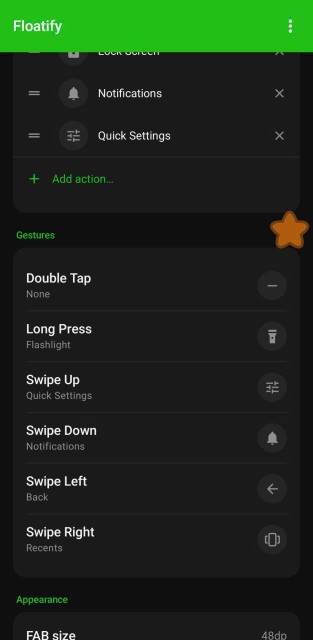
This is where it gets useful. Floatify gives you three gesture slots on the button:
- Single tap
- Double tap
- Long press
For gaming, here is a setup that works well:
| Gesture | Action | Why |
|---|---|---|
| Single tap | Open menu | Reveals all your actions without triggering one accidentally |
| Double tap | Screenshot | Fast enough to catch a moment, deliberate enough not to misfire |
| Long press | DND toggle | Intentional enough for ranked - you want to mean it |
Or if you prefer direct access, skip the menu and map actions directly:
- Single tap: Volume down
- Double tap: Screenshot
- Long press: DND toggle
Both work. The menu approach is better if you want more than three actions reachable.
4. Add Gaming-Relevant Actions to the Menu
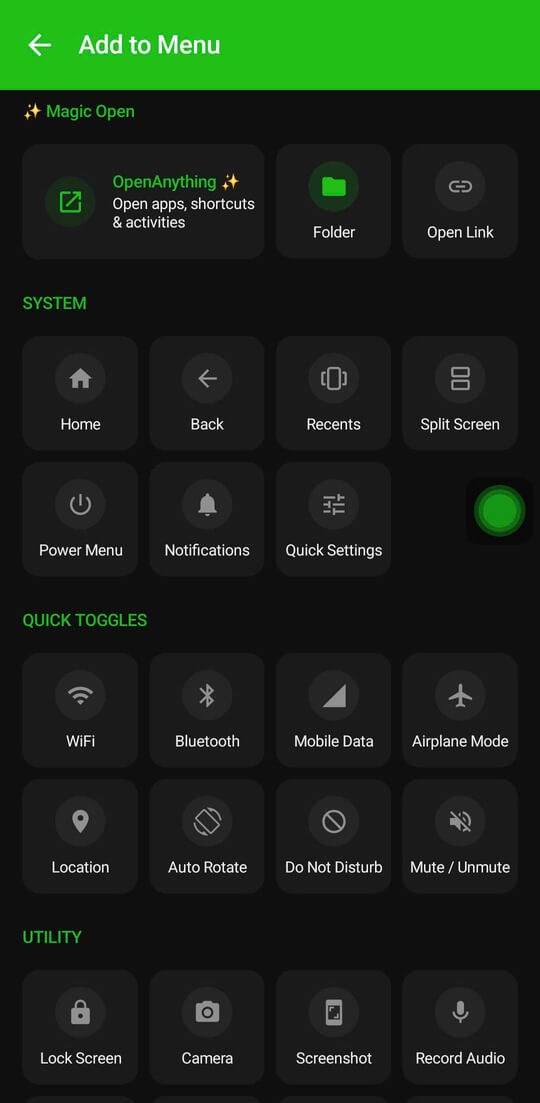
In Floatify's menu settings, you can choose which actions show up. For a gaming-focused setup, add:
- Screenshot
- Volume (up and down)
- Mute ringer
- Do Not Disturb toggle
- Screen record (opens Quick Settings panel)
- Lock screen
That covers basically everything you would ever need mid-session.
5. Enable Auto-Hide for Your Games
This is the feature that makes Floatify actually usable in competitive games. Go to auto-hide settings and add your games to the list. When those apps are in full-screen, Floatify hides itself completely. No button cluttering your screen during a match.
When you need it - to screenshot, mute, whatever - just tap the edge of the screen where the button was, and it briefly reappears. Do your thing, and it hides again.
Where to Position the Button While Gaming
Phone position matters. In portrait mode, the default right-side middle placement usually works. In landscape - which is most competitive mobile games - you need to think about thumb zones.
Avoid the center edges (that is where your thumbs rest on virtual joysticks and fire buttons). The safest spots:
- Top center - above the HUD, rarely where game controls live
- Bottom corner - opposite the side your main action buttons are on
- Top-right corner - works well for left-thumb-dominant games
In Floatify, you can drag the button anywhere on screen and it snaps to the edge. Set it up in portrait first, then rotate and reposition for landscape. It remembers where you put it.
Auto-Hide: Best of Both Worlds
Auto-hide deserves its own explanation because it is the thing that removes the "but it will be in the way" concern entirely.
When auto-hide is on for a specific game, the button is invisible during normal gameplay. You will not see it on screen. It will not overlap your minimap or skill buttons.
Tap near the edge where it lives and it appears temporarily. You take your screenshot or mute your ringer, and it disappears again. It is more like a gesture trigger than a visible button - which is exactly what you want during a competitive match.
You can set auto-hide per app, so Floatify can stay fully visible in casual games where you do not mind it, and go invisible in the games where it matters.
Why Double-Tap for Screenshot (Not Single Tap)
Single tap is the fastest gesture, but fastest is not always best for screenshot.
During gameplay, your thumb might drift near the button when you are reaching for a control. A single-tap screenshot would fire from that accidental touch. Double-tap requires deliberate intent - two taps in quick succession - so it only triggers when you actually mean it.
For DND or mute, long press works for the same reason. These are actions you want to be intentional about. Ranked match, do not accidentally toggle DND and miss a call from someone important.
FAQ
Will Floatify interfere with my game controls? No. With auto-hide enabled, Floatify is invisible during gameplay. It only appears when you tap near its edge. Even without auto-hide, it is a small overlay that does not send any input to the game underneath.
Can I use it with PUBG Mobile, Free Fire, Mobile Legends, and similar games? Yes. Floatify works as an overlay on top of any Android app, including full-screen games. The overlay permission is what enables this, and it is specifically designed for this kind of use.
Does it cause lag or FPS drops? No. Floatify is lightweight and runs as a system overlay service. It does not hook into the game's rendering pipeline, and its own resource usage is minimal - it will not affect your frame rate.
Can I set different action configurations per game? Auto-hide is per-app, so you can choose which games hide the button. The action configuration (what each gesture does) is global - it applies everywhere. You can switch configurations manually between sessions if you want different setups for different games.
Does it work alongside Samsung Game Launcher or ASUS Armoury Crate? Yes. Floatify is an Android overlay app and does not conflict with manufacturer game tools. Both can run at the same time.
Also Read
No ads. No sign-up. Works on Android 10+.