Most people install a floating button because they saw someone else using it. Here's what they're actually doing with it - and why they never go back.
10 Everyday Situations Where a Floating Button Just Makes Sense
You don't realize how many micro-frustrations your phone gives you every day until you remove them all at once. These are the 10 that come up over and over again.
1. Take a Screenshot With One Tap
Before: hold Volume Down and the Power button at the same time. Half the time you trigger the power menu instead, or the screenshot fires a second late and captures the wrong thing.
With a floating button: tap once. Screenshot taken. No button combos, no timing gymnastics.
If you take screenshots often - for receipts, saving posts, sharing conversations - this alone is worth it. Assign screenshot to a single tap and it becomes a reflex within a day.
2. Go Home When You're Using Your Phone One-Handed
You're on a crowded bus, holding a bag, phone in one hand. The home gesture is at the very bottom of the screen. Your thumb can't reach it without shifting your grip, and one slip and the phone goes flying.
With a floating button: the button sits right where your thumb naturally rests. One tap, home. No stretching, no fumbling.
This is one of the reasons people with larger phones especially love it. The floating button lives wherever you put it - edge of the screen, middle, wherever your thumb lands.
3. Turn on the Flashlight When Your Hands Are Full
You're in a dark parking lot, keys in one hand, groceries in the other. Or you're cooking and you need to check something under the counter. To turn on the torch normally, you'd need to swipe down twice to reach Quick Settings.
With a floating button: one tap. Torch on.
One tap to turn it off again when you're done. That's the whole interaction. It sounds simple because it is - but you'll remember it the first time you need a light at 11pm and your hands aren't free.
4. Mute Everything Before Walking Into a Meeting
The side volume buttons are small, they feel the same on both sides, and pressing the wrong one in a panic is a rite of passage. You've been there - phone starts ringing during a meeting, you fumble for the button, press the wrong side, it gets louder.
With a floating button: one tap DND toggle. Silent before you even open the door.
Assign Do Not Disturb to a single tap and it becomes muscle memory. You'll stop dreading that walk into quiet rooms.
5. Lock Your Screen Before Handing Your Phone to Someone
This isn't about deep security concerns. It's that one moment when you hand your phone to a friend to show them a photo, and you quietly wish they wouldn't swipe around. Or you're giving it to a kid for one specific thing and you don't want random apps opening.
One tap lock. Screen off. Simple.
No power button required, no reaching for the edge. The floating button is already on the screen in front of you.
6. Turn Down the Volume When Something Plays Too Loud
You open a video in public and it's instantly at full blast. You grab for the side buttons - but which way is down? You press, something changes, you look at the screen. Too slow, too loud, everyone heard it.
With Floatify's volume slider: tap the floating button, a slider appears. Drag it down. Done before the second second of that video plays.
The volume control in Floatify is a smooth on-screen slider, not a physical button hunt. It's much faster in any situation where volume matters fast.
7. Open Your Camera From Inside Any App
You're deep inside a browser, a messaging app, or a map - and you suddenly need to take a photo. The normal path: back out to home screen, find the camera icon, tap it. Three steps minimum, plus a context switch.
With a floating button: one tap shortcut to the camera from wherever you are.
Assign "Open Camera" to your floating button and it's always one tap away, no matter what app you're in. You never have to interrupt what you're doing just to take a quick photo.
8. Go Back Two Levels With a Double-Tap
You've drilled five levels deep into a settings menu. Or you're reading a long article that linked you somewhere else. Getting back means tapping the back gesture or button over and over, and it's tedious.
Set double-tap on your floating button to trigger Back. Two taps in quick succession and you jump back through history without reaching for the edge of the screen.
This is one of those features that feels small until you use it for a week. Then trying to use Android without it feels clunky.
9. Start Split-Screen Mode in One Tap
Split screen is one of Android's most underused features. Not because people don't want it - because the steps to get there are buried. Most people gave up after trying it once and finding the flow annoying.
With Floatify: split screen is one tap. Assign it, tap it, you're in.
Use it to watch a video while replying to messages. Use it to compare two apps side by side. It's a powerful feature that finally becomes usable when it's a single tap away.
10. Turn Off Notifications During a Movie Without Pausing It
You're watching something and a notification sound comes through. To silence notifications the normal way: pause the film, swipe down from the top, find the DND toggle, tap it, swipe back up, resume. That's six steps and a broken moment.
With a floating button: one tap DND toggle. Movie keeps playing. You never even paused.
This is the kind of quality-of-life thing that's hard to explain until you've had it. The movie moment stays intact. The notification is gone. You didn't even stop.
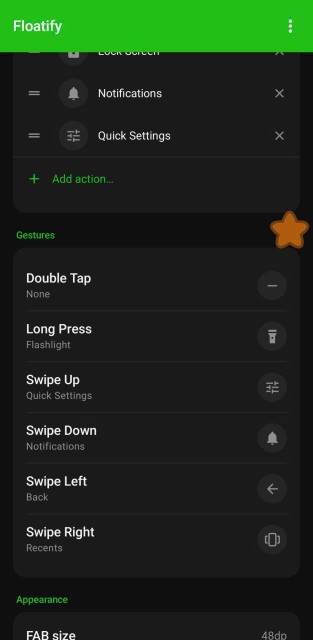
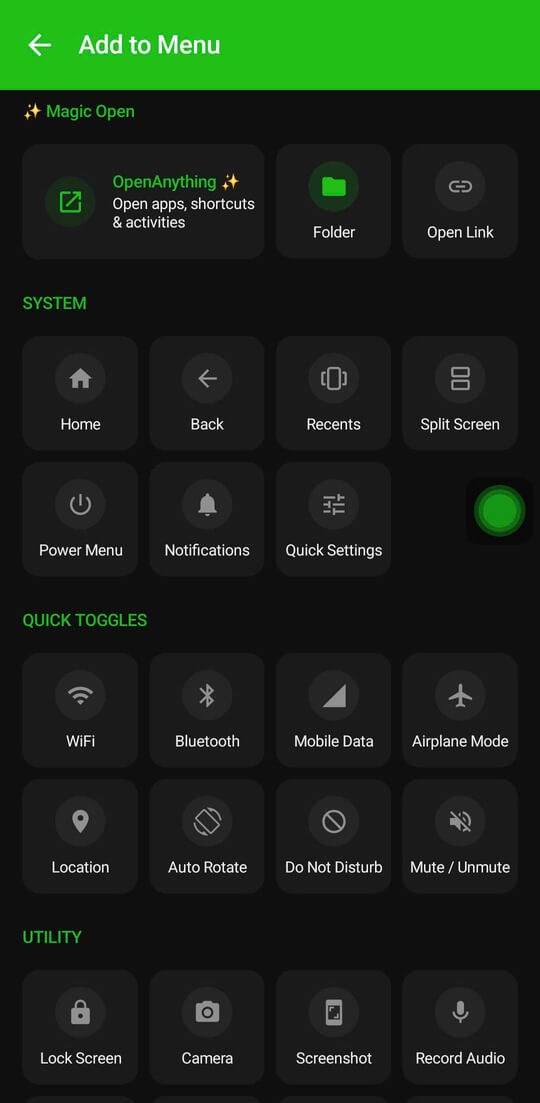
All of these are Floatify actions. Free, no ads, setup in 5 minutes. Three gesture slots (single tap, double tap, long press) so you can stack your three most-used shortcuts right there on the button. Pick a menu layout - radial, grid, vertical, panel - and get multiple actions visible at once.
If you haven't tried a floating button yet, these are the 10 reasons most people start. And then never go back.
Get Floatify on Google Play - Free, No Ads
Also read:
No ads. No sign-up. Works on Android 10+.