You are in the middle of a game. Someone texts you, and your phone buzzes. You want to silence it quickly. So you exit the game, swipe down twice to reach Quick Settings, tap the mute toggle, then navigate back. By the time you are back in the game, you have already died twice.
That is the friction Android's default setup creates every time you need a system toggle - and it adds up fast.
This guide walks through building your own Android control center using a floating button app, so your most-used shortcuts are one tap away no matter what is on your screen.
Why Android's Quick Settings Fall Short
Android has Quick Settings - that panel of toggles you get by swiping down from the top of the screen. It covers Wi-Fi, flashlight, Bluetooth, DND, and more. It is genuinely useful. But it has two problems:
It takes two swipes to reach. One swipe opens your notification shade. A second swipe expands the full Quick Settings panel. That is two gestures, two interruptions, every single time.
It disappears in full-screen apps. Games, YouTube, video calls, navigation apps - anything that goes full-screen hides the status bar entirely. You cannot swipe down. Your only option is to exit the app, open Quick Settings, do your thing, and navigate back. That flow breaks immersion and wastes time.
Neither problem is a flaw, exactly - it is just how Android prioritizes screen real estate. But if you use your phone heavily for gaming, video, or any focused task, you will feel that friction constantly.
What a Real Control Center Looks Like
The concept is simple: a small, always-accessible launcher that sits on top of whatever you are doing, lets you hit common system toggles in one or two taps, and then gets out of the way.
The actions that matter most for a "control center" role are the ones you reach for while doing something else - not while you are already on the home screen. Things like:
- Flashlight (dark room, hands full)
- Mute or volume down (meeting starts, someone walks in)
- Screenshot (sharing something mid-app)
- Wi-Fi toggle (switching between data and home network)
- Lock screen (done with the phone, fast)
- Do Not Disturb (focus mode, movie time)
- Notification panel (quick check without losing your place)
That shortlist does not need to live in a separate menu buried two swipes away. It can live in a floating button that stays on every screen.
Building Your Own Android Control Center with Floatify
Floatify is a free Android app that puts a floating action button on every screen. The overlay works inside full-screen games and apps - it is always there. Tap it to open a menu of shortcuts you choose. No ads, no purchases, everything unlocked.
Here is how to set it up as a proper control center.
Step 1 - Download and Grant Permission
Install Floatify from the Play Store. On first launch, it asks for the "Display over other apps" permission (also called SYSTEM_ALERT_WINDOW). This is the only permission required for the control center to work.
Grant it, then return to Floatify. The floating button appears immediately.
Step 2 - Choose a Layout That Matches a Control Center
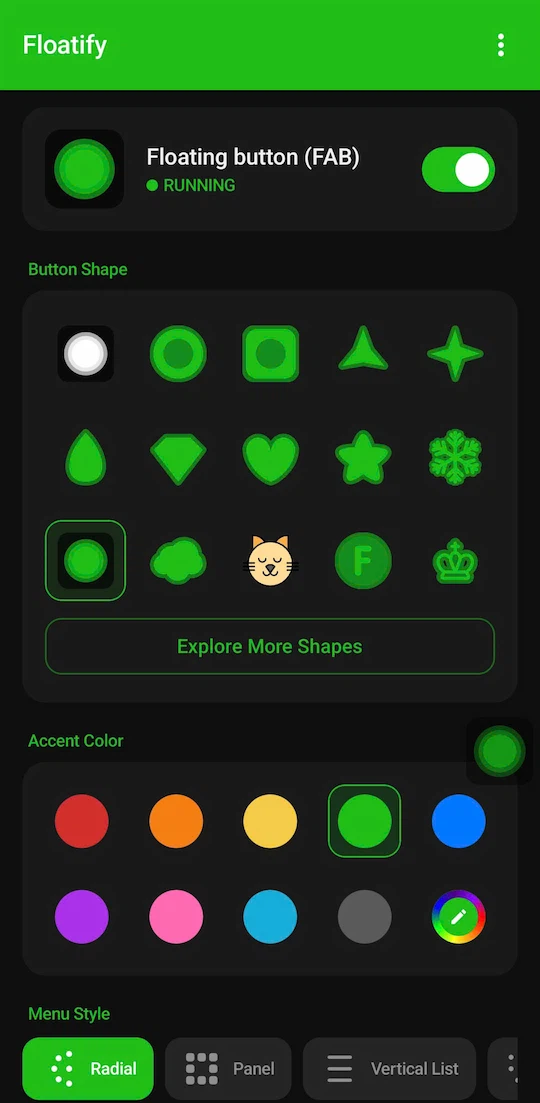
Open Floatify's settings and look at the layout options. For a control center feel, two layouts work best:
- Grid - shows multiple actions in a compact grid, similar to how Quick Settings tiles look
- Panel - a horizontal or vertical strip of icon buttons, great for 5-8 actions
Both layouts let you see all your shortcuts at a glance without tapping through sub-menus.
Step 3 - Add Your Control Center Actions
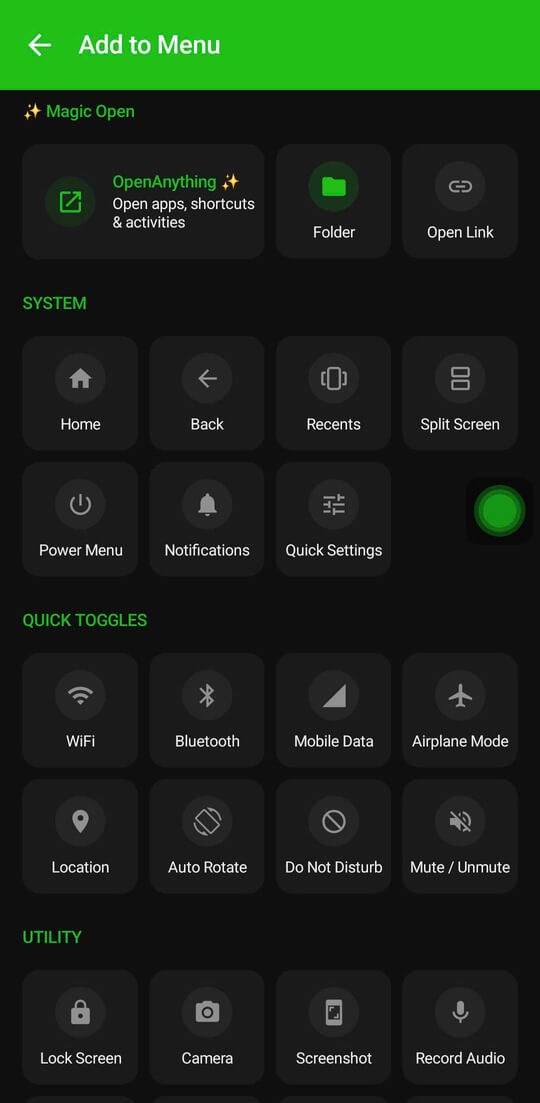
Inside the menu editor, add the actions that matter most to you. A solid starting set:
| Action | Why it belongs here |
|---|---|
| Flashlight / Torch | Most common reason to reach for Quick Settings |
| Volume controls | Adjust without opening any other app |
| Mute ringer | One tap to silence notifications |
| Do Not Disturb | Quick focus mode toggle |
| Screenshot | Capture anything, from any app |
| Wi-Fi toggle | Switch on/off without leaving your current app |
| Lock screen | Done with the phone, faster than the power button |
| Notification panel | Peek at notifications without losing your place |
You are not limited to this list - Floatify also supports launching specific apps, Bluetooth toggle, and more.
Step 4 - Set Up Gesture Shortcuts
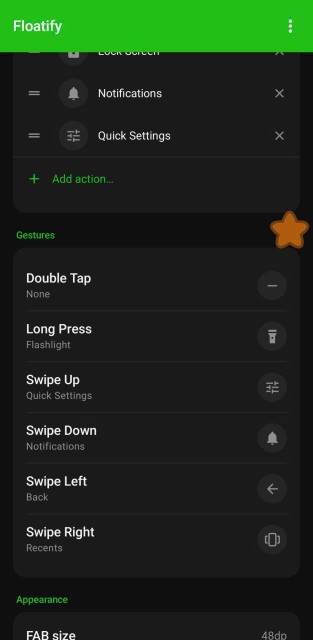
Floatify gives you three gesture slots on the floating button: single tap, double tap, and long press. Each can trigger a different action independently.
A useful control center setup:
- Single tap - opens the full menu (your grid or panel)
- Double tap - flashlight (the most instant-access action)
- Long press - lock screen (quick "put phone away" gesture)
This way your most-used toggles never even require opening the full menu.
Before and After: Real Scenarios
Scenario 1 - Gaming, need to mute fast
Before: Pause game - swipe down - swipe down again to expand Quick Settings - tap mute - navigate back to game. Five steps, 10+ seconds.
With Floatify: Tap the floating button - tap mute. Two steps, 2 seconds. Still inside the game the entire time.
Scenario 2 - Video call, screen too bright
Before: Awkward pause, explain you are adjusting something, exit the call app, swipe into Quick Settings, drag brightness, come back. If the brightness slider is buried, even longer.
With Floatify: Tap the button, tap the Quick Settings shortcut. The brightness slider is right there. The call does not drop, you never left the screen.
Scenario 3 - Reading late at night, phone buzzing
Before: Reach over, swipe twice, toggle DND, set it back down.
With Floatify: One tap on the floating button, one tap on DND. The button is always in the same corner - no hunting for the status bar.
Three Starter Configurations
You do not need to figure out your perfect setup from scratch. Here are three ready-to-build configurations based on how you use your phone:
Basic - good default for most people Flashlight, Screenshot, Volume, Lock screen
Gamer - for when you play mobile games regularly DND, Mute ringer, Screenshot, Lock screen, Back
Productivity - for work-from-phone workflows Notification panel, Screenshot, Wi-Fi toggle, Lock screen, Home
Each configuration takes about two minutes to set up in Floatify's action editor.
Frequently Asked Questions
Does the floating button work inside full-screen games?
Yes. Floatify uses Android's overlay system, which runs on top of every app including full-screen games. The button remains visible and tappable even when the status bar and navigation bar are hidden. This is the main reason it works where native Quick Settings do not.
Can I use it without unlocking my phone?
No. The overlay only works when your phone is unlocked and the screen is on. Floatify cannot interact with the lock screen itself.
The "display over other apps" permission sounds invasive - what does it actually do?
SYSTEM_ALERT_WINDOW (display over other apps) lets Floatify draw its button and menu on top of other apps. That is the entire extent of what the permission allows. It does not give the app access to what is on your screen, it cannot read content from other apps, and it has no access to your notifications, contacts, or any data. It is the same permission used by chat heads and screen recorders.
Floatify requires no other permissions to function as a control center. It does not request location, camera, microphone, storage, or accessibility service unless you specifically add an action that needs one (and it will tell you why when you do).
Does it work on all Android phones?
Floatify works on Android 7.0 and above, which covers virtually every Android phone sold in the past several years. It works on Samsung, Pixel, OnePlus, Xiaomi, and other Android OEMs without any special setup.
Does it replace or conflict with the notification panel?
No - both work independently. You can still swipe down to open your notification shade the normal way. Floatify adds a parallel path, it does not remove the one you already have. If you ever want to see rich notifications or manage notification groups, the normal swipe is still there.
Also Read
No ads. No sign-up. Works on Android 10+.