The back button is the control you press more than any other on Android. When it stops responding, the phone becomes exhausting to use - you end up closing apps entirely just to get out of a screen.
Back fails differently from the other navigation buttons, and the fix depends on which kind of back you are using. Work through these in order.
First: Which Kind of Back Is Failing?
Android gives you back in one of two forms, and they break for completely different reasons.
3-button navigation puts a visible back arrow in a bar at the bottom. If that arrow is on screen and taps do nothing, you have a touch or System UI problem.
Gesture navigation has no button at all - you swipe in from the left or right edge. If the swipe does nothing, you usually have a conflict or a sensitivity problem, not a broken phone.
Check which one you are on: Settings - System - Gestures - System navigation on stock Android, or Settings - Display - Navigation bar on Samsung.
This matters because the most common cause of "back button not working" on modern phones is not a fault at all. It is an app eating the edge swipe.
Fix 1: Restart, Then Watch What Else Broke
Hold power and do a full restart, not sleep.
Then pay attention to one thing: did only back fail, or did home and recents stop too? If all three died together, the cause is System UI hanging, not the back control. In that case the navigation bar guide covers it properly, because the fix is different.
If back alone is failing and the others are fine, keep going.
Fix 2: The Safe Mode Test (30 Seconds, Skips Hours of Guessing)
This is the single most useful test and almost nobody does it first.
- Hold the power button
- Long-press "Power off" until the safe mode prompt appears
- Tap OK and wait for the phone to boot
Safe mode runs Android without any app you installed. Now try back.
If back works in safe mode, an installed app is the cause. Uninstall anything added shortly before the problem started. The usual suspects are launchers, screen recorders, clipboard managers, and anything that draws over other apps.
If back still fails in safe mode, skip to Fix 5. No amount of uninstalling will help.
Fix 3: The Edge Swipe Is Being Stolen
This is the most common cause on gesture navigation, and it is not a malfunction.
Apps with a side drawer - Gmail, Slack, Reddit, most messaging apps - use the same left-edge swipe to open their menu. Android has to guess which one you meant, and inside those apps it often guesses the app. So back works everywhere except the app you are in, which makes it feel randomly broken.
What actually helps:
- Swipe from lower down on the edge, below where the drawer handle sits
- Increase back sensitivity: Settings - System - Gestures - System navigation - gear icon next to Gesture navigation - drag the sensitivity slider up
- Swipe from the right edge instead of the left, if the app only hijacks one side
Sensitivity is a real trade-off. Turn it up and back gets more reliable, but you will trigger it by accident while scrolling carousels and dragging sliders.
Fix 4: Check the Case and Screen Protector
Curved-screen phones plus a thick case is a genuinely common cause, and it looks exactly like a software fault.
A case with a raised lip covers the few millimetres of screen where the back gesture starts. A poorly cut screen protector does the same. The test is simple: take the case off and try back. If it works, the case was the problem.
Foldables have their own version of this - the back gesture on the inner screen is often unreliable near the crease, because the digitizer there is less sensitive.
Fix 5: Test for a Dead Touch Strip
If back failed in safe mode too, check whether the screen itself has stopped registering touch in that area.
Do not use the keyboard for this. It is laid out above the navigation bar, so its bottom row never covers the strip the back button sits on, and a phone can pass the typing test while the band under the buttons is completely dead. Turn on Settings - System - Developer options - Pointer location (if Developer options is not in Settings yet, open Settings - About phone and tap Build number seven times), then drag a finger slowly across the very bottom of the screen. If the trace breaks or stops inside one band, you have a dead strip in the digitizer. On Samsung, Samsung Members - Support - Phone diagnostics - Touch screen runs the same check with nothing to enable first.
That is hardware. No setting fixes it. Your options are a screen replacement, or moving navigation somewhere the screen still works - which is Fix 6.
Fix 6: Move Back Off the Failing Part of the Screen
If back is unreliable because of gesture conflicts, a case, a crease, or a dead strip, the durable answer is to stop depending on that part of the screen at all.
A floating button sits wherever you put it, draws over every app, and triggers back through Android's accessibility layer rather than the navigation bar. Apps cannot steal it, cases cannot cover it, and a dead strip at the bottom of the screen does not matter because you can move it to the middle.
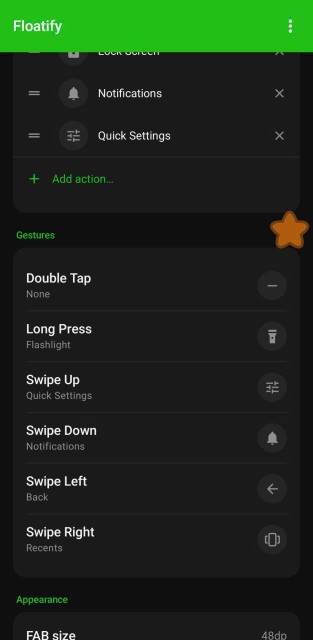
Floatify does this and is free with no ads. Assign Back to a single tap, or keep tap for Home and put Back on a swipe - whichever suits your thumb.
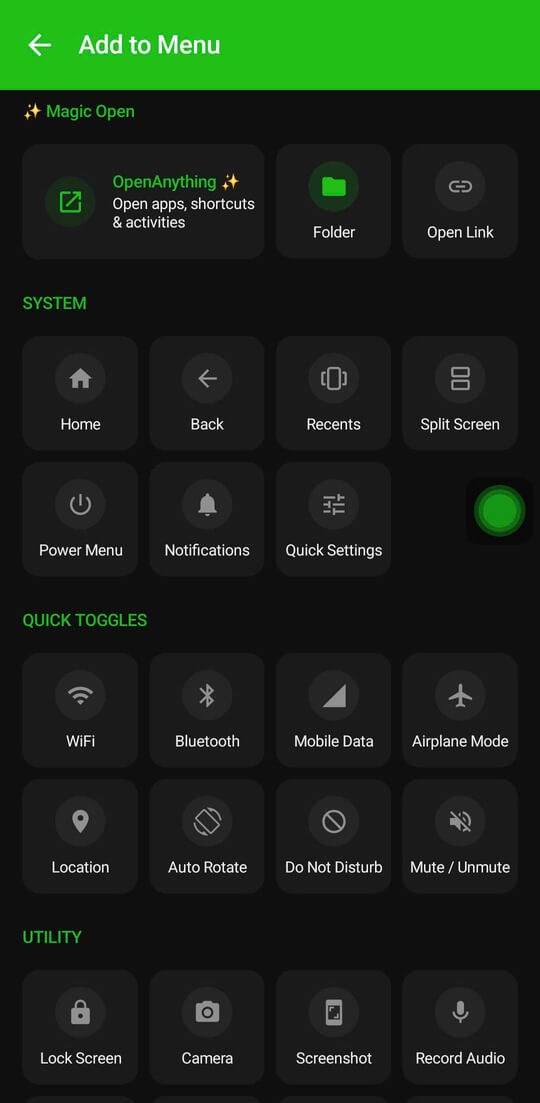
The full walkthrough, including how Floatify avoids clashing with the system back gesture, is in Add a Floating Back Button to Any Android Phone.
When It Is Genuinely Hardware
Go to a repair shop when the back failure survives safe mode and the pointer trace shows a dead band, or when the screen is visibly cracked near the bottom edge.
Screen assembly replacement at a third-party shop costs a fraction of a new phone, and noticeably more on curved or foldable displays - get a quote before you commit. Worth knowing before you book: a floating button works as a replacement for as long as you need it, so the repair is a choice rather than a necessity.
Frequently Asked Questions
Why does back work in some apps but not others?
Because those apps use the edge swipe for their own side menu. Android resolves the conflict in the app's favour. This is behaviour, not a fault, and raising gesture sensitivity or using a floating button both get around it.
I switched to gesture navigation and now there is no back button at all.
That is expected - gesture navigation removes the on-screen buttons. Swipe in from either edge to go back, or switch to 3-button navigation in Settings if you prefer the visible arrow.
Does a floating back button work if the screen digitizer is damaged?
Yes, as long as the damaged area is not where you place the button. Drag it to a part of the screen that still registers touch and back works normally again.
Will a floating button conflict with the system back gesture?
Floatify registers a gesture exclusion zone around the button on Android 10 and later, so a swipe on the button is not taken by the system back gesture. Android caps how much of each edge an app may exclude, so this is a strong guard rather than an absolute one.
Is there any way to get back without the screen at all?
Android's Accessibility Menu adds an on-screen overlay with Back, Home and Recents. It is large and fixed in place, but it is built into the OS and needs no install.
Also Read
No ads. No sign-up. Works on Android 10+.